| Easy Heading Macro | ||||||||
|---|---|---|---|---|---|---|---|---|
|
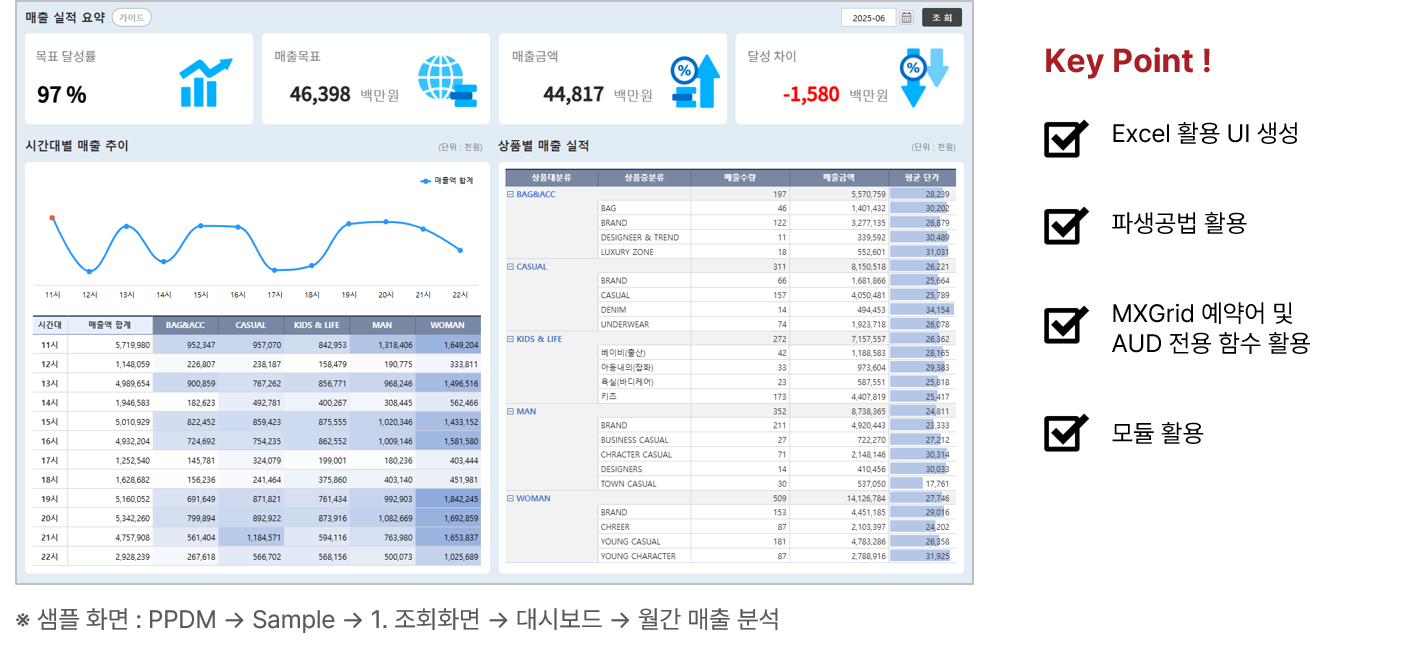
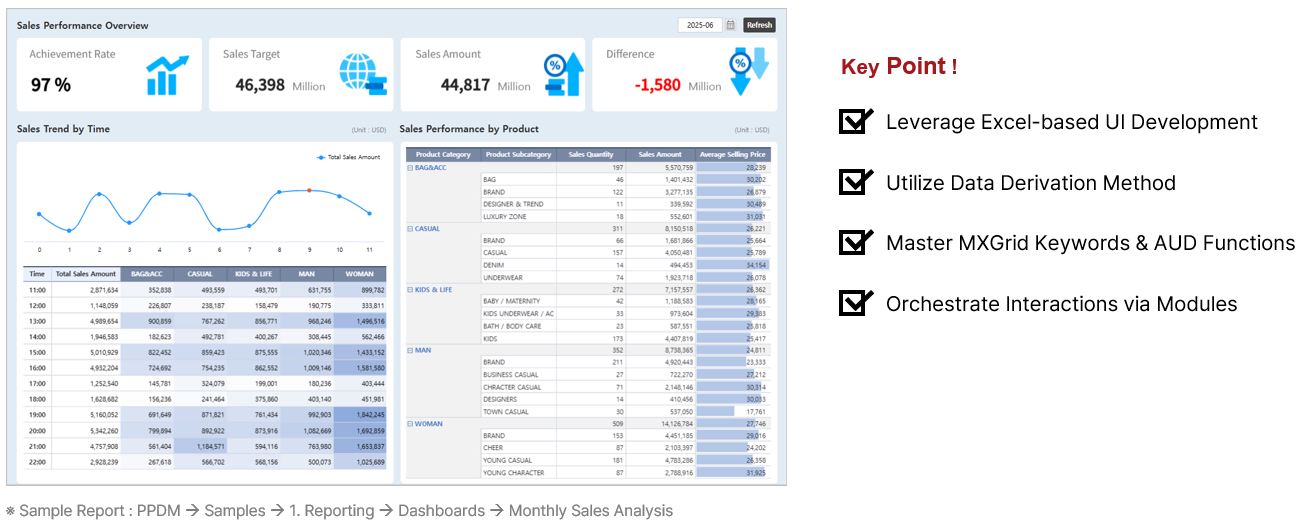
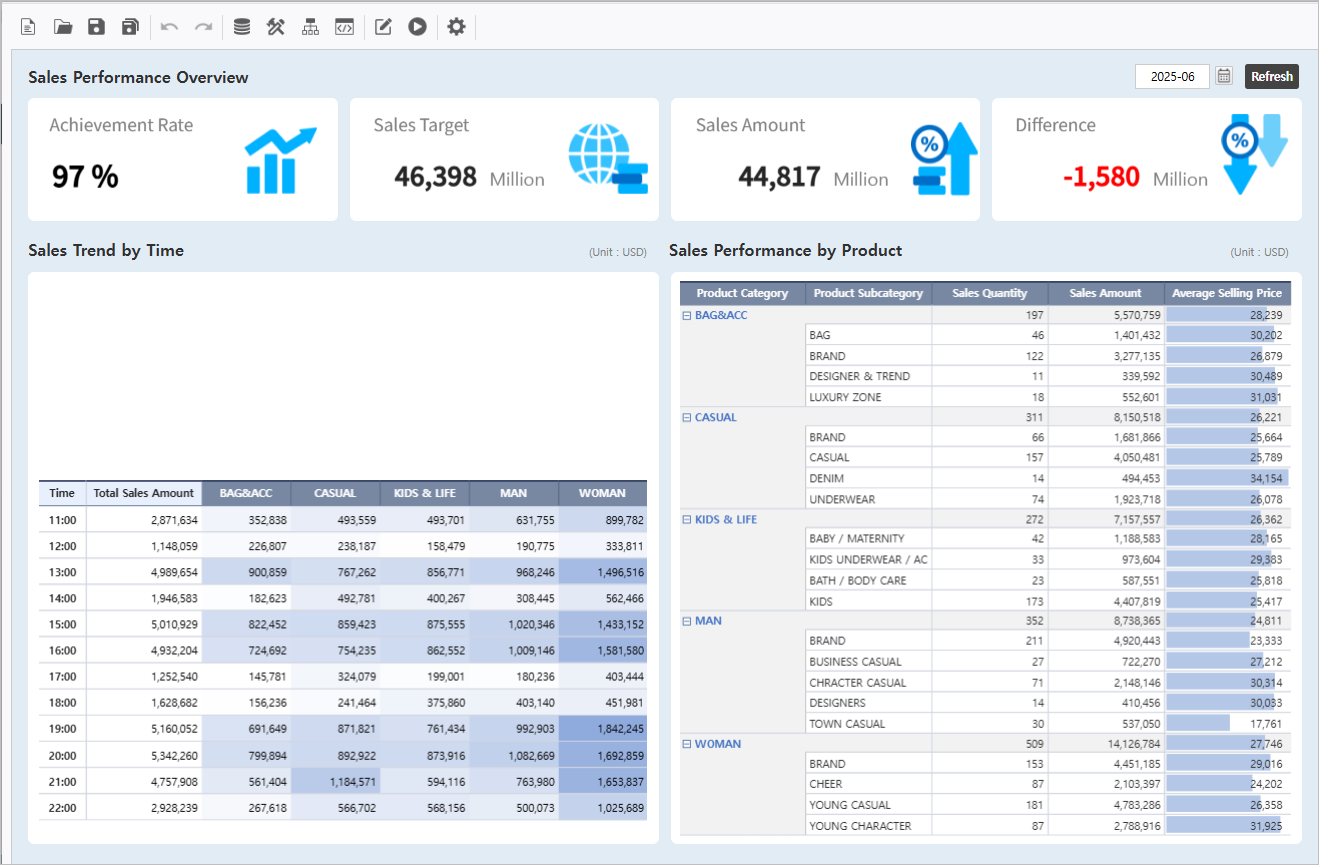
목표화면Target Screen | |||||
|---|---|---|---|---|---|
| |||||
|


Step 1. Design the Excel
...
Interface
실습용 Excel파일을 다운로드 하여 오픈합니다 Download and open the practice Excel file.
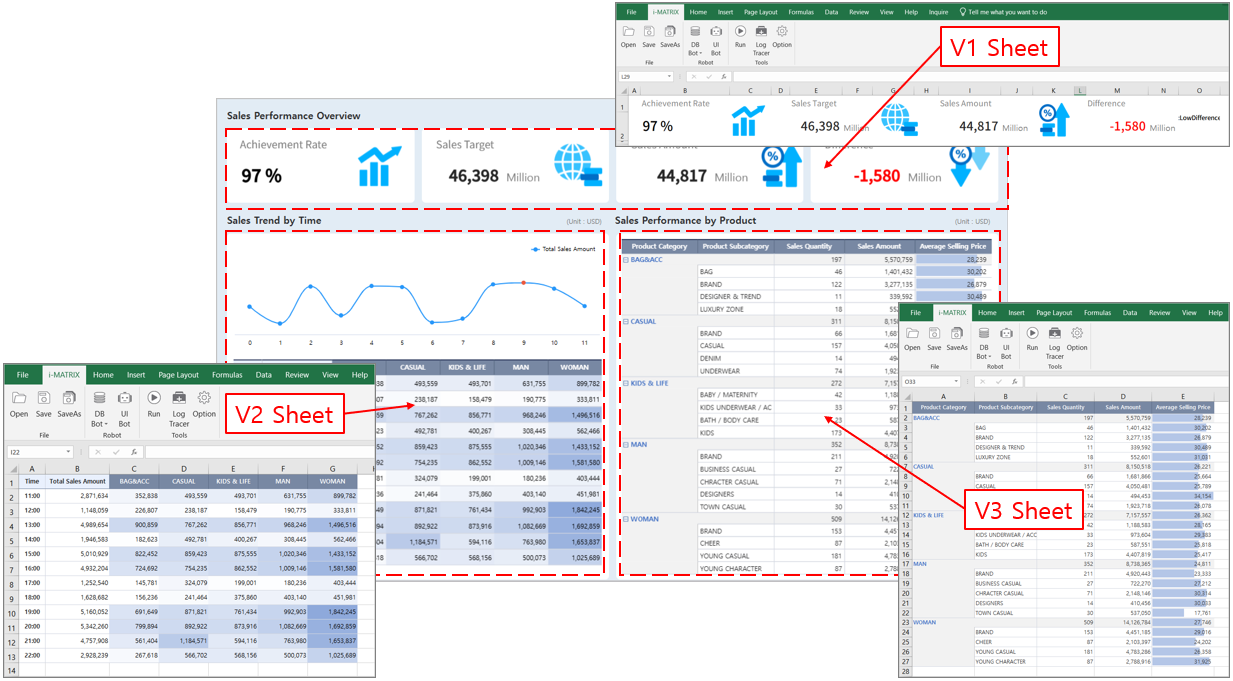
화면으로 전환될 Verify the V1, V2, V3 시트를 확인합니다. 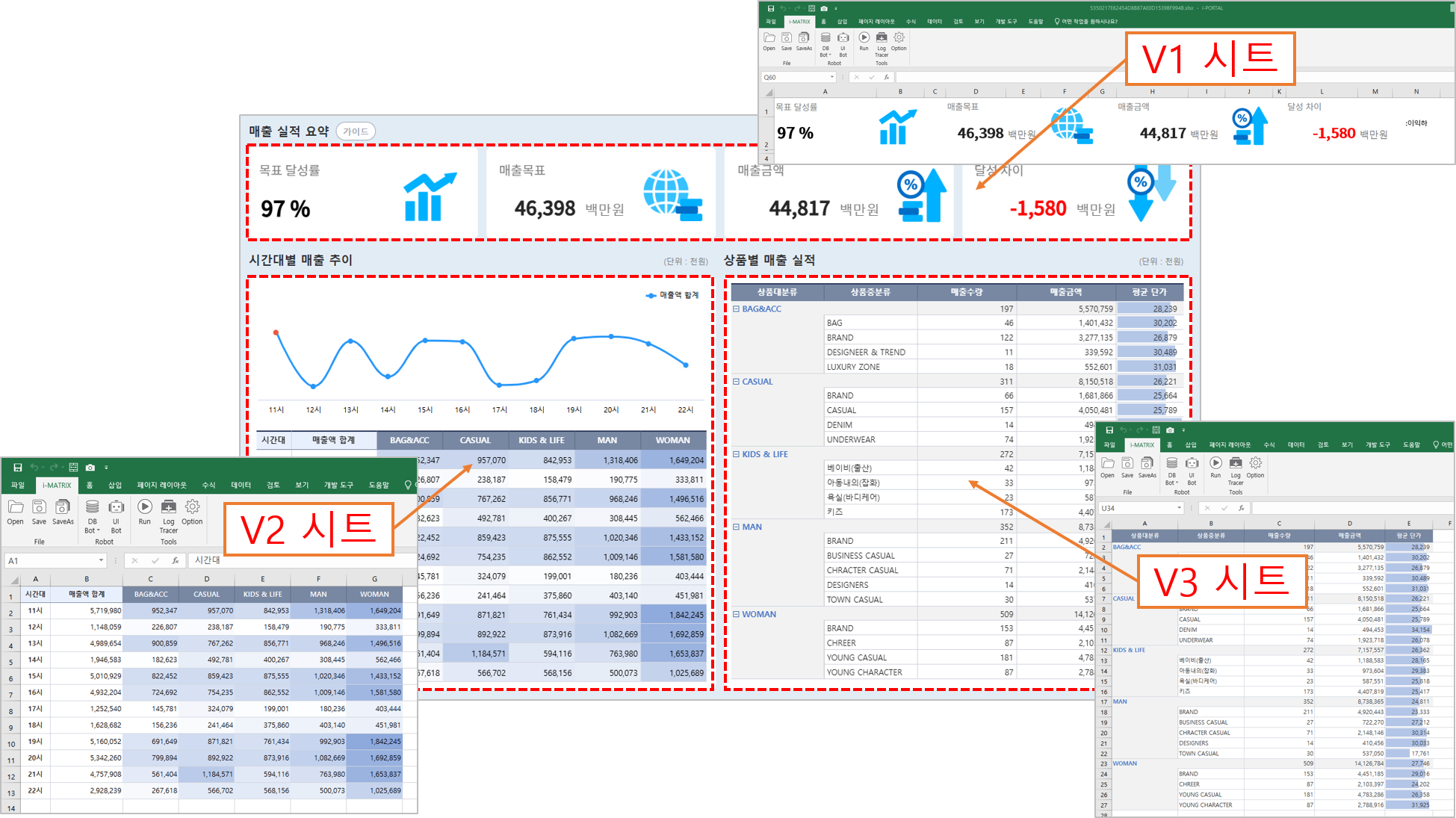 and V3 sheets that will be converted into web interface.
1.1
...
V1 시트에서는 주요 지표를 나타내고, 해당 지표들의 데이터 시트인 T1 시트와 연결합니다.
이후 조건부 서식과 이미지 함수를 활용하여 시각화를 진행합니다.
...

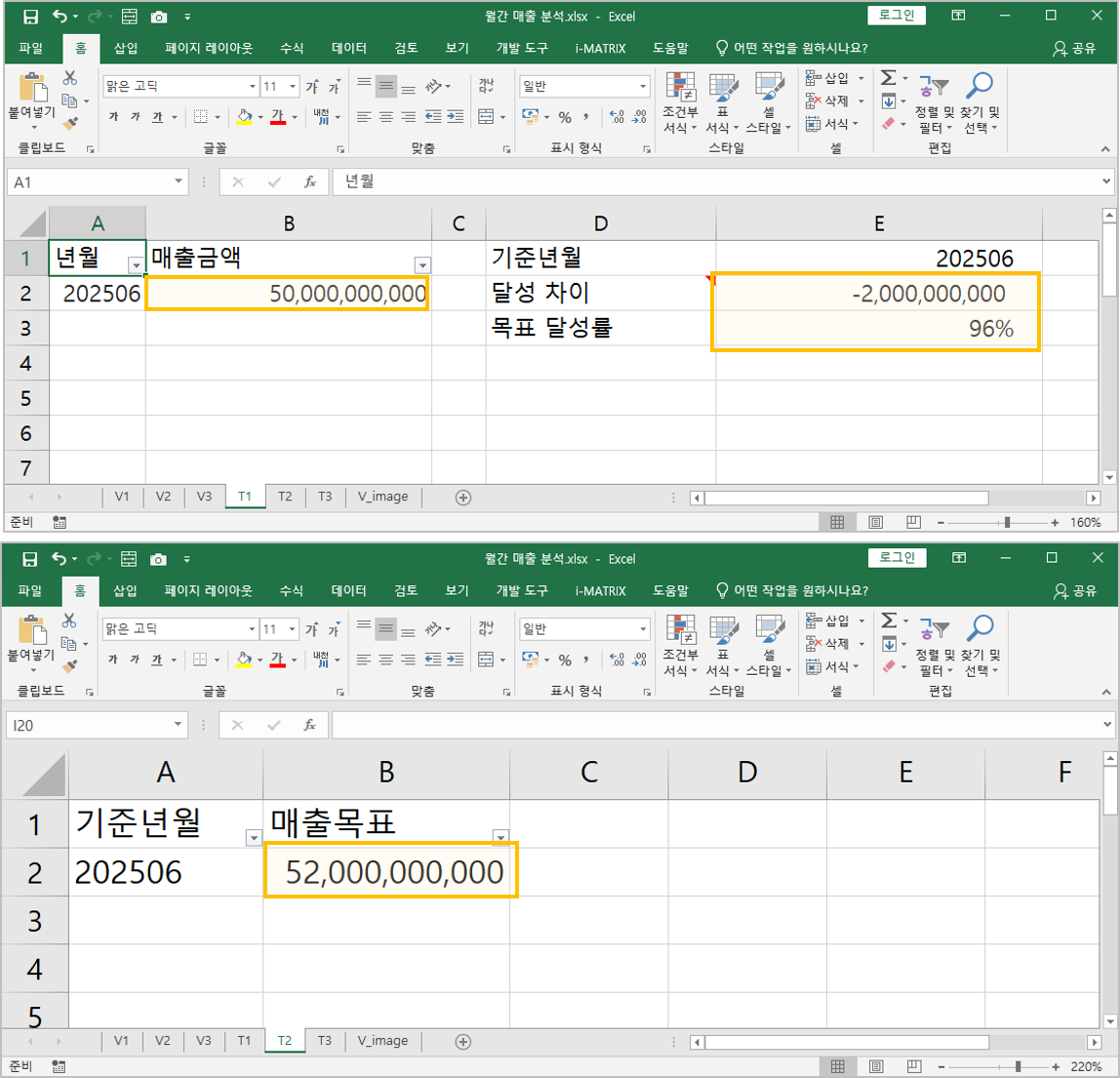
(참고) 데이터 시트 - T1, T2 시트
...
V1 Sheet Key Metrics
Establish primary KPIs in V1 and link them to T1, the corresponding data sheet.
Apply Conditional Formatting and Image functions for visualization.
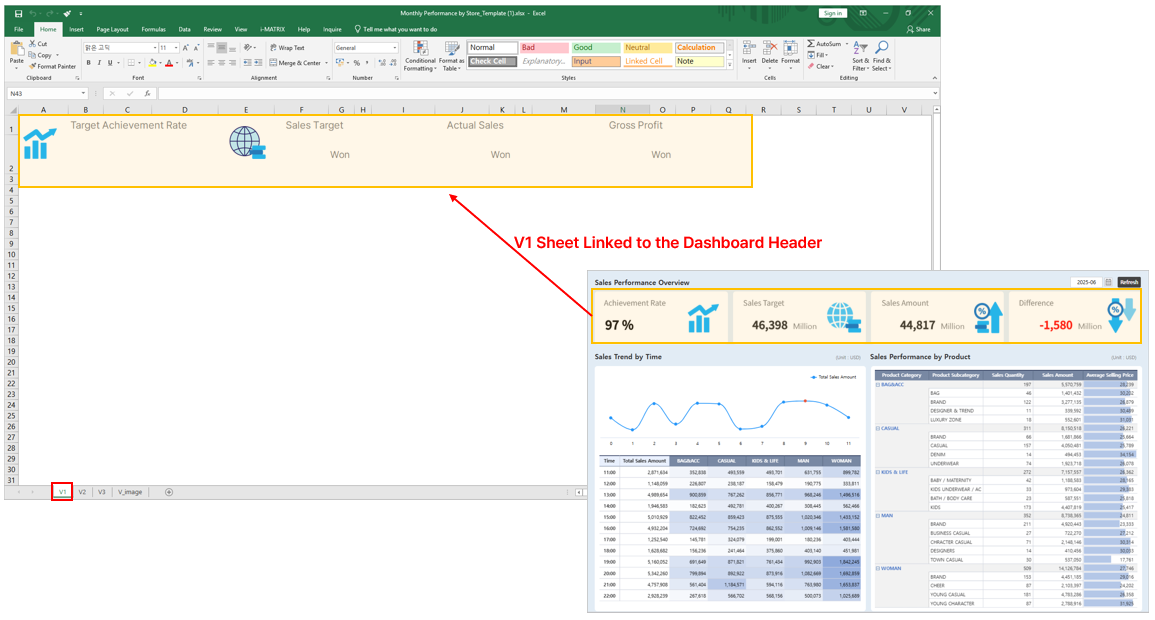
1. Move the indicators from V1 to the T1 data sheet and link each cell to the corresponding metric value.

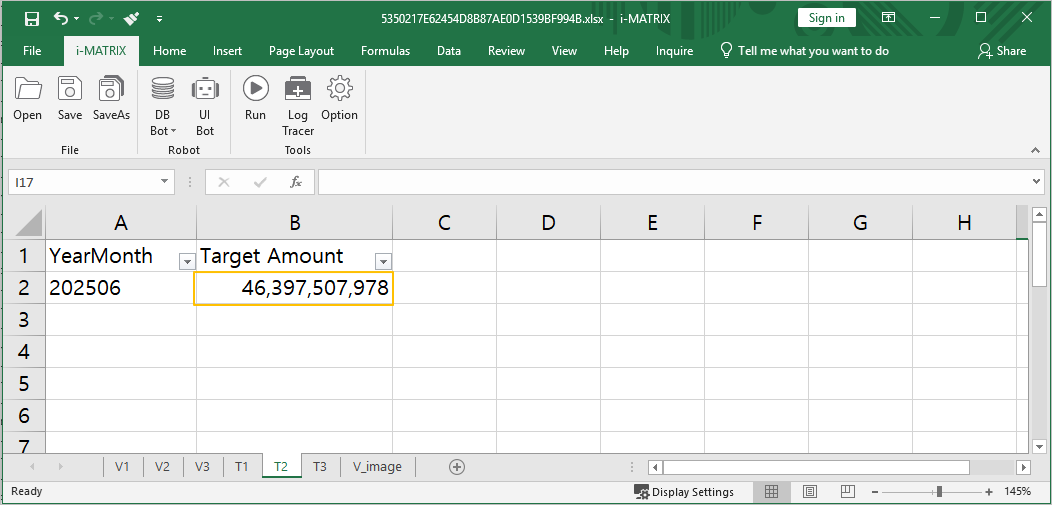
(Note) Data Sheets - T1 and T2 Sheets
1.2 V2 Sheet Hourly Sales Trends
- Establish hourly sales trends in V2, and aggregate data using
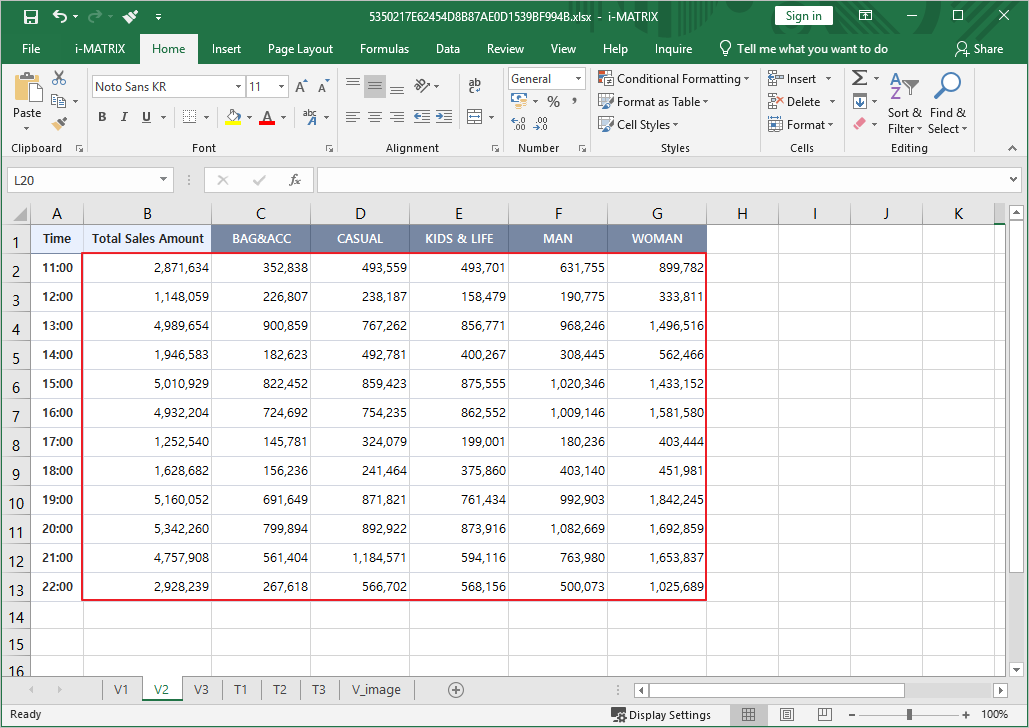
SUMIFSfunction and get time-dimension using Data Derivation Method. - Navigate tot he T3 data sheet and parse the time items using a function to enable SUMIF aggregation.
Time Derived Function =LEFT(C2,2)&" 시hour"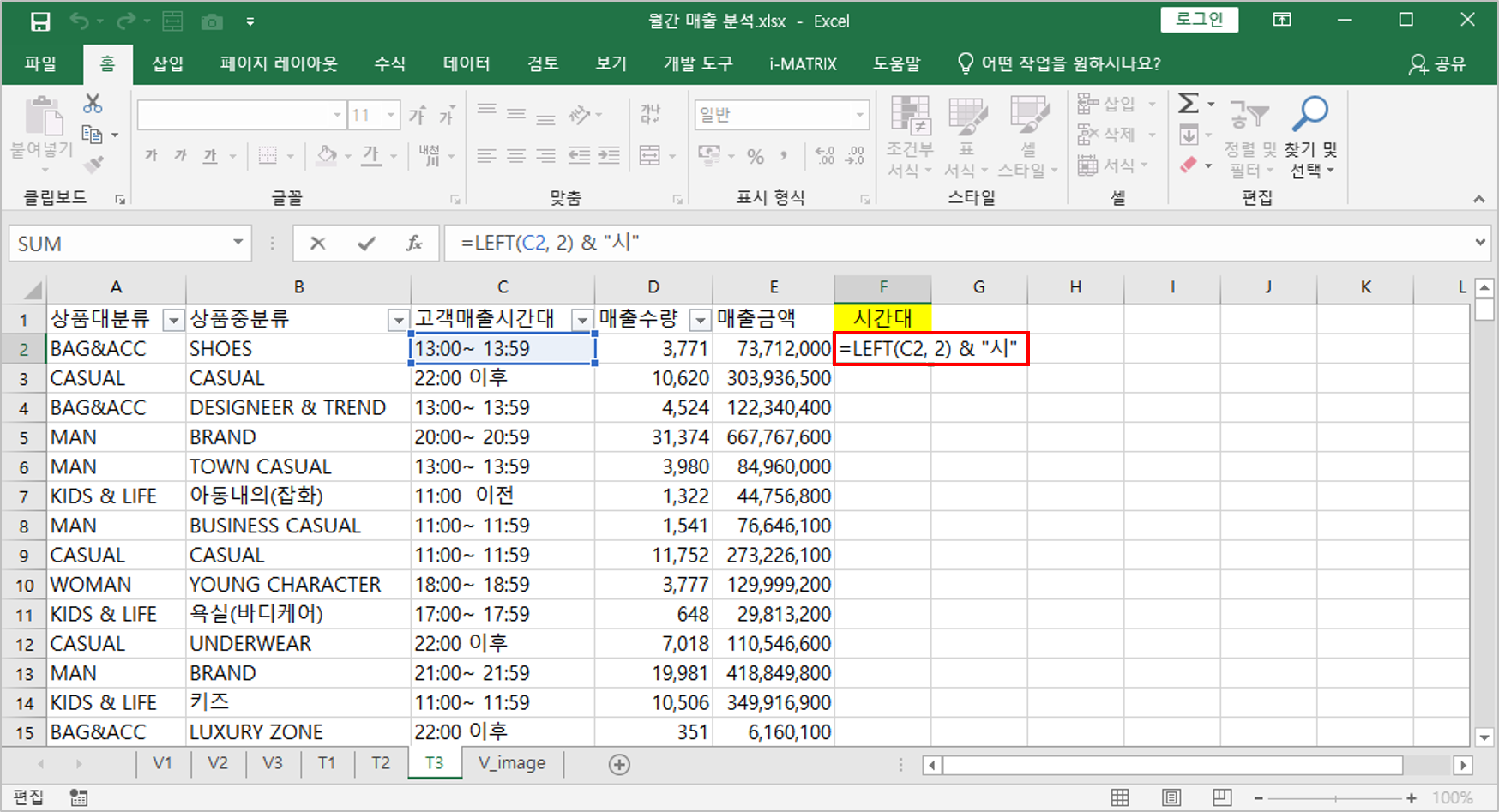
V2시트에 SUMIFS 이용 T3의 데이터 시트와 연결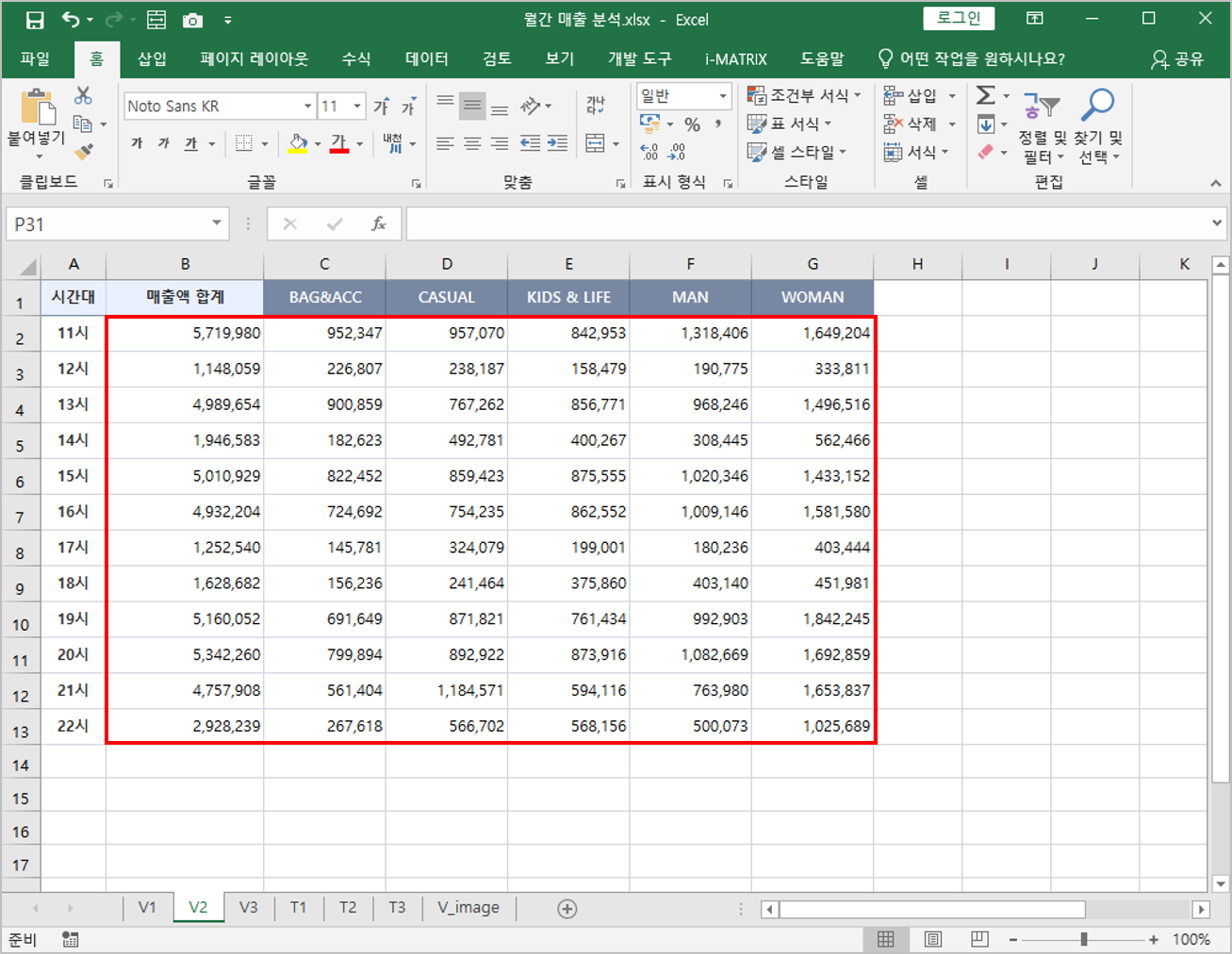
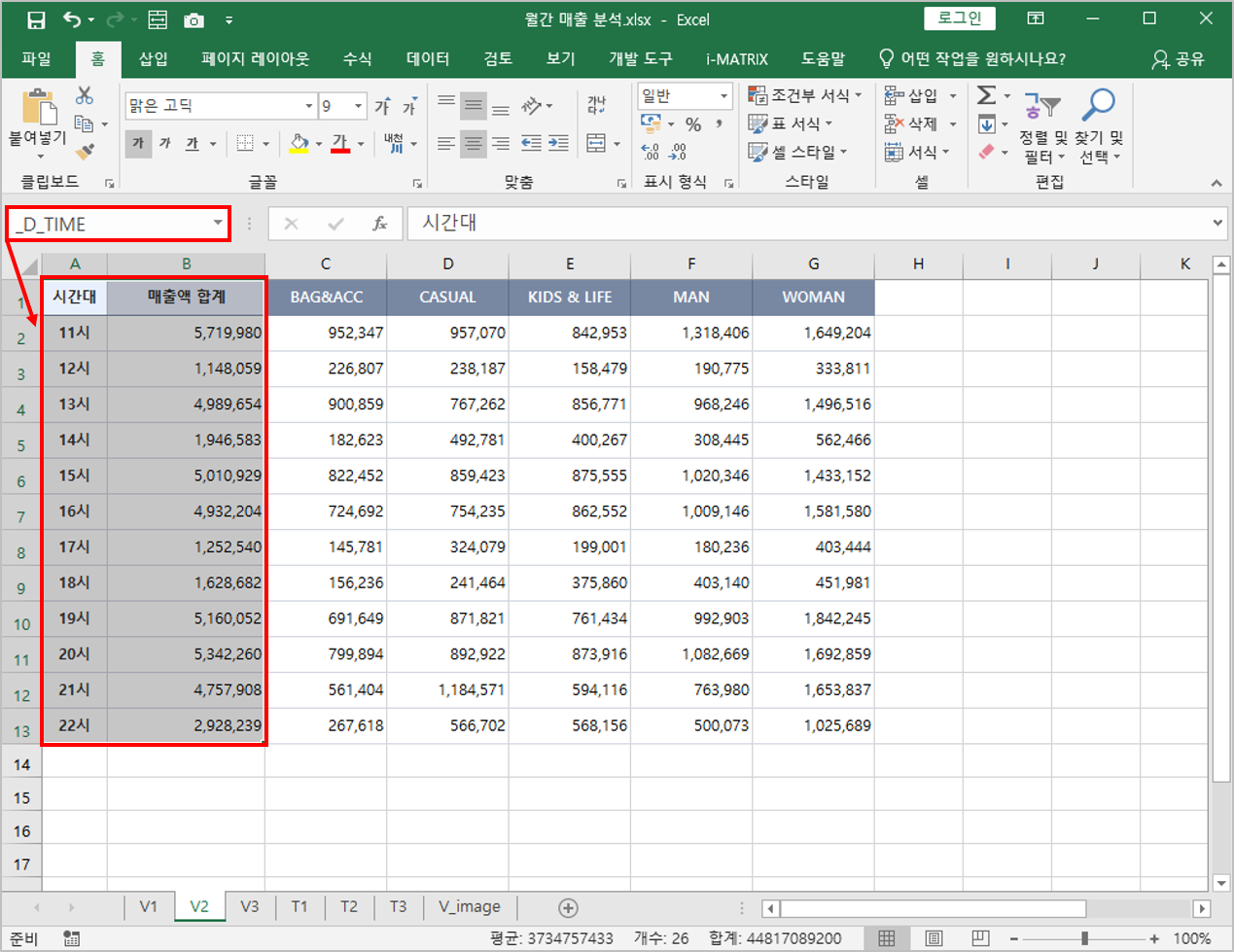
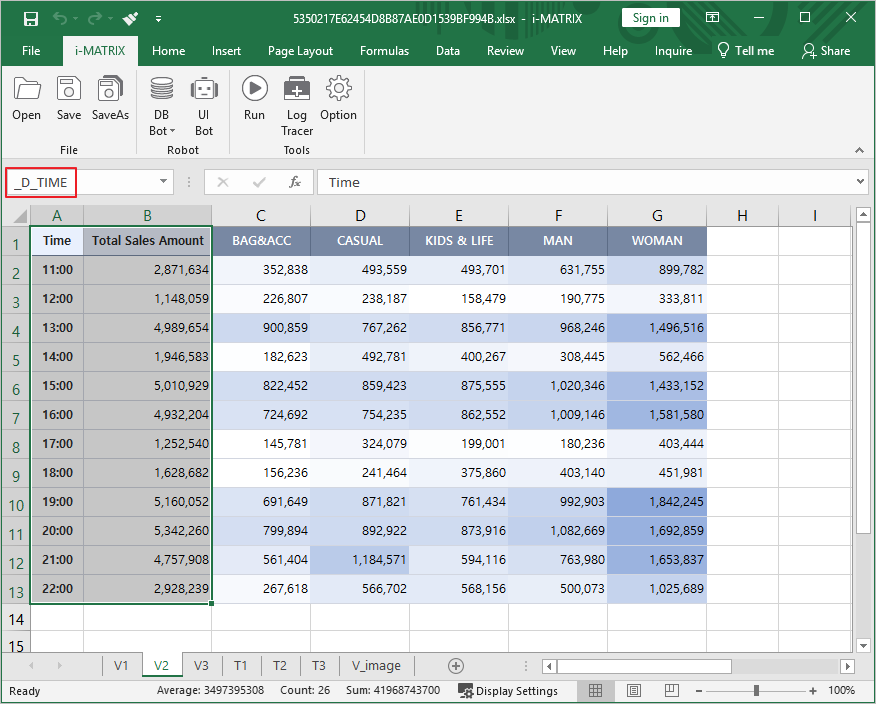
시간대별 매출액 시각화 차트 생성을 위해 _D_예약어 지정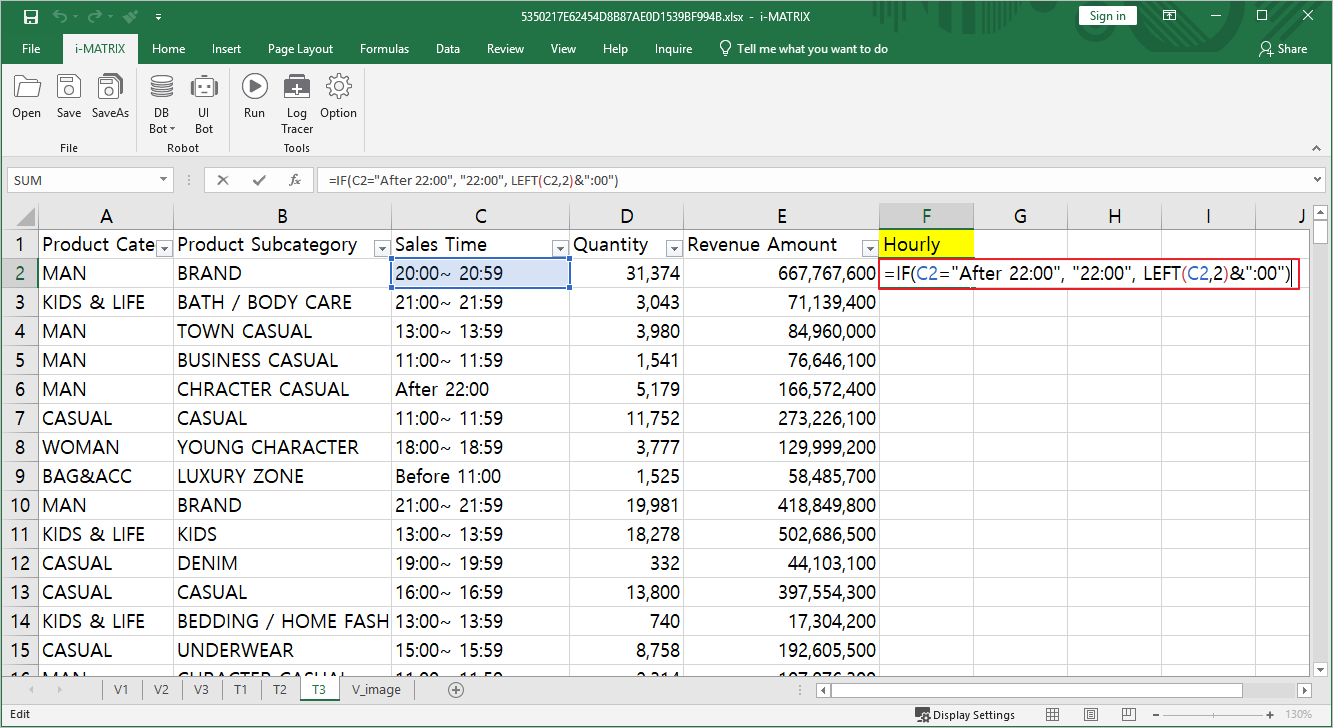
- Connect to the T3 data sheet using SUMIFS int he V2 sheet.
- Assign the _D_ reserved keyword to generate the hourly sales visualization chart. _D_예약어 ☜ 상세 가이드 참조하기
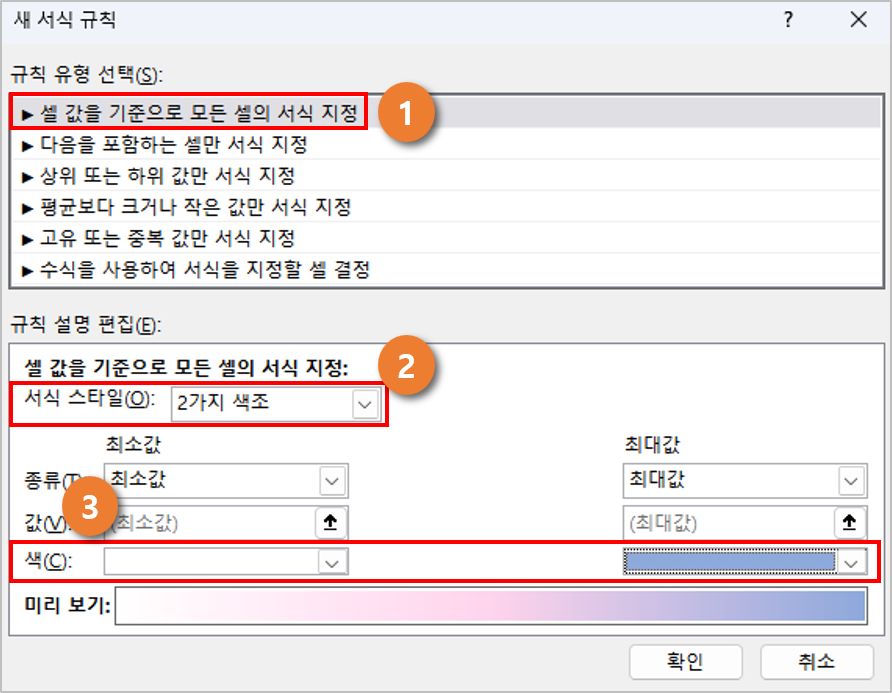
상품별 매출액 정보에 시각 정보를 더하기 위해 조건부 서식 지정하여 큰 값일 수록 진한 색이 표시되게 설정합니다.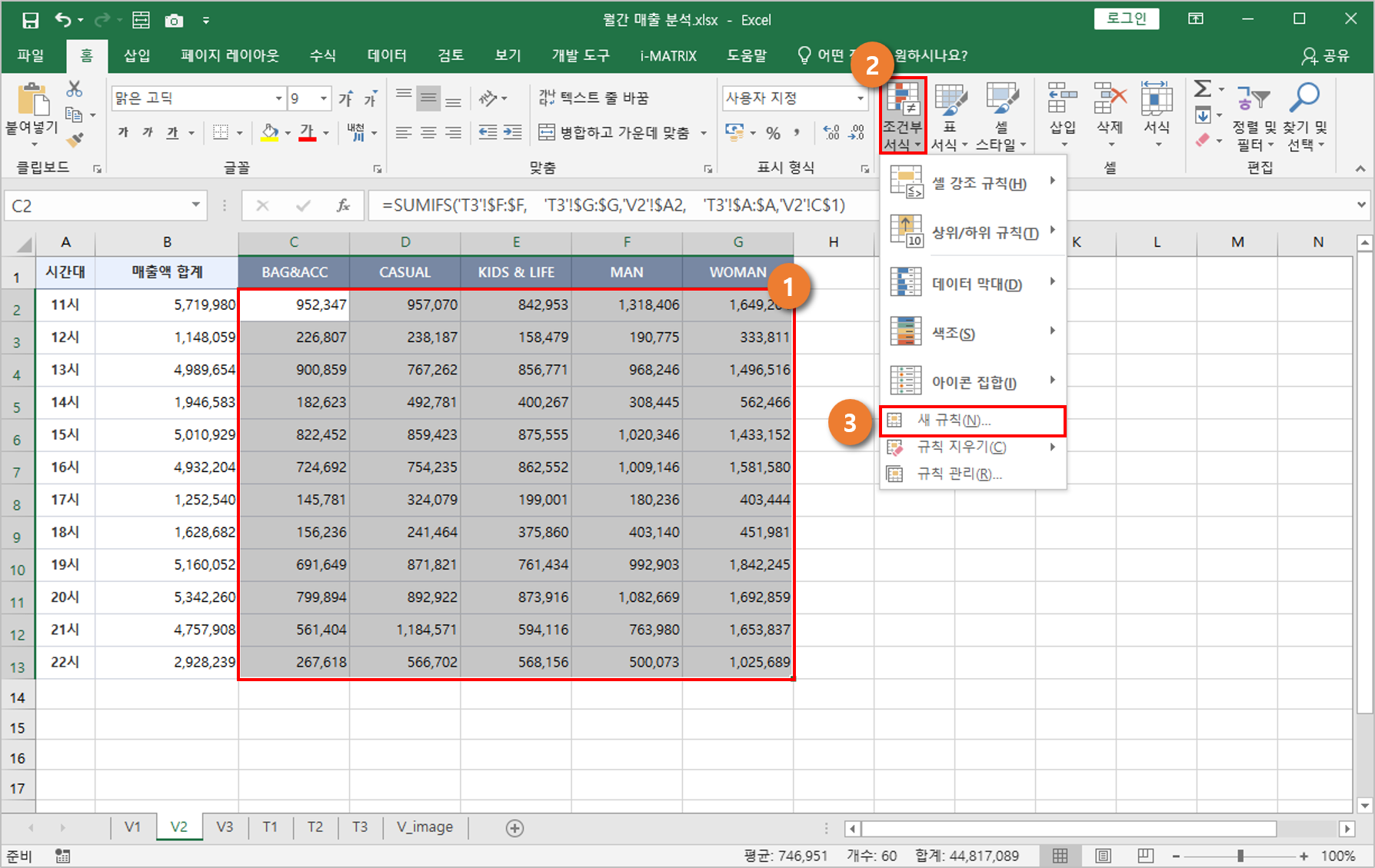
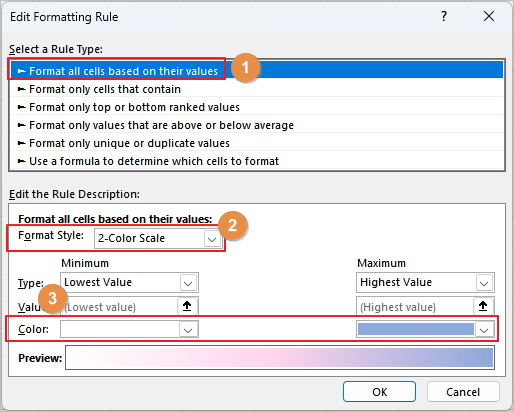
셀 값을 기준으로 서식을 지정 > 2가지 색조 선택 > 색상 선택 후 확인Refer to the detailed guide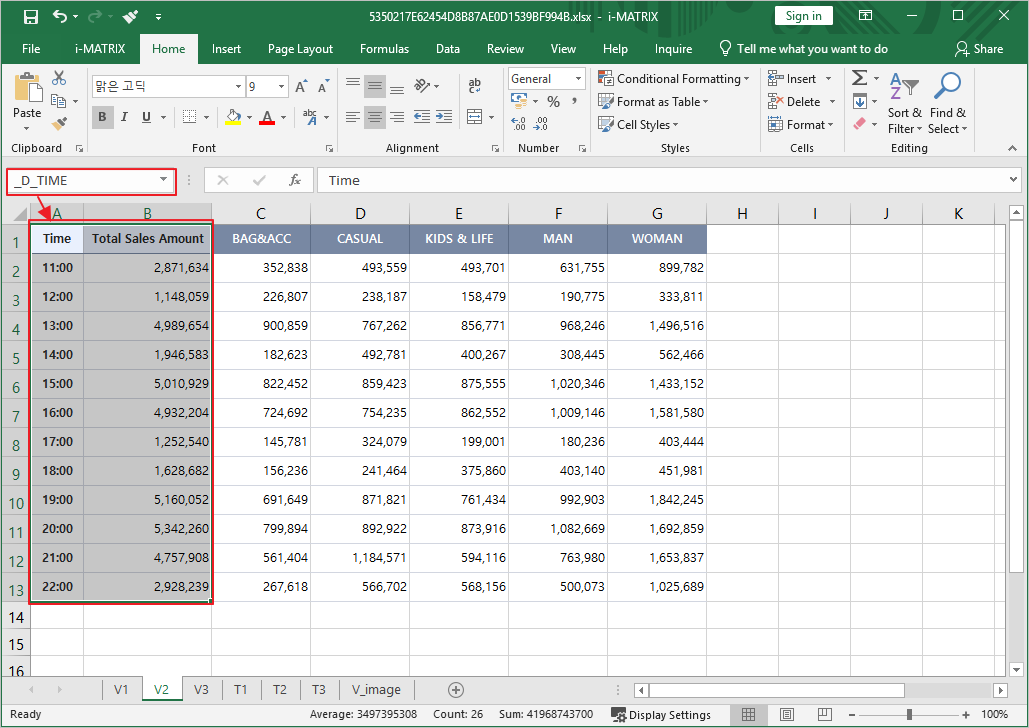
- Apply Conditional Formatting to the product-specific sales information to add visual depth, ensuring higher vales are displayed in darker colors.
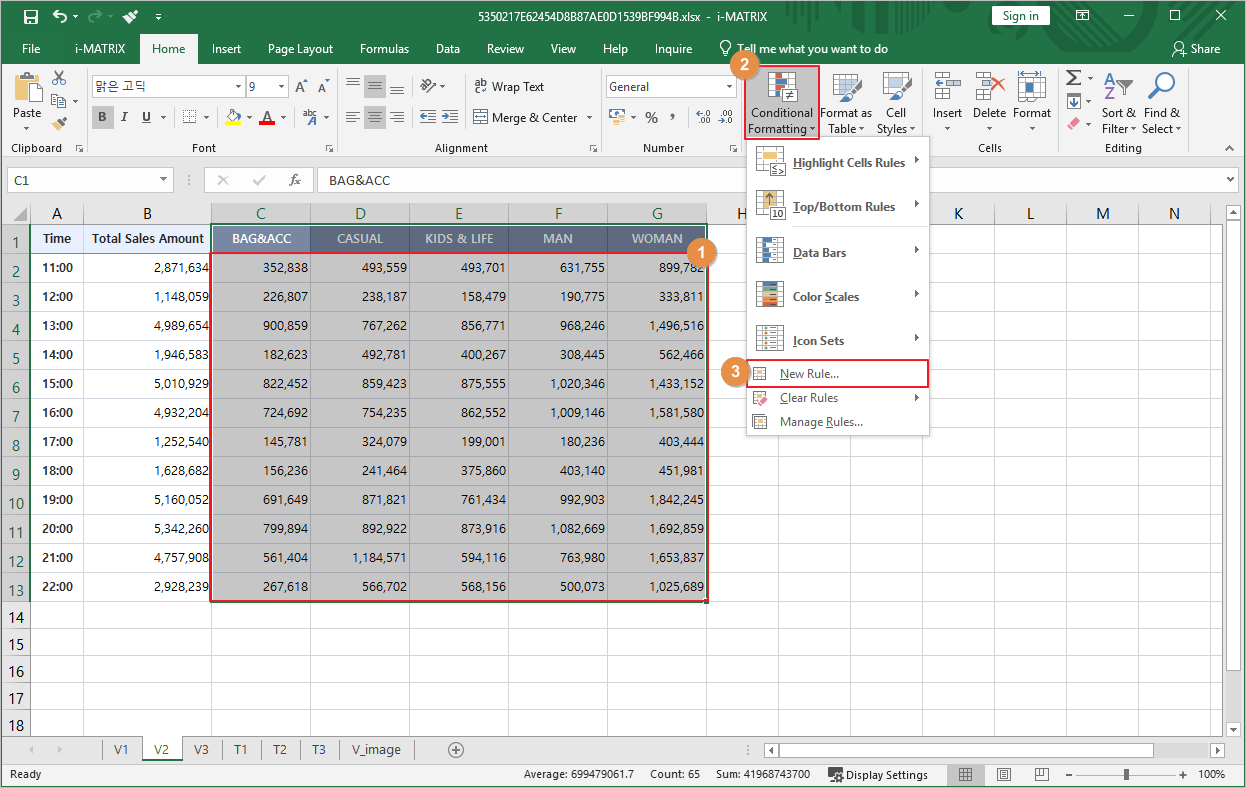
- Format all cells based on their values > 2-Color Scale > Select colors and click OK.
1.3
...
V3 Sheet Product Sales Performance
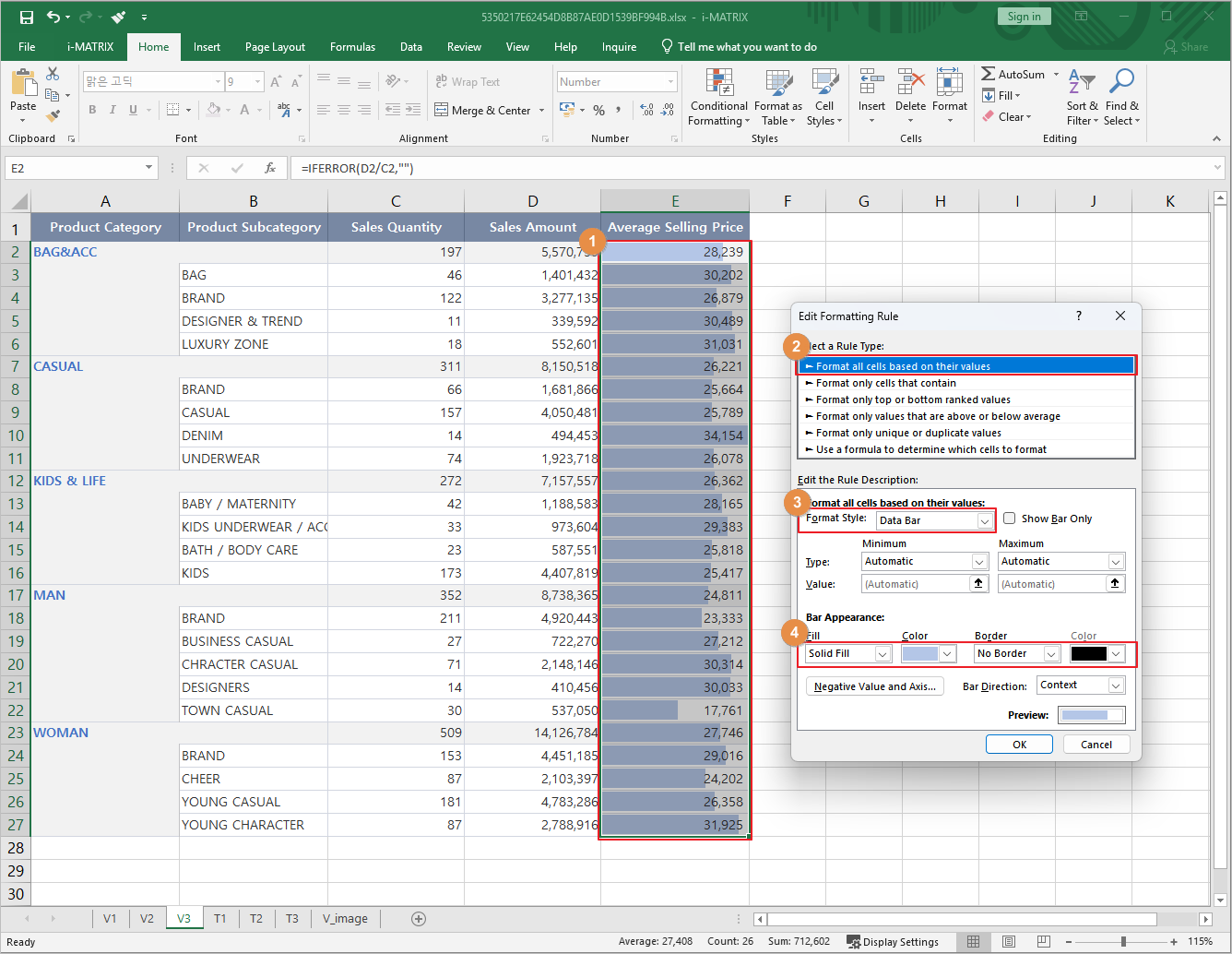
- V3 sheet displays sales performance by product and uses Conditional Formatting to show data bars according to the average unit price.
- Select the Average Unit Price range > Conditional Formatting > New Rule > Format all cells based on their values > Format Style: Data Bar > Select Fill Color
Step 2.
...
Web Interface Conversion
- Deploy the completed Excel file into the Template Edit screen to convert it into a web interface.
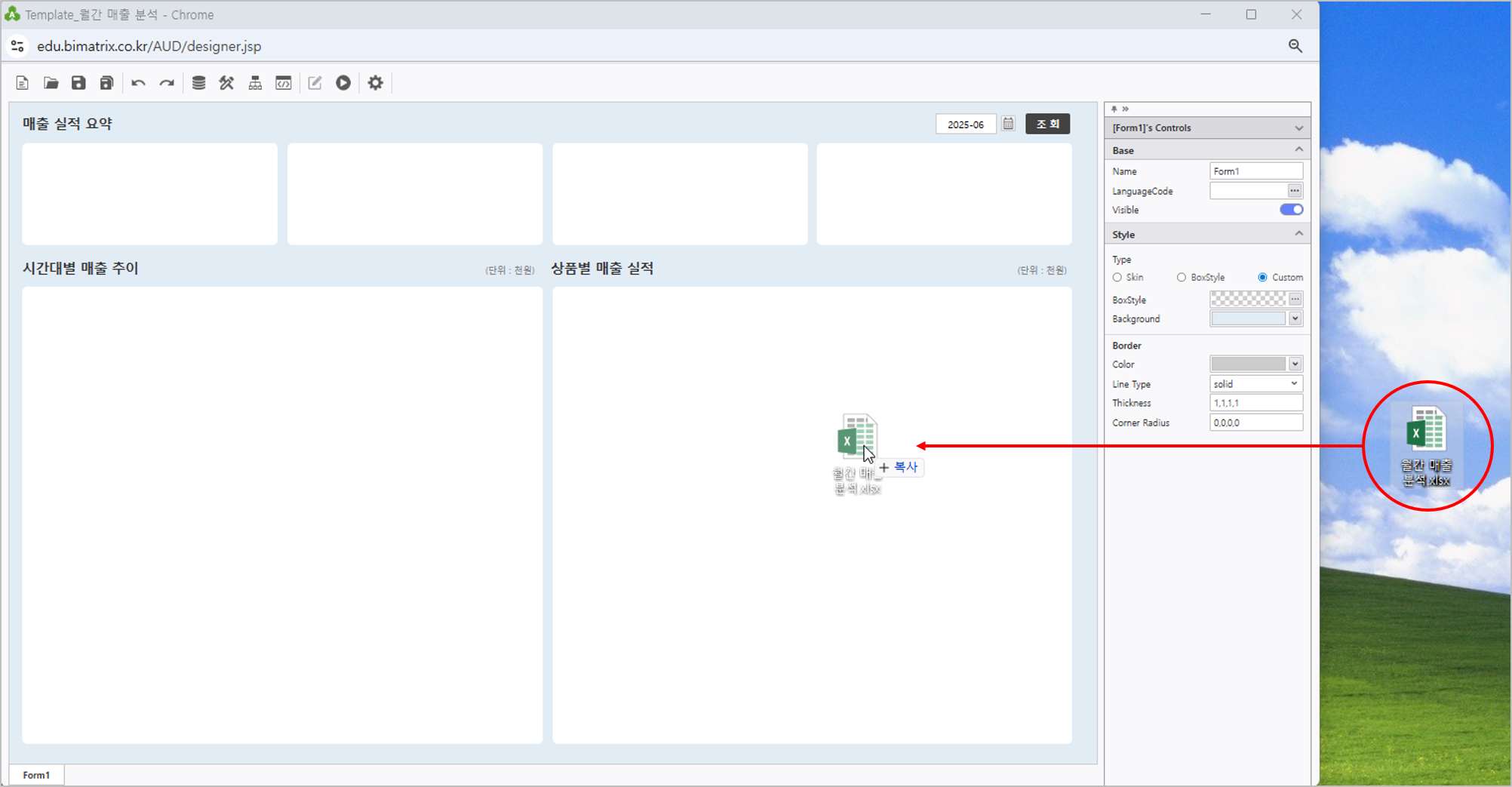
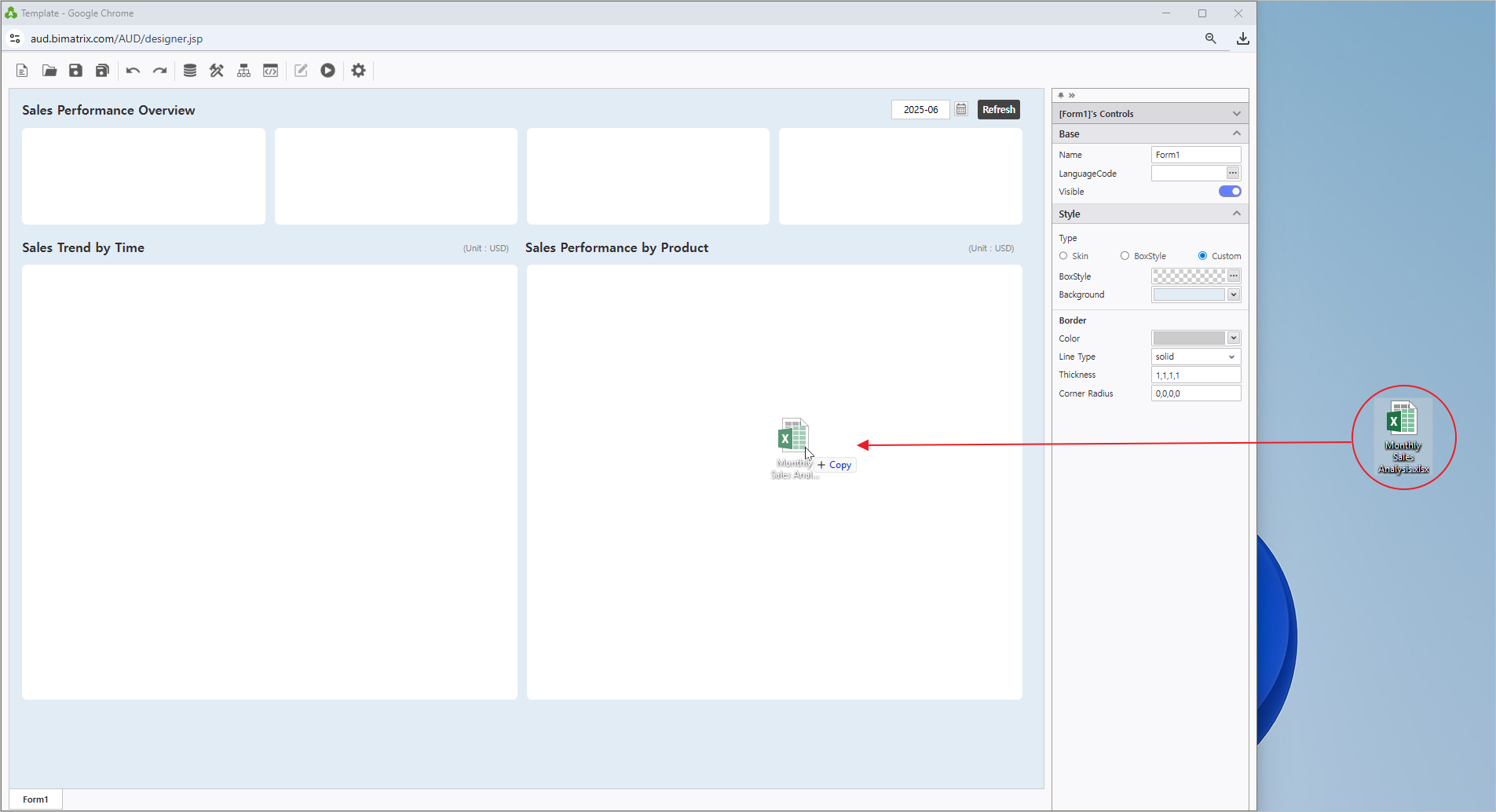
Step 3.
...
Data Connection
MX-Grid의 데이터 시트인 Connect live data to the T1, T2, T3 시트에 DB봇을 활용하여 실 데이터를 연결합니다and T3 data sheets (which locates in MX-Grid) using DB Bot.
MX Right-Grid> 우 클릭> 디자인 모드로 이동합니다click MX-Grid> Navigate to Design Mode.
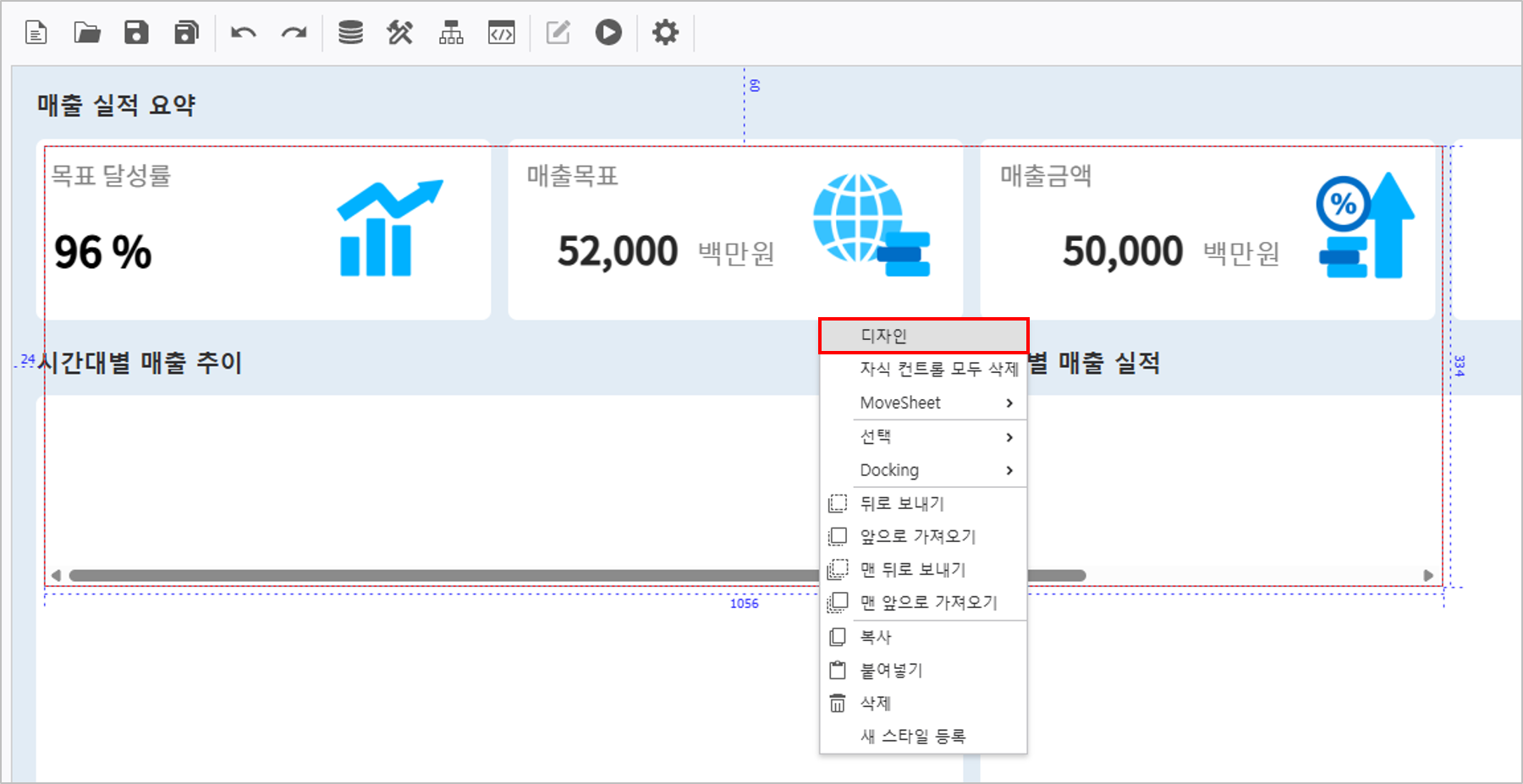
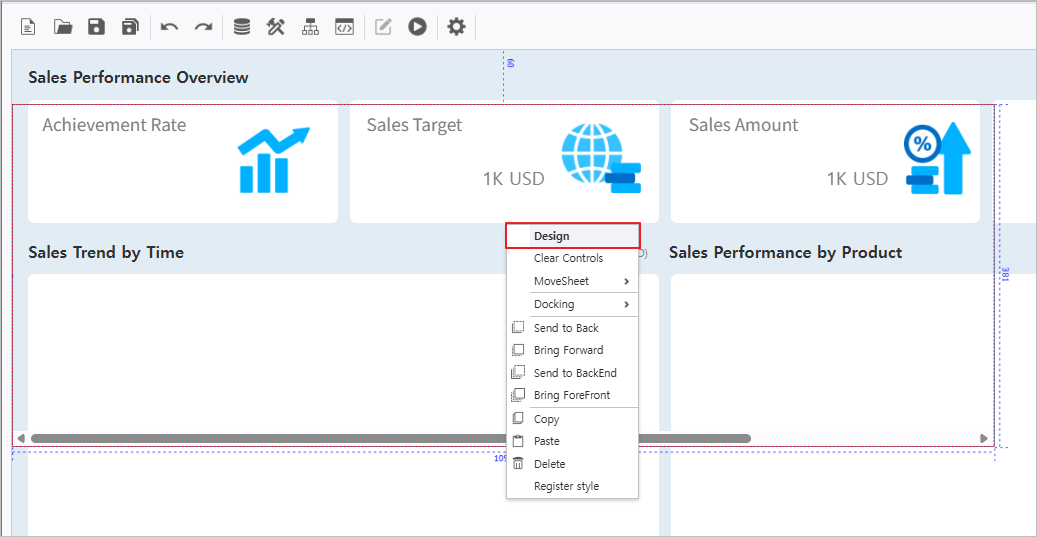
3.1
...
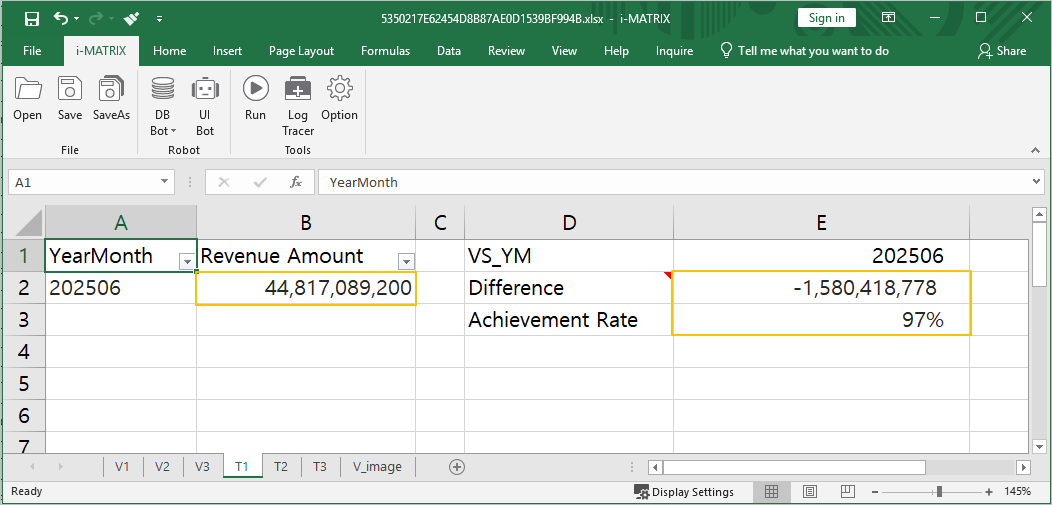
T1 Sheet Data Connection
1. 데이터 연결 시 지정한 조회 조건에 따라 데이터를 불러오기 위해 T1으로 이동하여 Navigate to T1, click cell [G1] 셀 클릭 후, , and define the name as VS_YM으로 이름 정의합니다 to load data based on specified inquiry criteria.
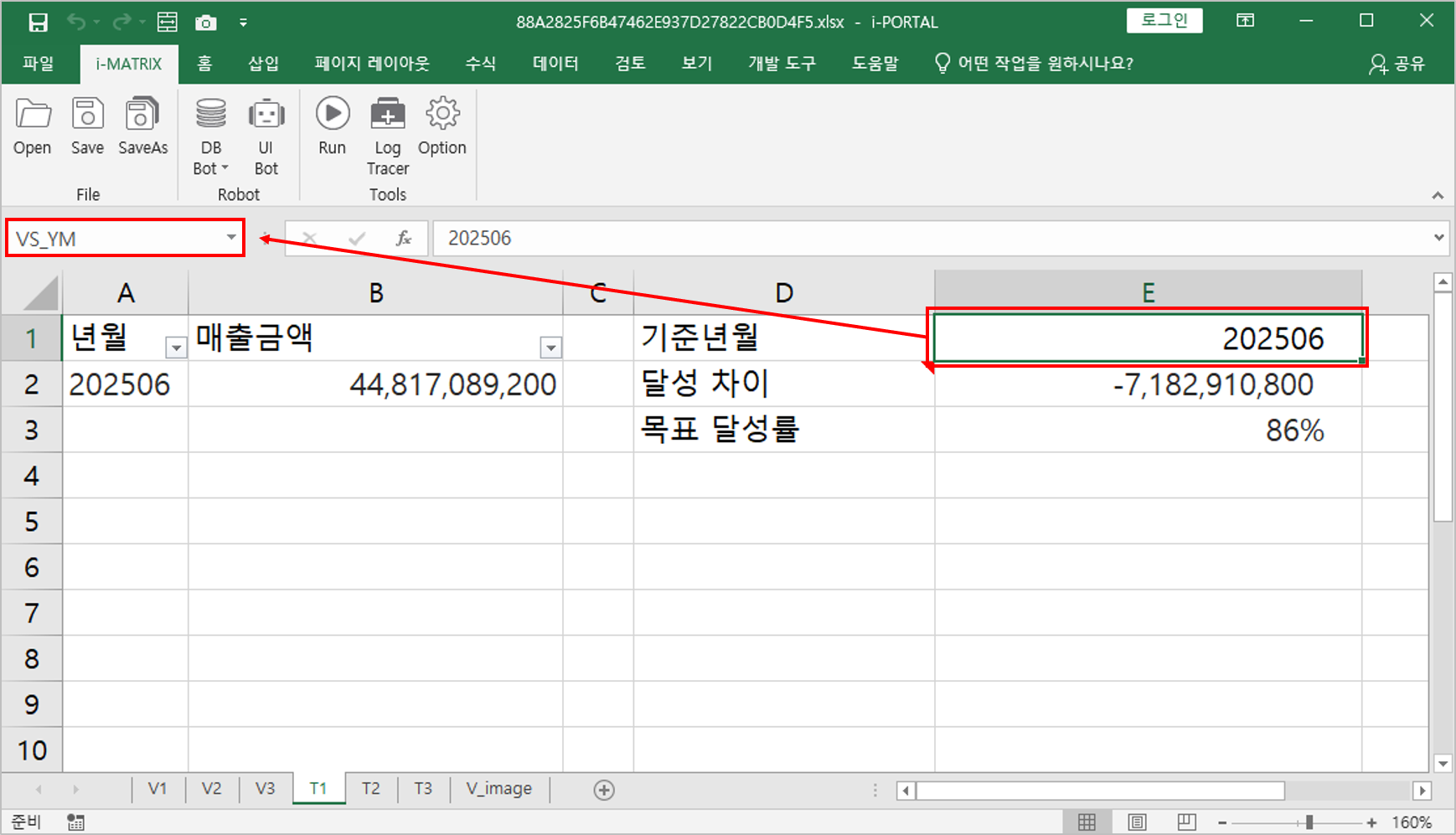
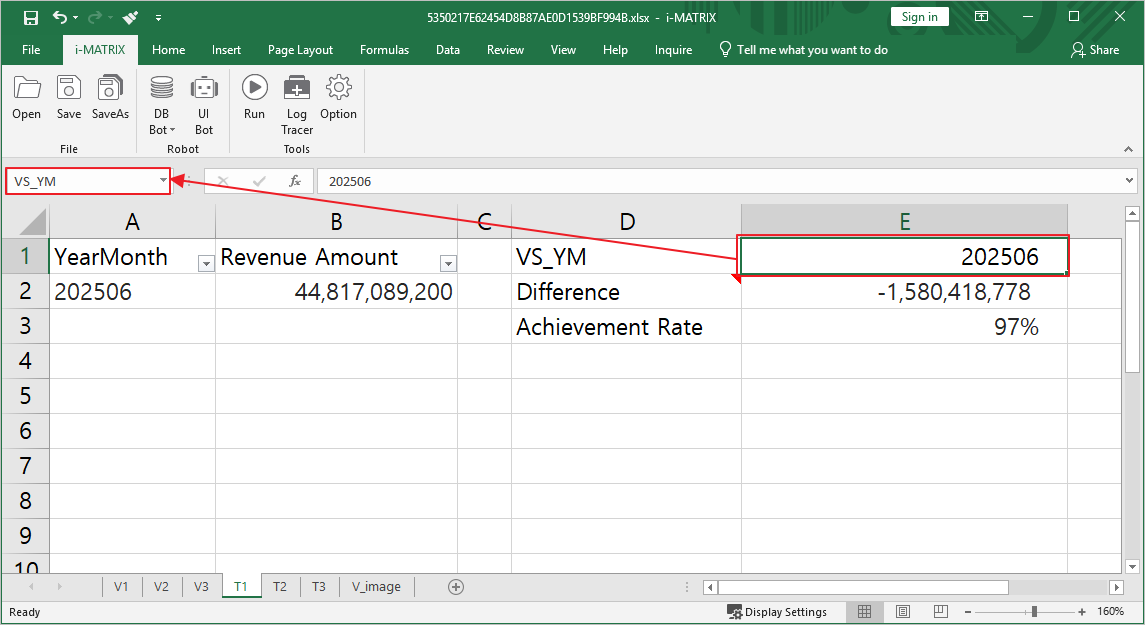
2. [ Click the [DB Bot] icon in the [i-MATRIX] 도구 [DB Bot]을 클릭합니다tools.
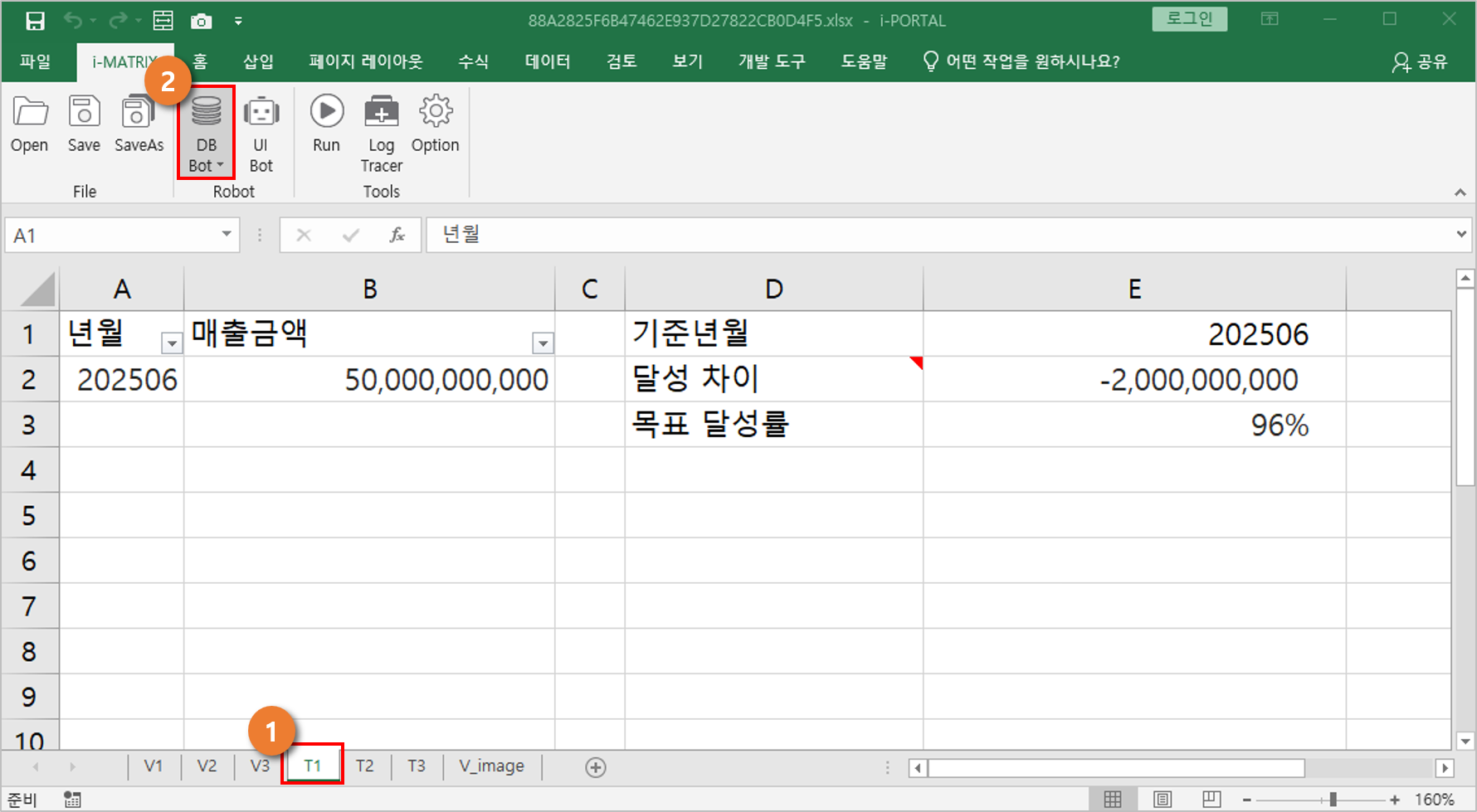
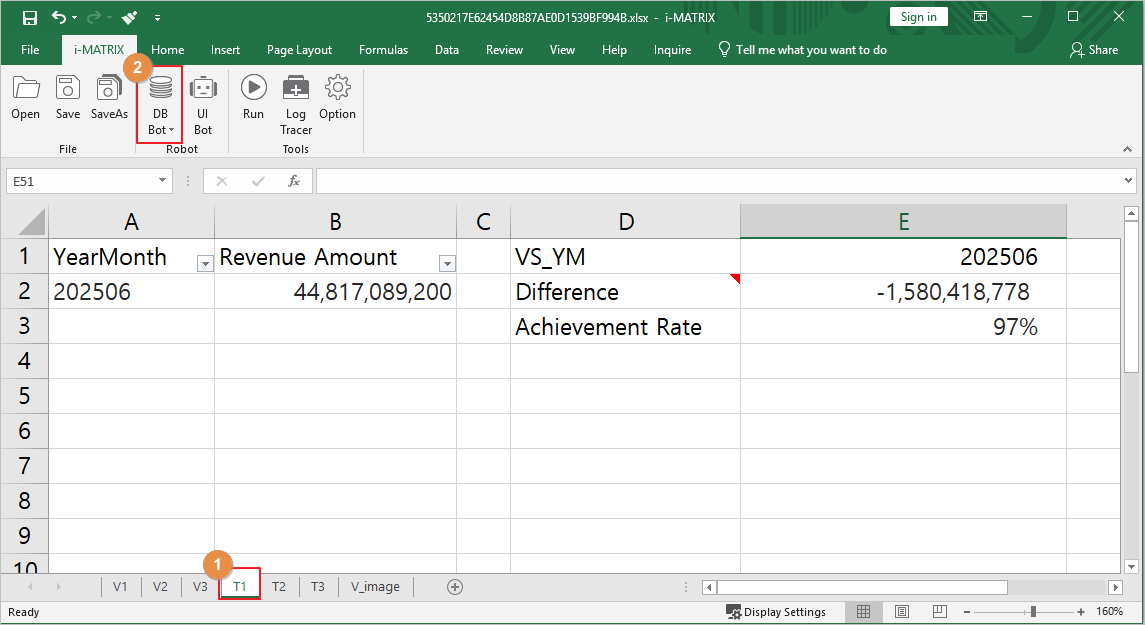
2. Path : PPDM > Sample Samples > 3. i-META >매출분석 클릭> Sales Analysis
조회항목Query Items: 년월YearMonth, 매출금액Revenue Amount
조회조건Query Conditions: 년월 YearMonth :VS_YM 입력
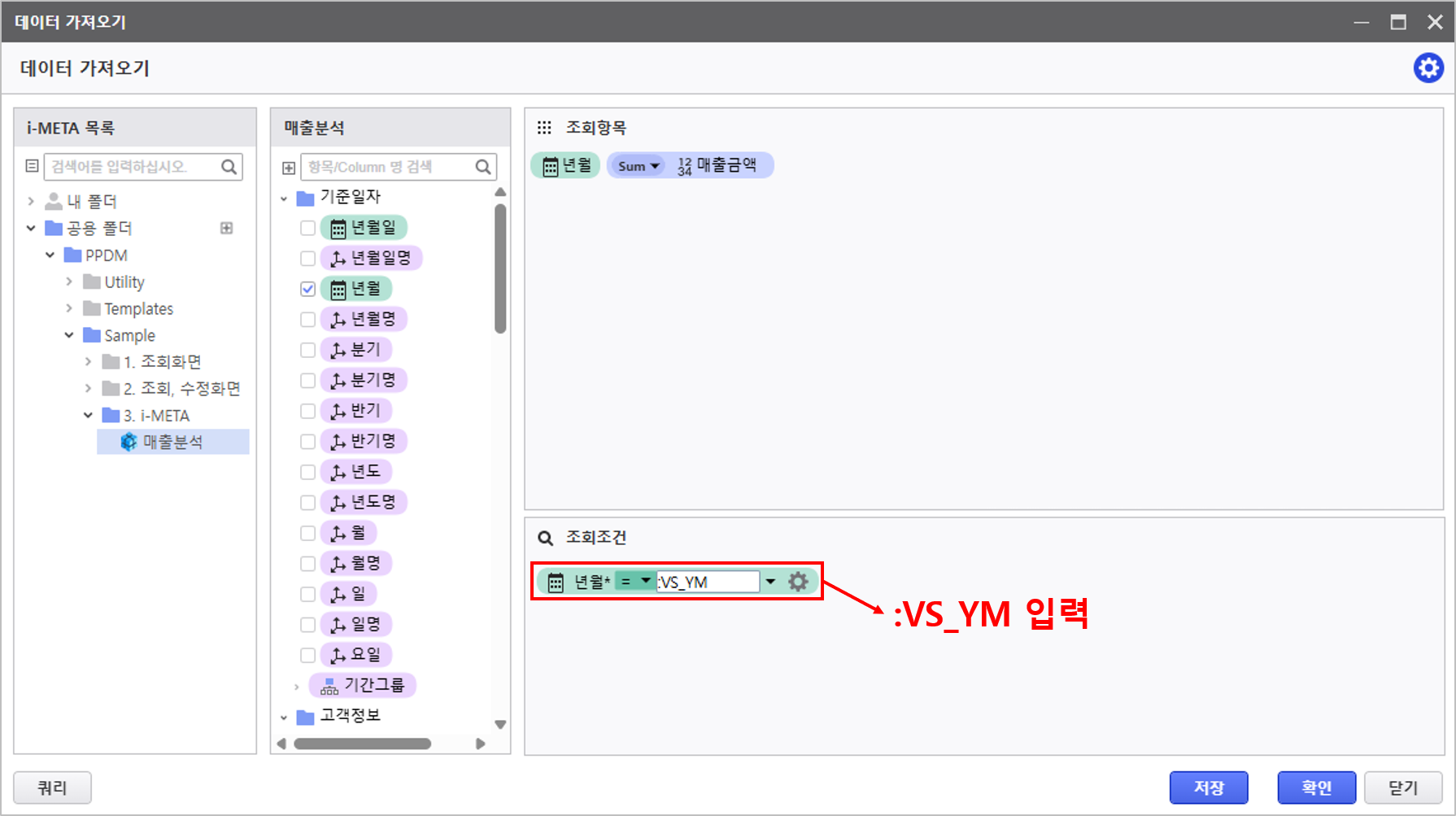
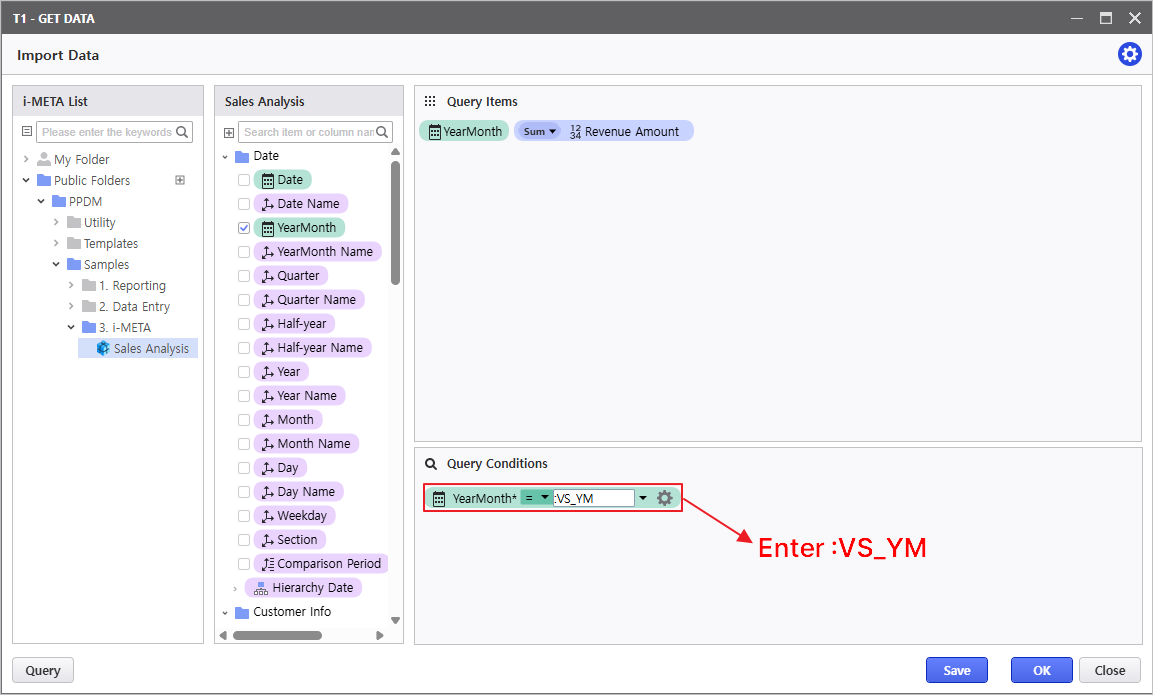
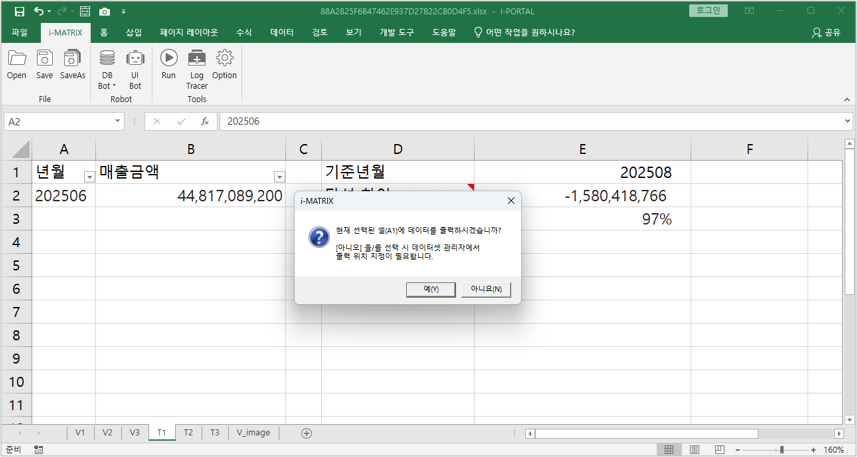
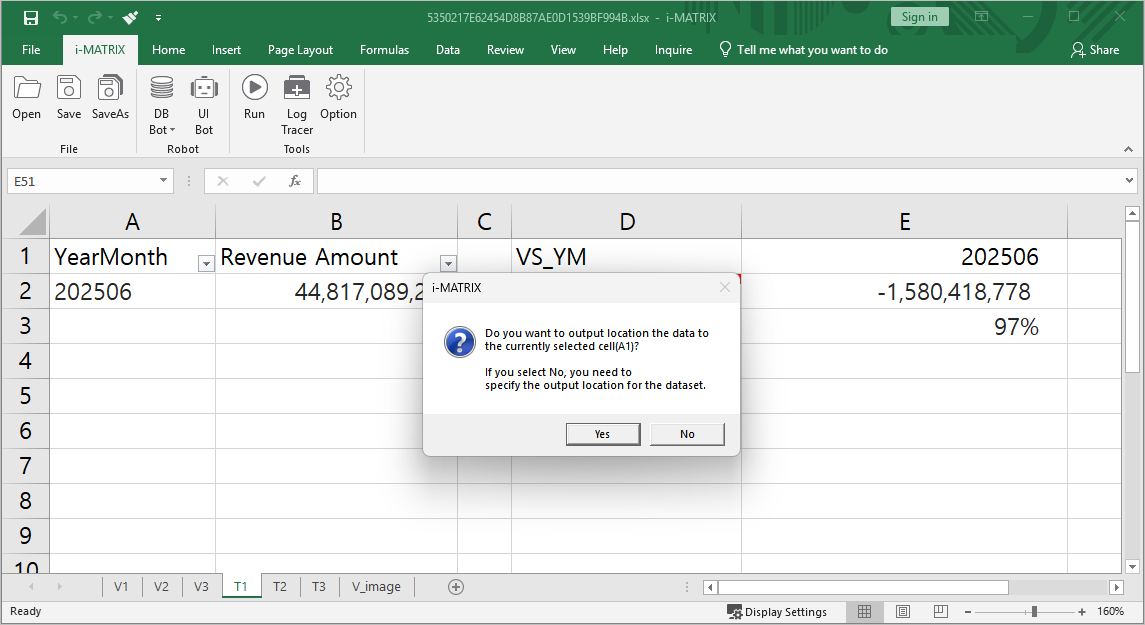
3. Click the [예] 버튼 클릭 Yes] button.
3.2
...
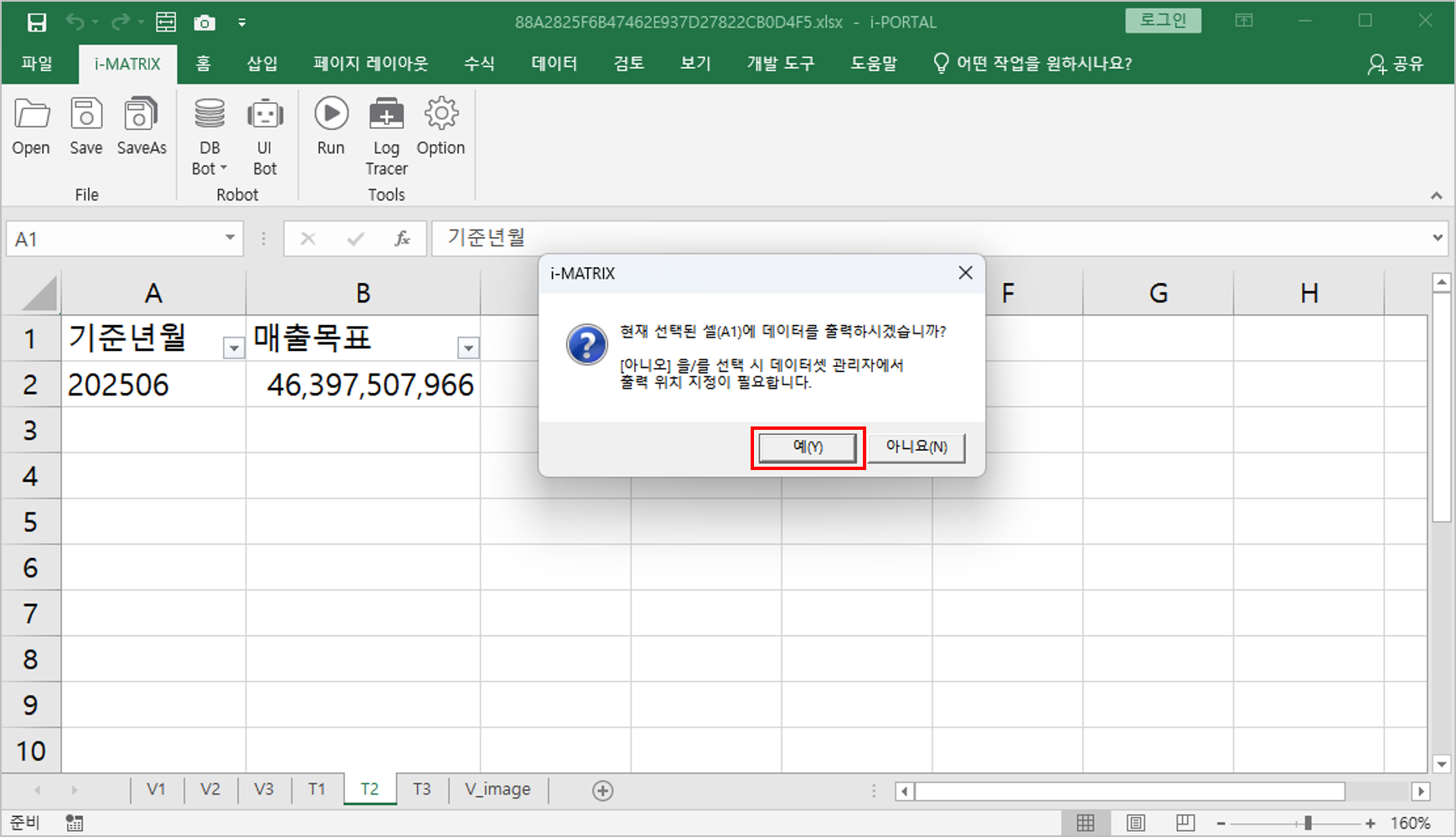
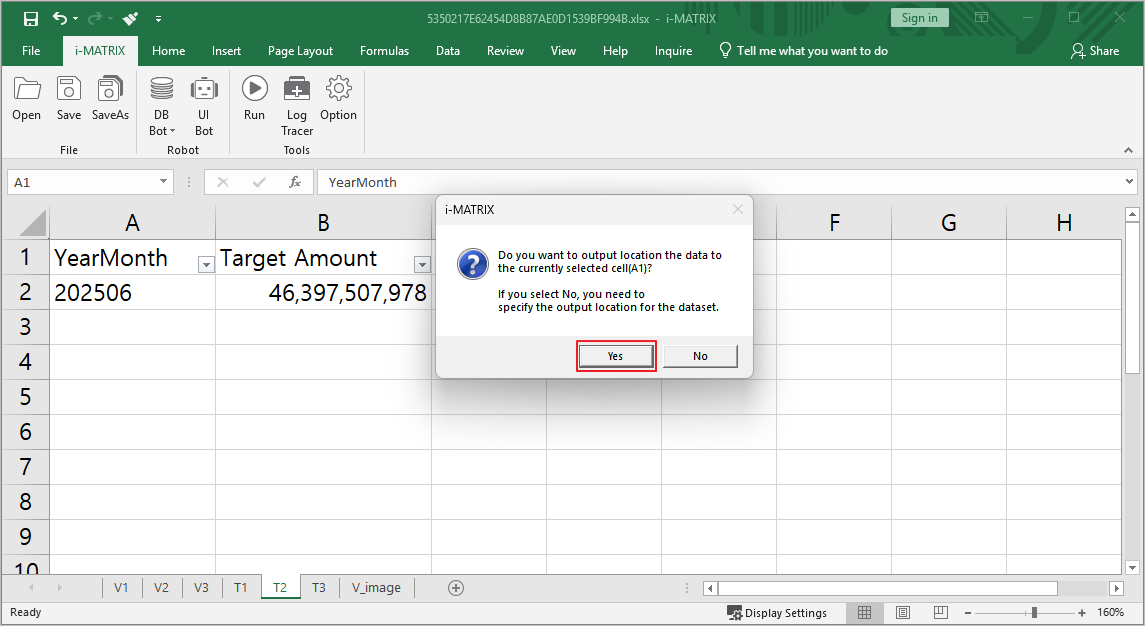
T2 Sheet Data Connection
- Navigate to T2, click cell [A1] 셀 클릭 후 [i-MATRIX]도구 [, and click [DB Bot]을 클릭합니다.
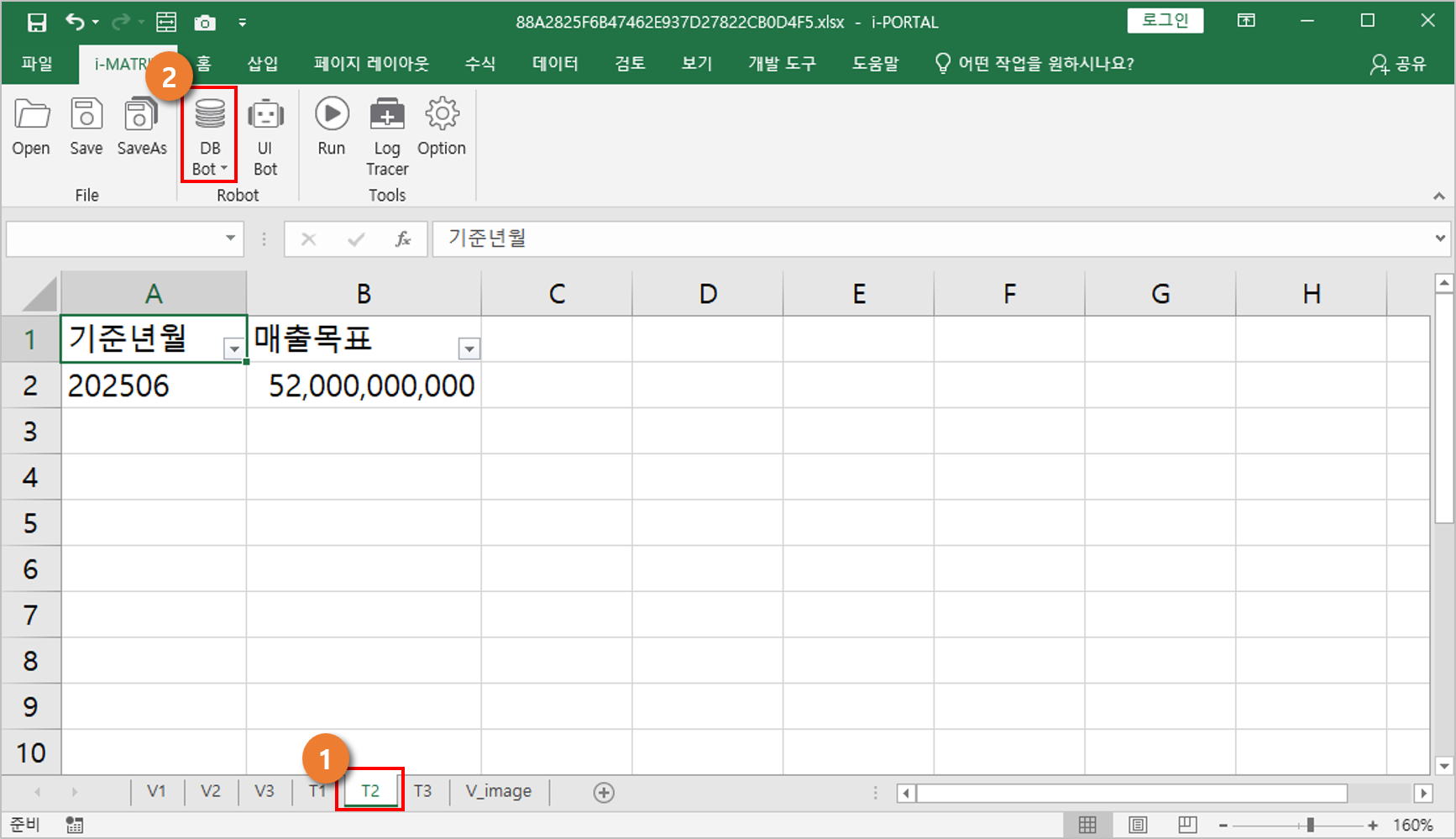
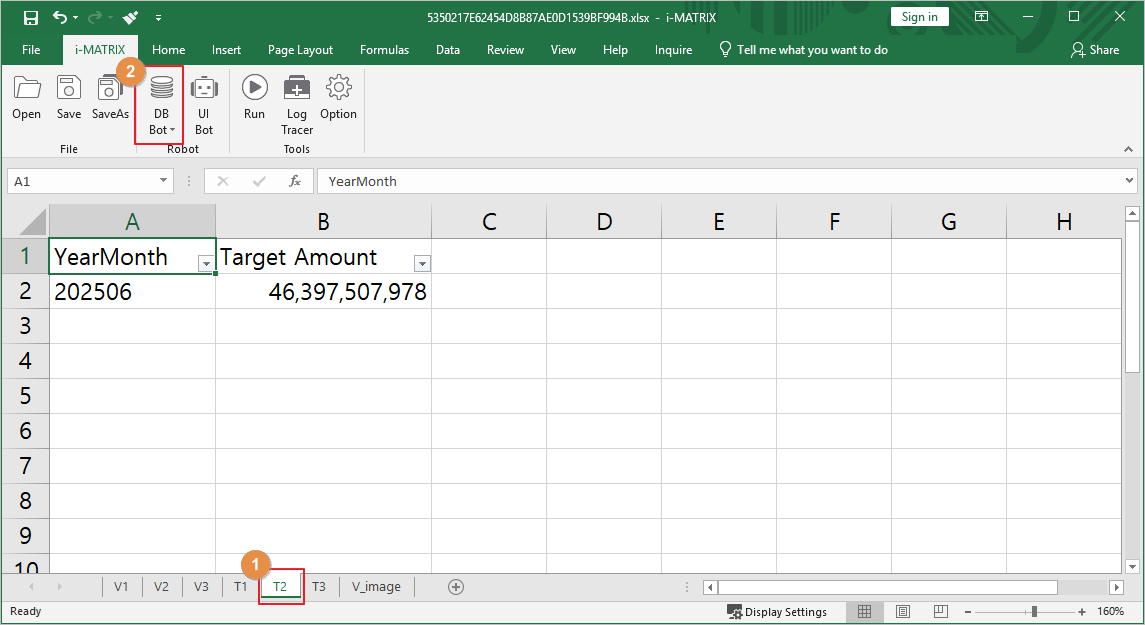
- Path : PPDM > Sample Samples > 3. i-META >매출분석 클릭
조회항목: 기준년월, 매출목표
조회조건: 기준년월 > Sales Analysis
Query Items: YearMonth, Target Amount
Query Conditions: YearMonth :VS_YM 입력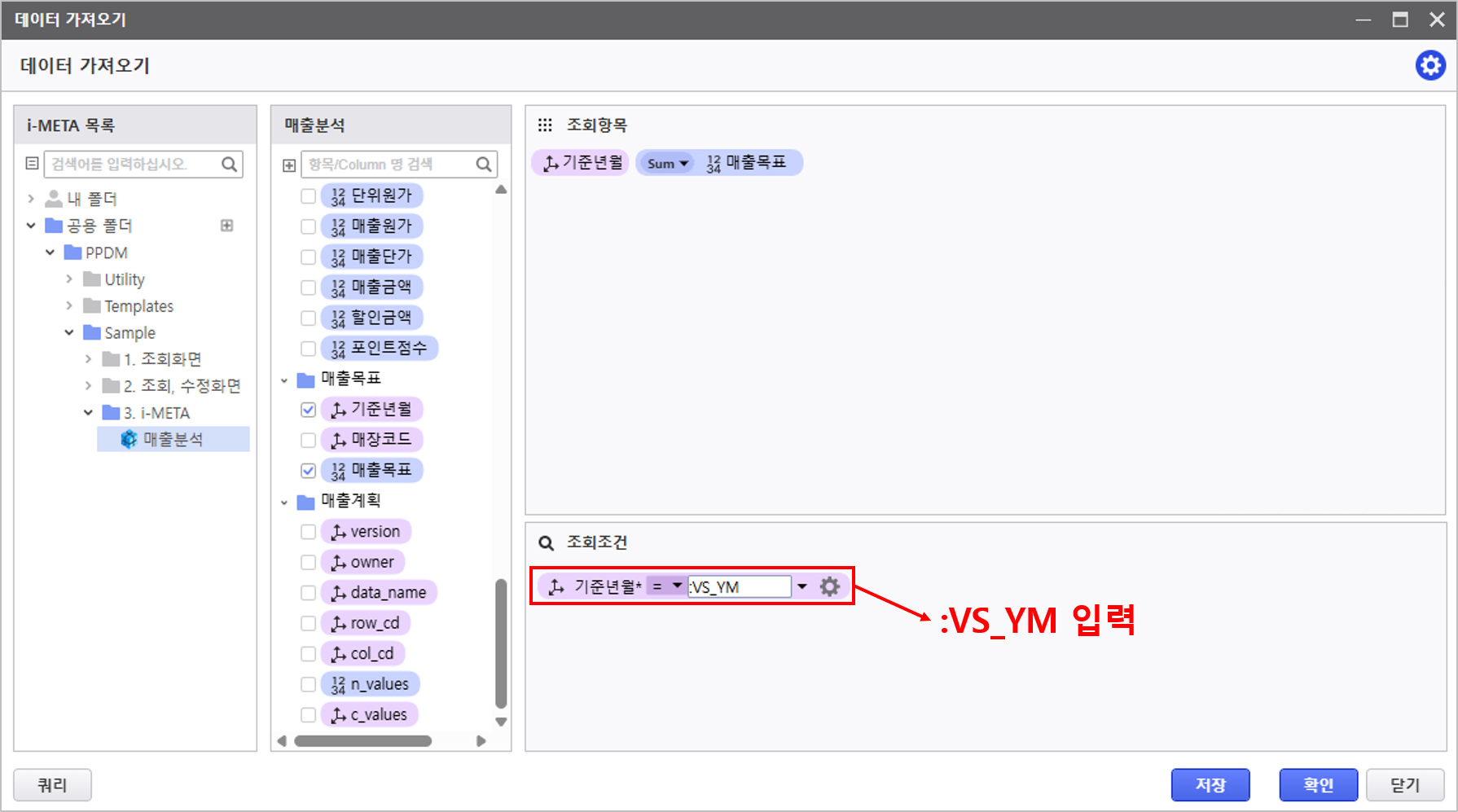
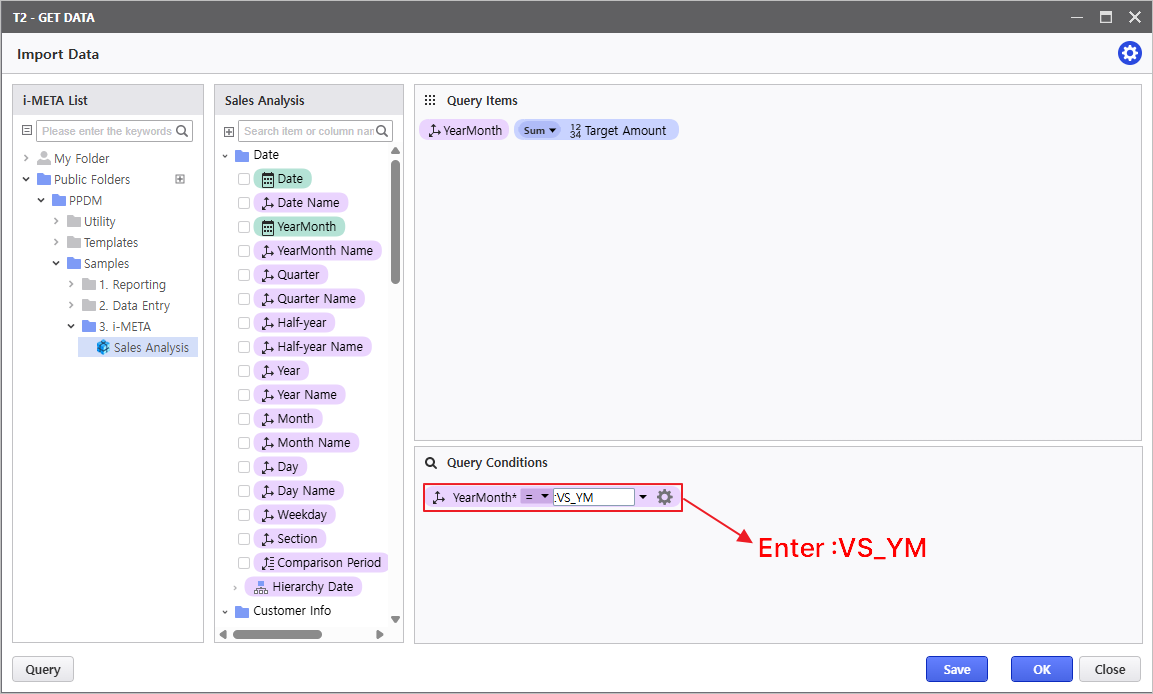
- Click the [예] 버튼 클릭 Yes] button.
3.3
...
T3 Sheet Data Connection
- Navigate to T3, click cell [A1] 셀 클릭 후 [i-MATRIX]도구 [, and click [DB Bot]을 클릭합니다.
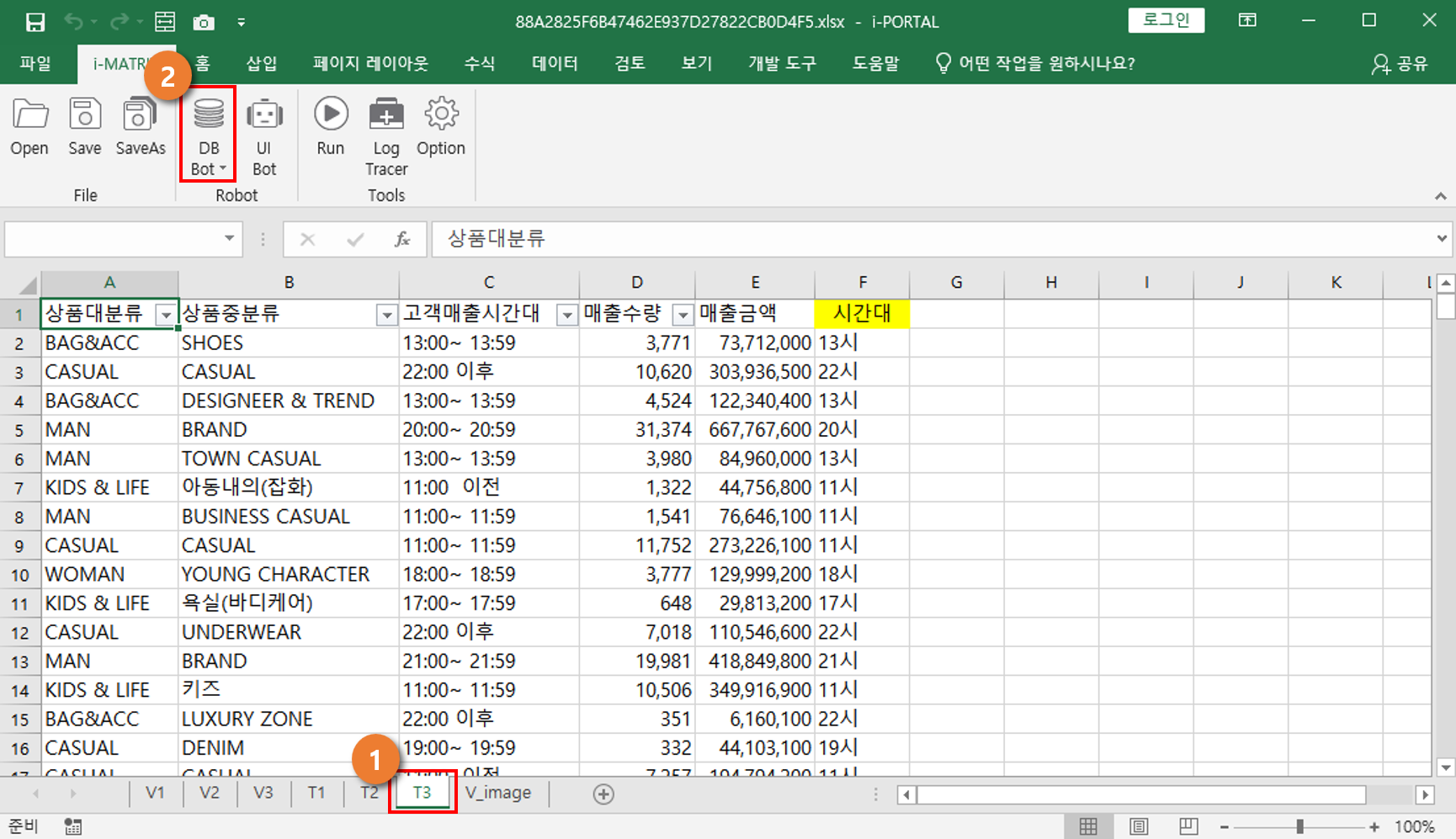
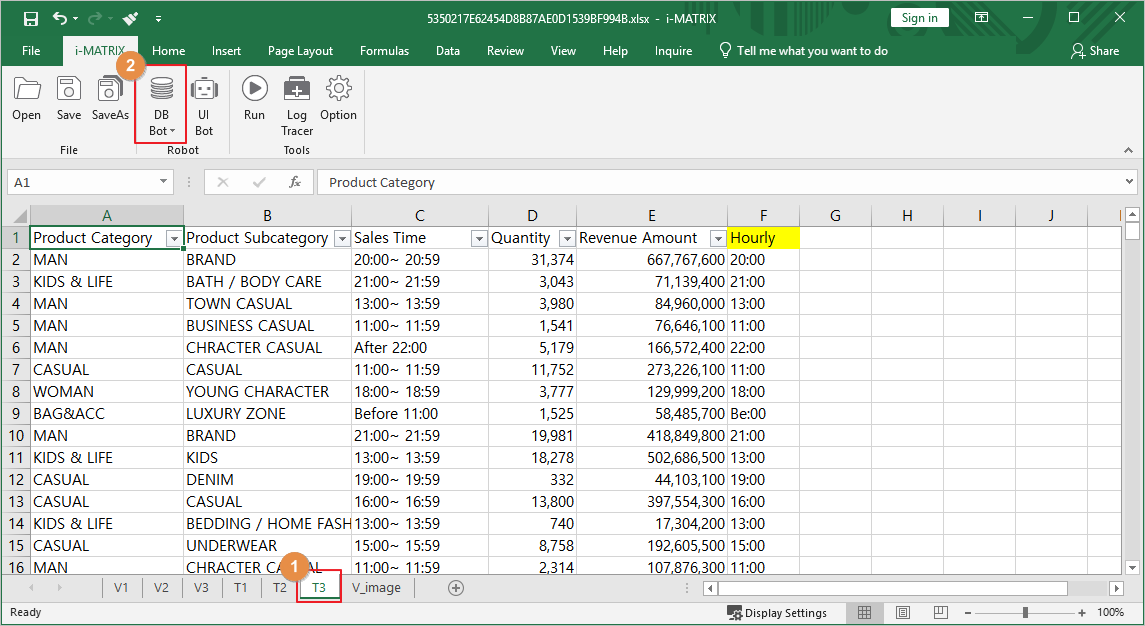
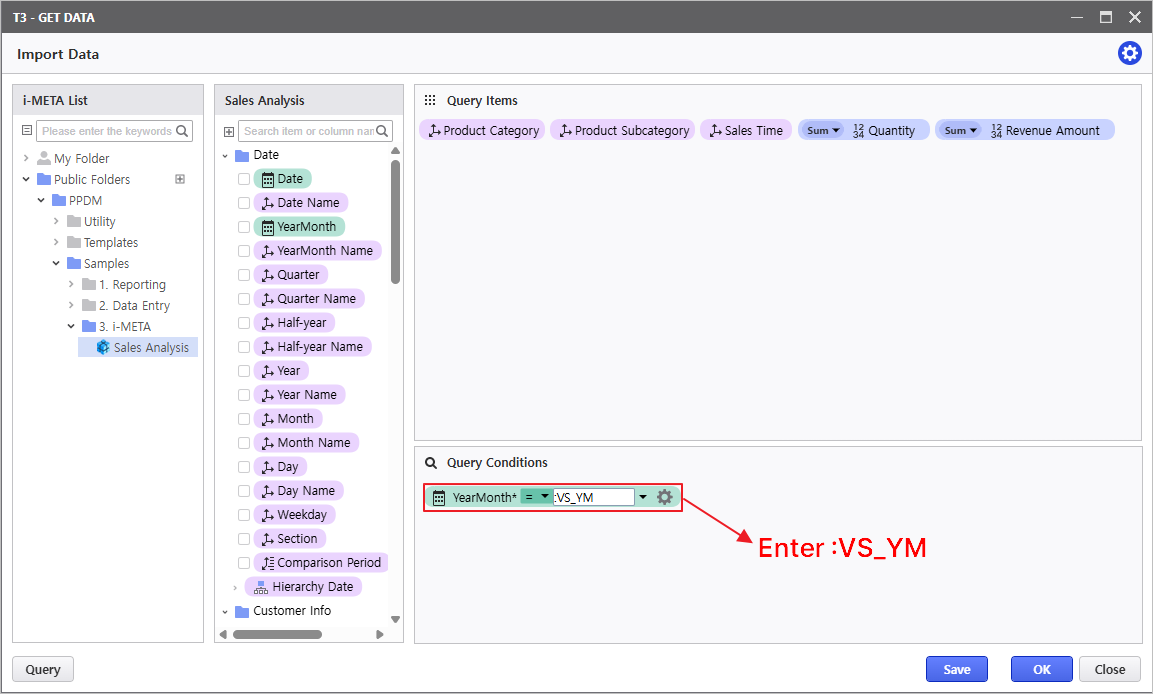
- PPDM > Sample > 3. i-META >매출분석 클릭
조회항목: 상품대분류, 상품중분류, 고객매출시간대, 매출수량, 매출금액
조회조건: 년월 , select Sales Analysis
Query Items: Product Category, Product Subcategory, Sales Time, Quantity, Revenue Amount
Query Conditions: YearMonth :VS_YM 입력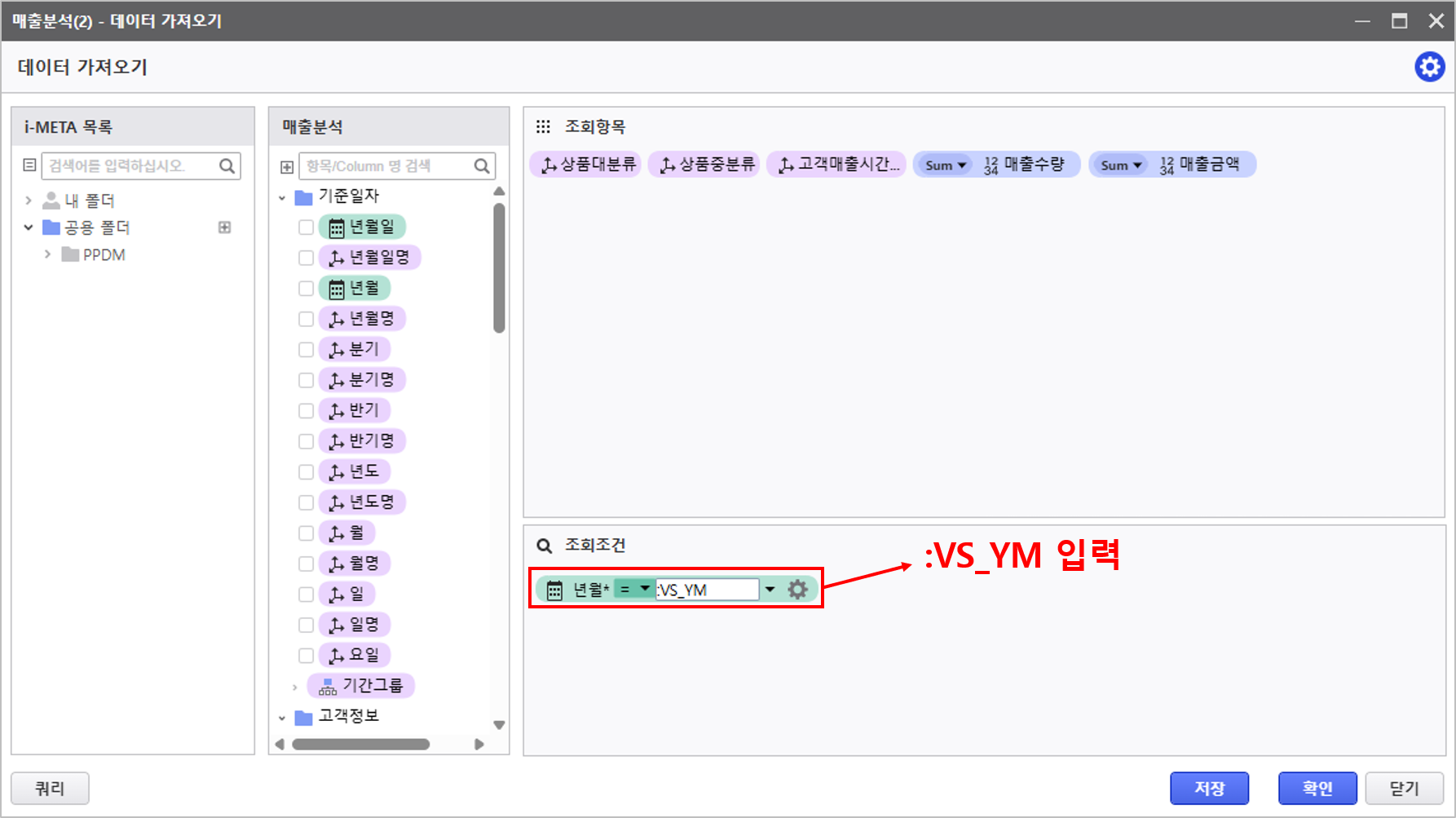
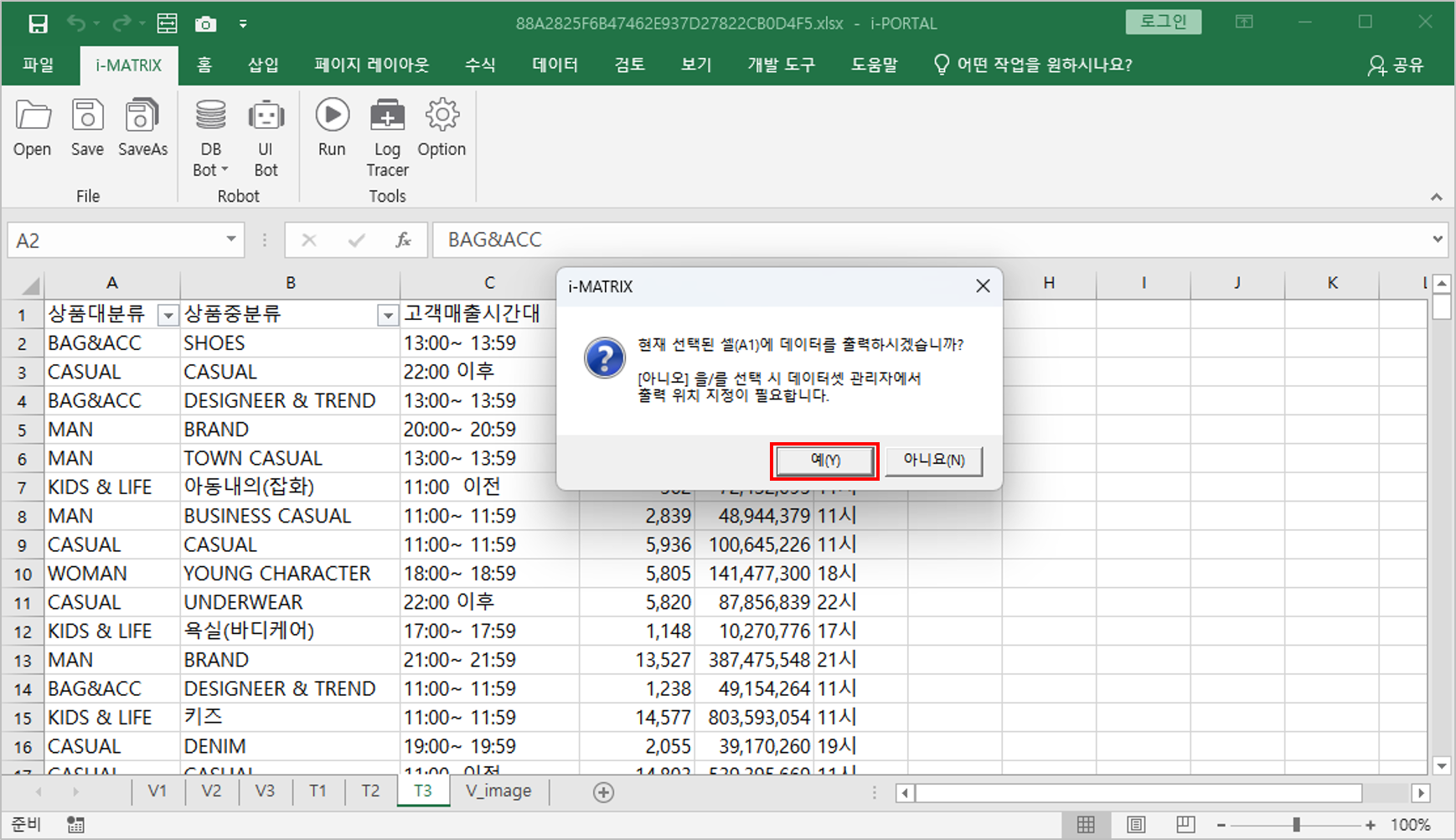
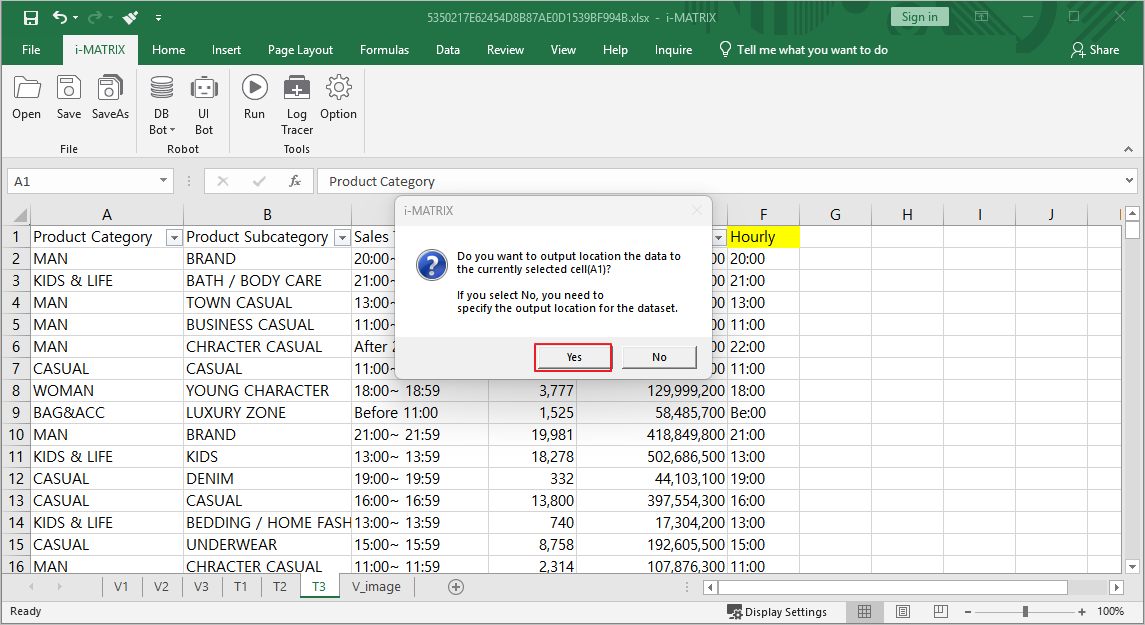
- Click the [예Yes] 버튼 클릭button.
Step 4. Utilizing MX-Grid
...
Reserved Keywords.
_EXPAND_?__?? :
...
Expansion/Collapse functionality for specific rows/columns (Expanded state)
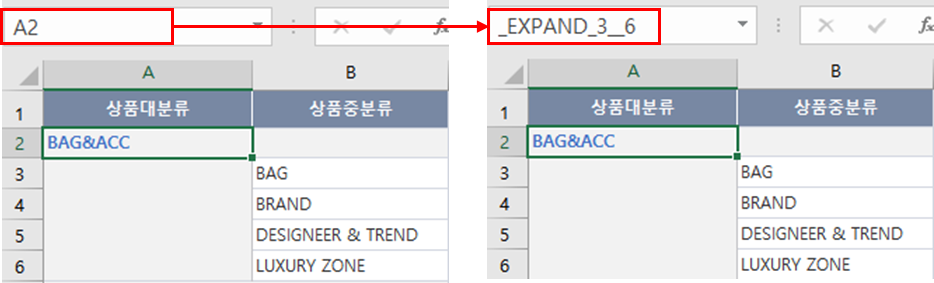
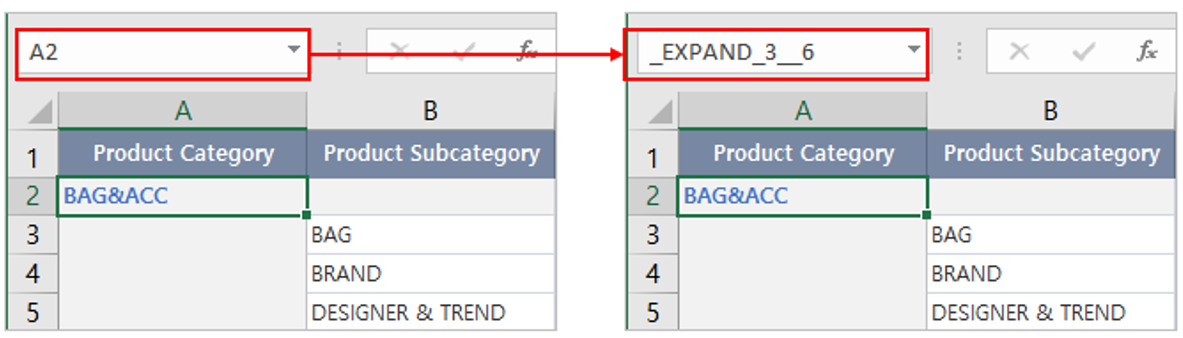
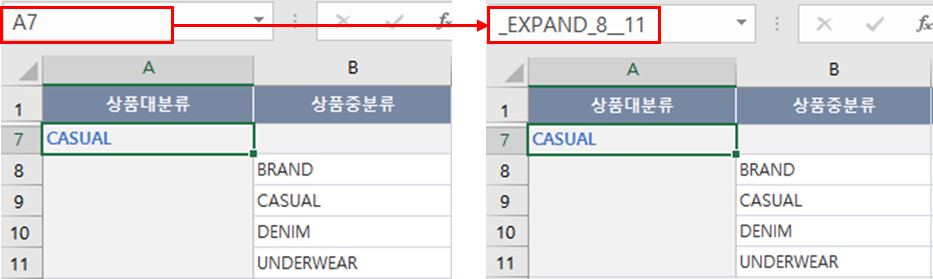
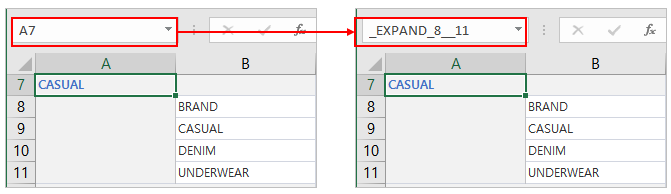
_EXPAND_?__?? : 상품대분류별로 지정한 행의 칸 수 만큼 확장/축소하여 매출수량, 매출금액, 평균 단가를 확인할 수 있습니다You can verify quantity, revenue amount, and average unit price by expanding/collapsing the designated number of rows for each product category. MX-Grid 예약어 ☜ 상세 가이드 참조하기
...
Refer to the detailed guide for MX-Grid reserved keyowrds.
- V3 Sheet Product Category Name Definiiton
- A2 → _EXPAND_3__6
- A7 → _EXPAND_8__11
- A12 → _EXPAND_13__16
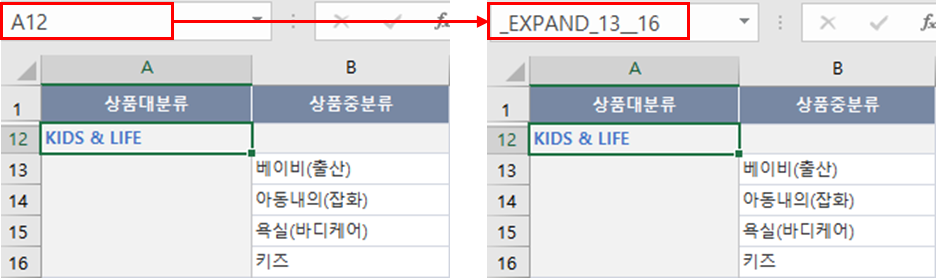
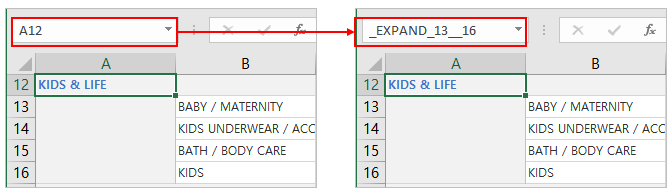
- A17 → _EXPAND_18__22
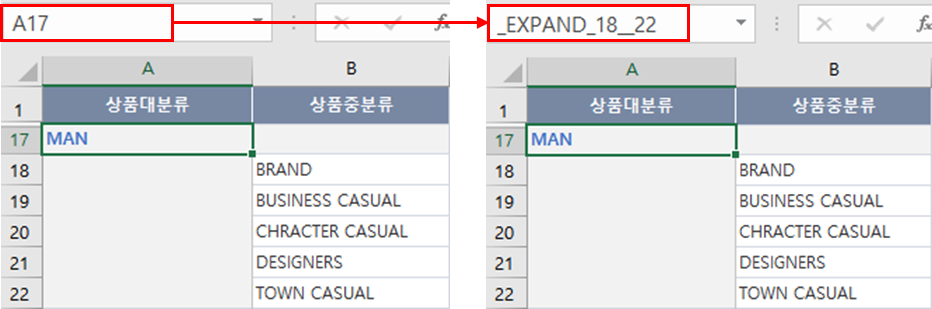
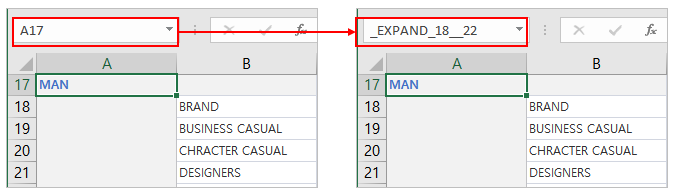
- A23 → _EXPAND_24__27
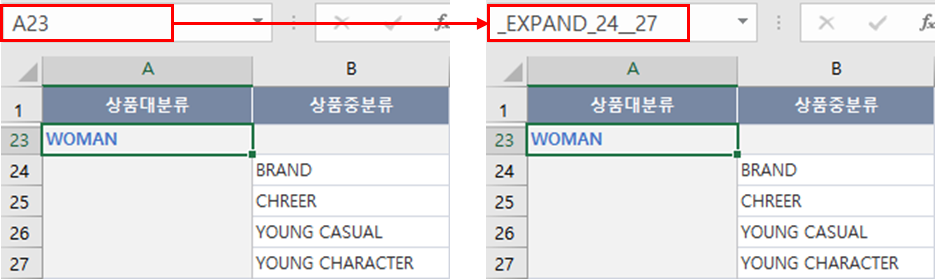
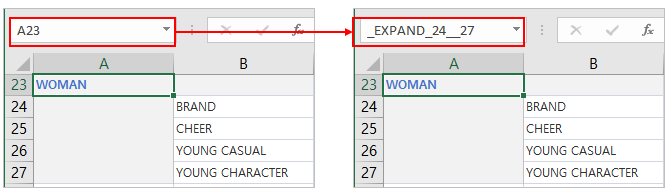
- A2 → _EXPAND_3__6
Step 5. Utilizing MX-Grid
...
Specific Functions (AUD_xxx)
AUD_IMAGE :
...
Feature to output images into cells.
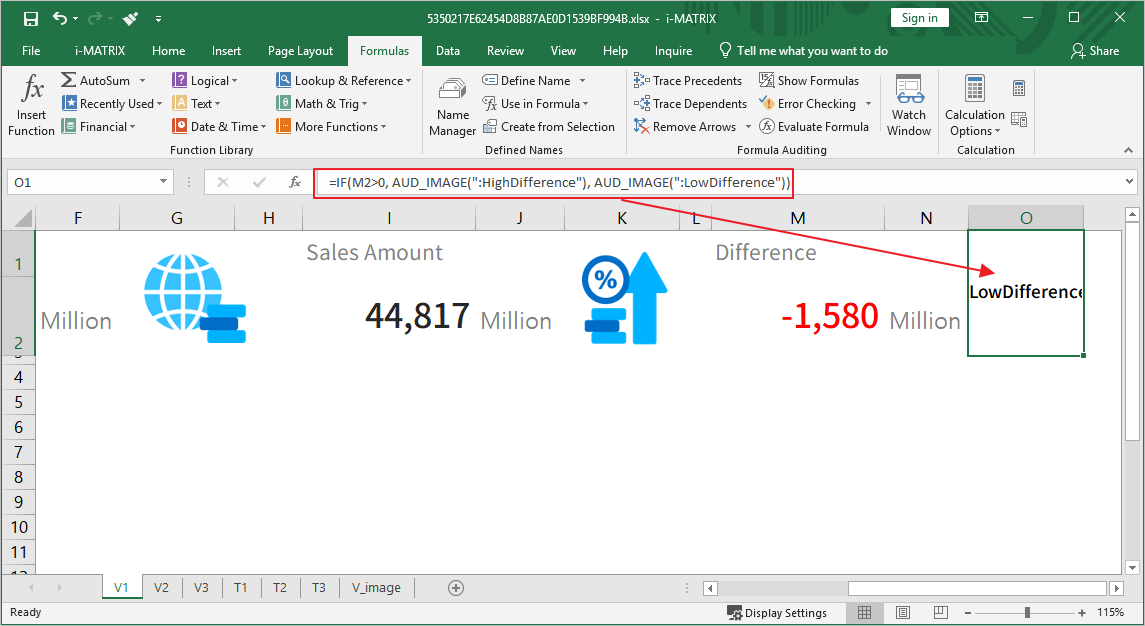
- AUD_IMAGE : 매출 목표와 매출 금액의 차이 값에 따라 상승/하락 이미지를 표시합니다Displays increase/decrease images based on the variance between sales targets and actual sales amounts. AUD_IMAGE ☜ 상세 가이드 참조하기
...
- Refer to the detailed guide for AUD_IMAGE
- Reference images in the V_image sheet to output different images to cells depending on whether the cell value is greater or less than 0. (Verify image name definitions)
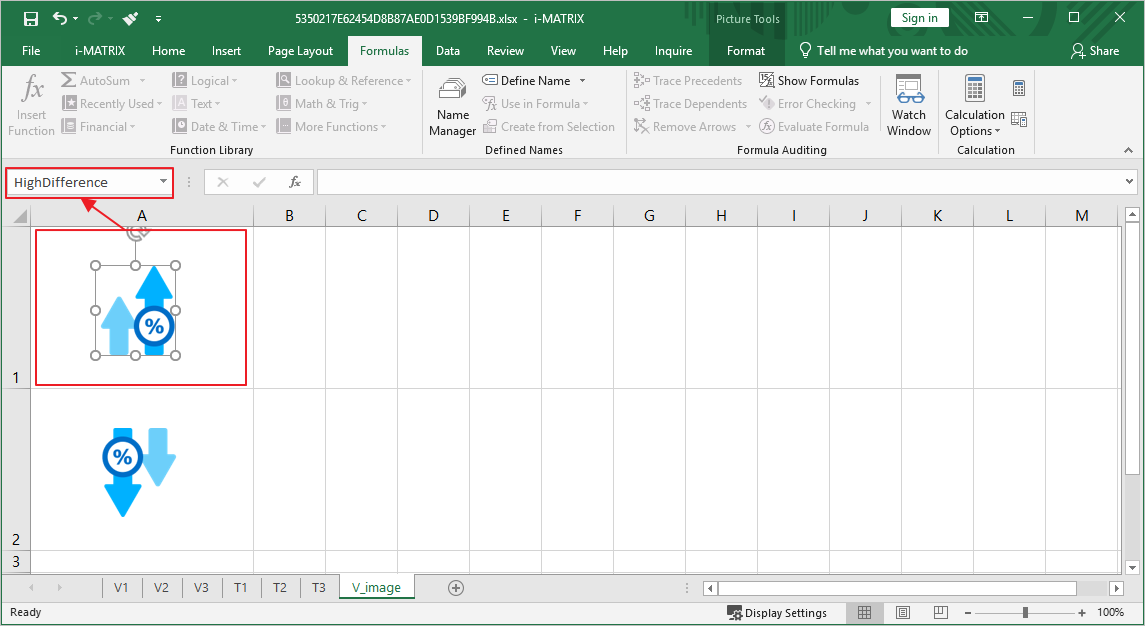
- Enter the function into a specific cell in the V1 sheet.
Formula : =IF(L2 > 0, AUD_IMAGE(":차이상"), AUD_IMAGE(":차이하"))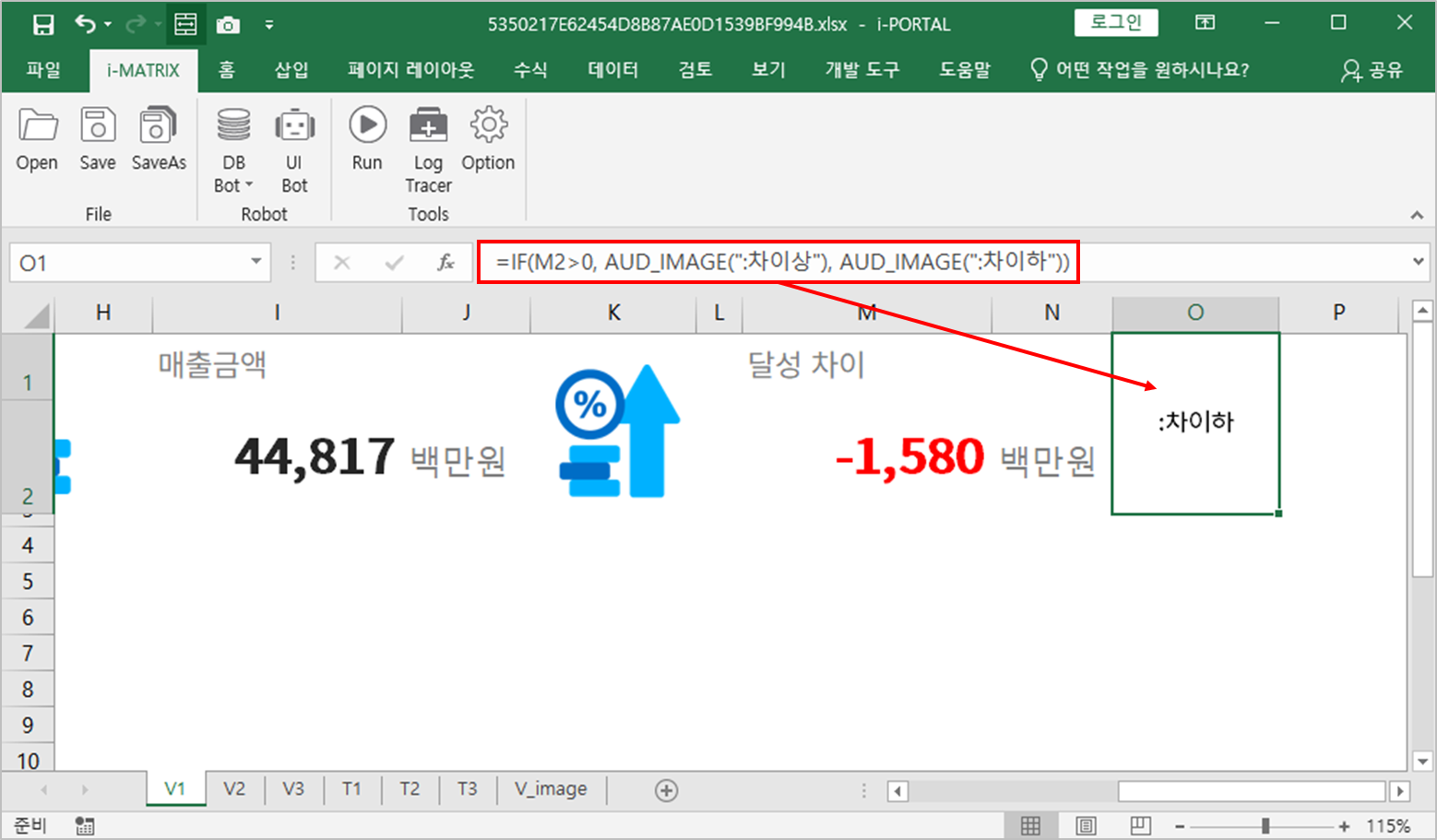
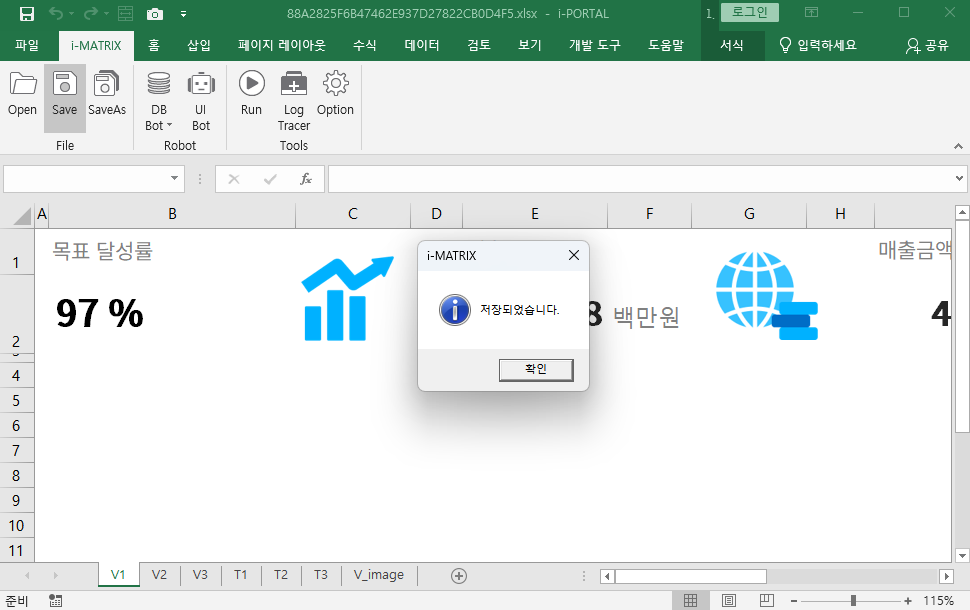
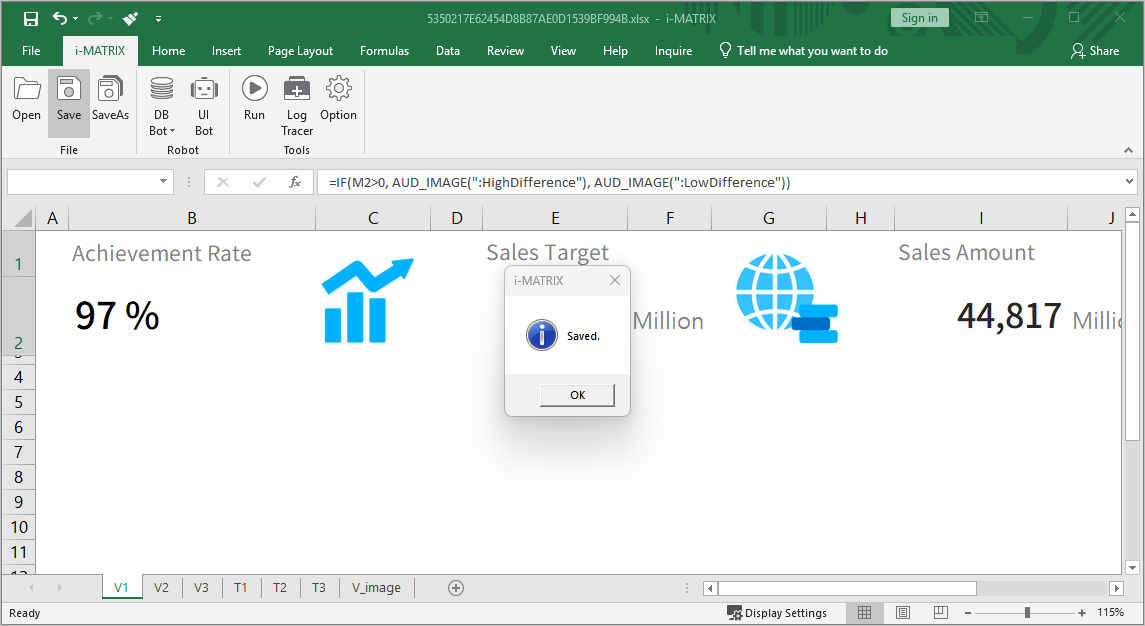
- Click the Save button in the [i-MATRIX] 도구 Save 버튼을 클릭하고 화면을 닫습니다tools and close the window.
Step 6.
...
Layout MX-Grid
...
Screens via ActiveSheet
Split V1, V2 ,V3 시트를 분할하여 원하는 영역에 배치 합니다and V3 sheets within MX-Grid and arrange them in the desired areas.
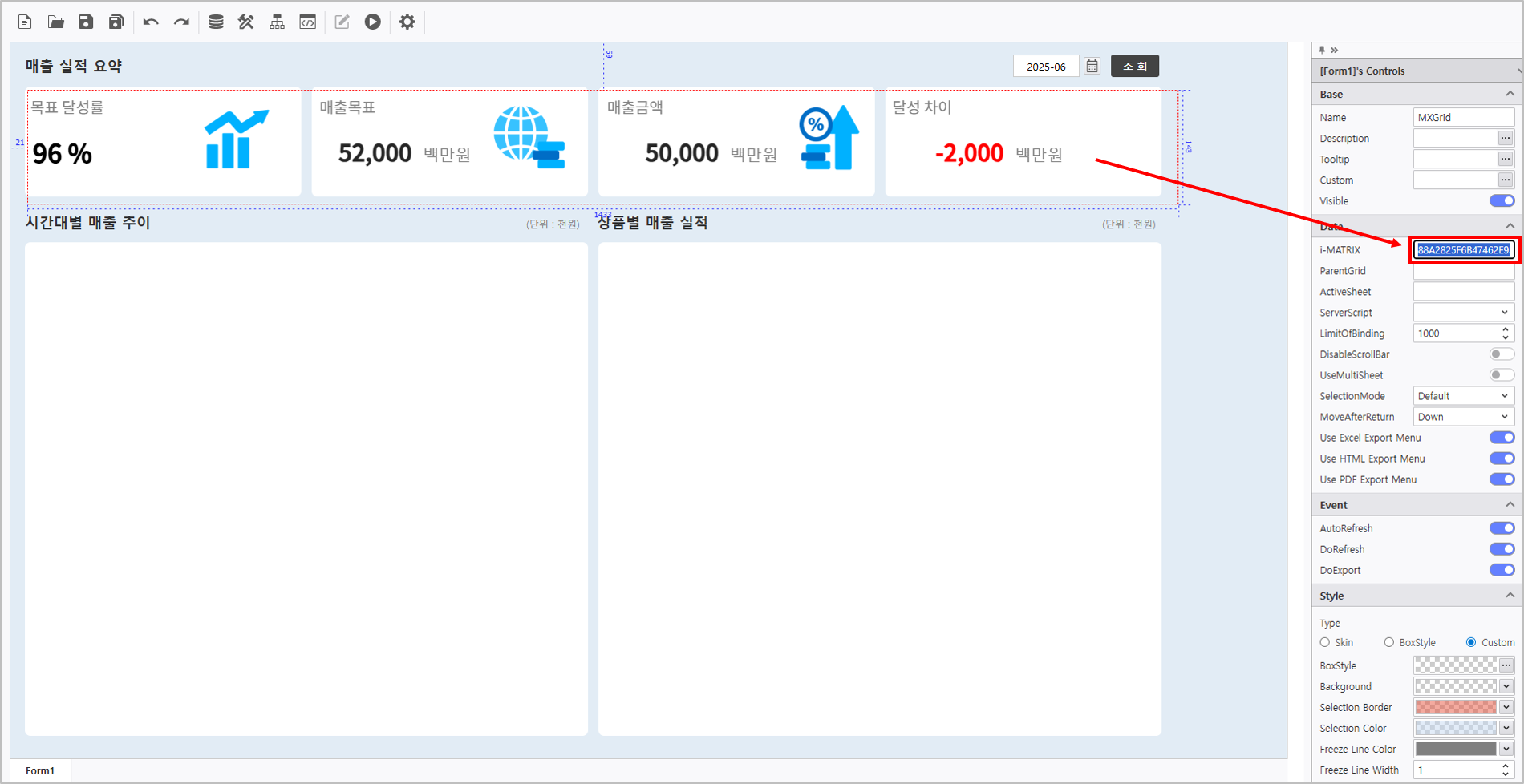
- V1 시트의 주요 지표 영역이 표시되도록 상단 매출 실적 요약 부분에 배치 합니다.
- V2시트와 V3시트도 화면에 배치되도록 MX-Grid 컨트롤 클릭 후 Position the V1 sheet in the top sales summary section to display key metric ranges.
- Click MX-Grid control and copy the [i-MATRIX] 에 주소를 복사합니다address to place the V2 and V3 sheets on the screen.
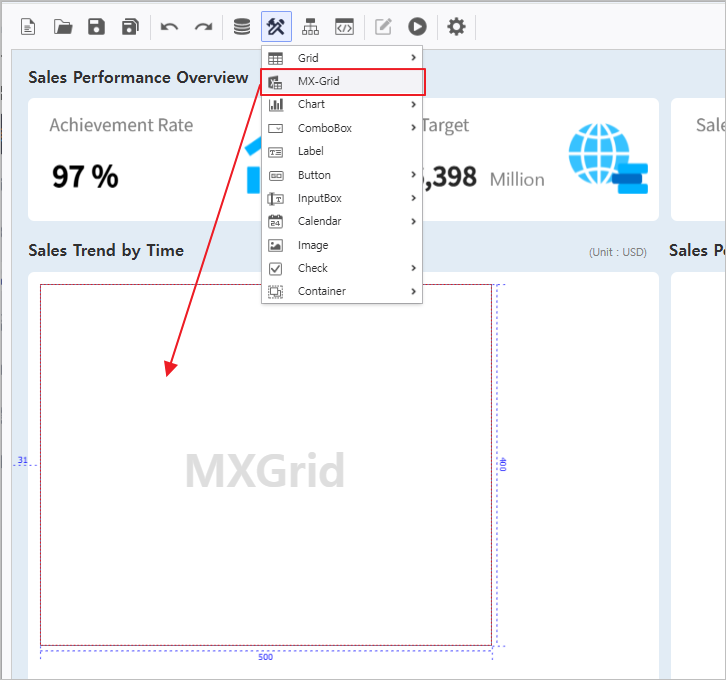
V2 시트를 배치하기 위해서 UI Bot >MX-Grid 컴포넌트를 생성합니다.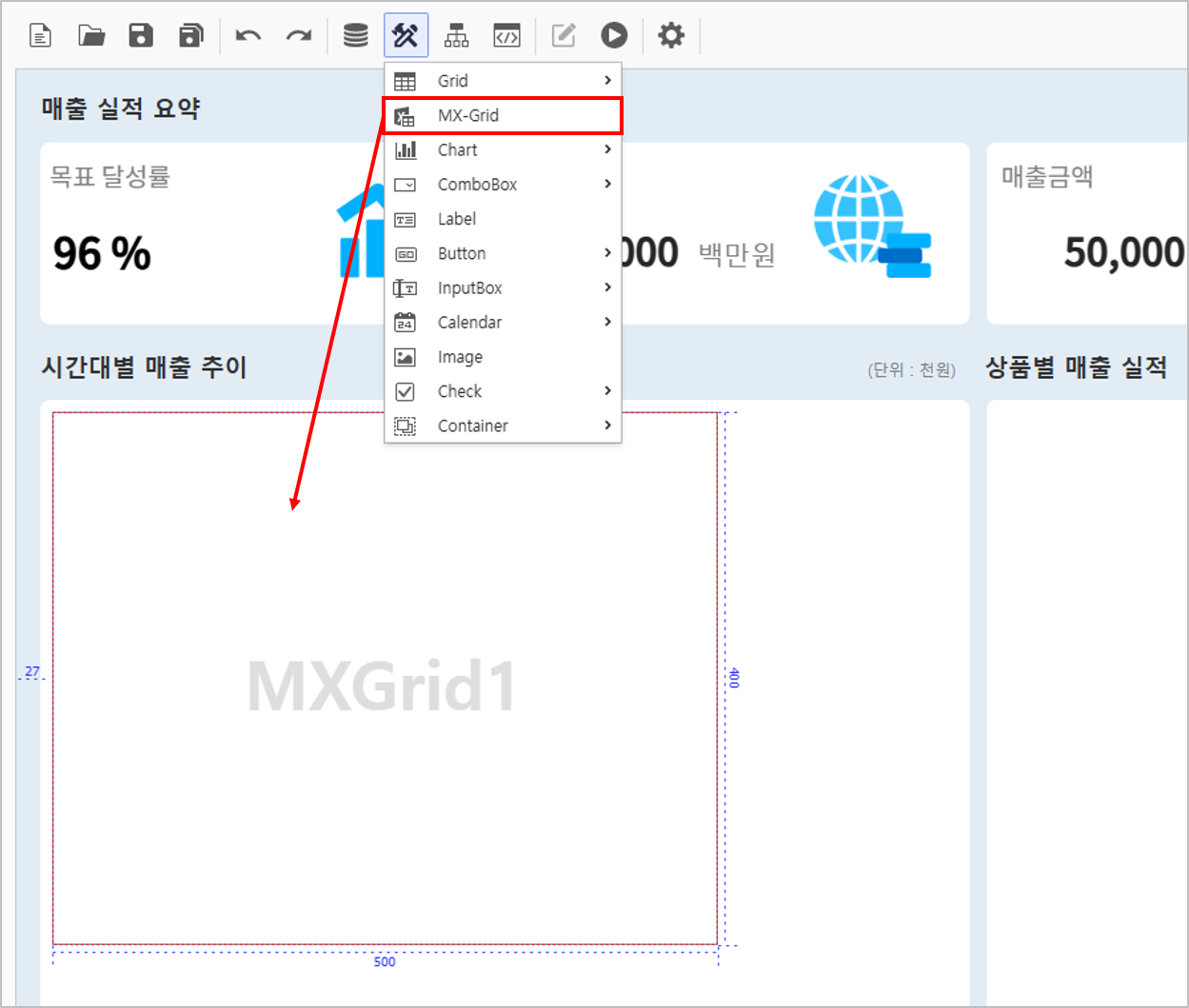
복사한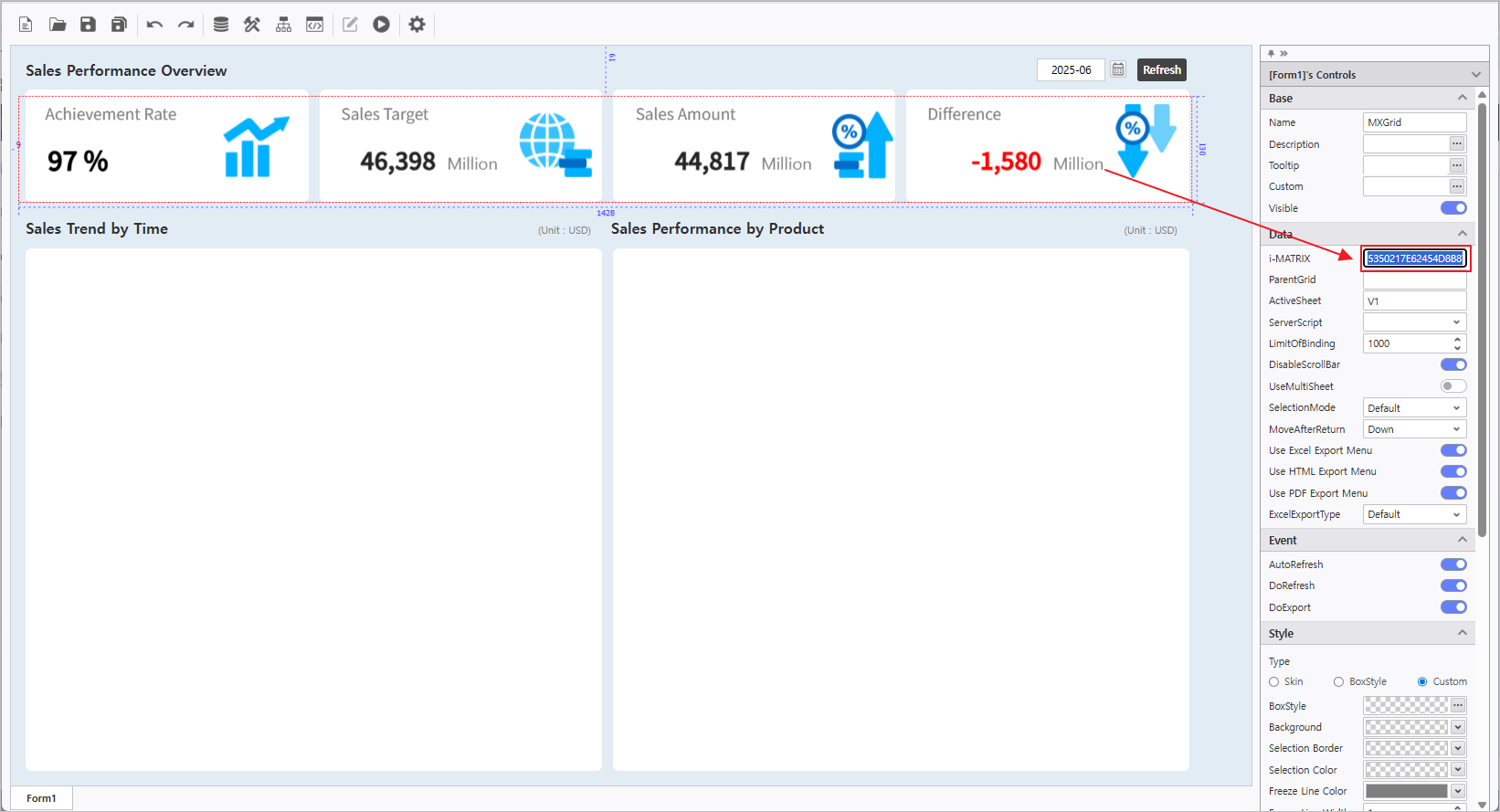
- Create a new MX-Grid component via UI Bot to arrange the V2 sheet.
- Paste the copied [i-Matrix] 주소를 새로운 address into the property pane of the new MX-Grid 속성창에 붙여넣기 하고 ActiveSheet에 V2, ParentGrid에 MXGrid를 입력합니다.
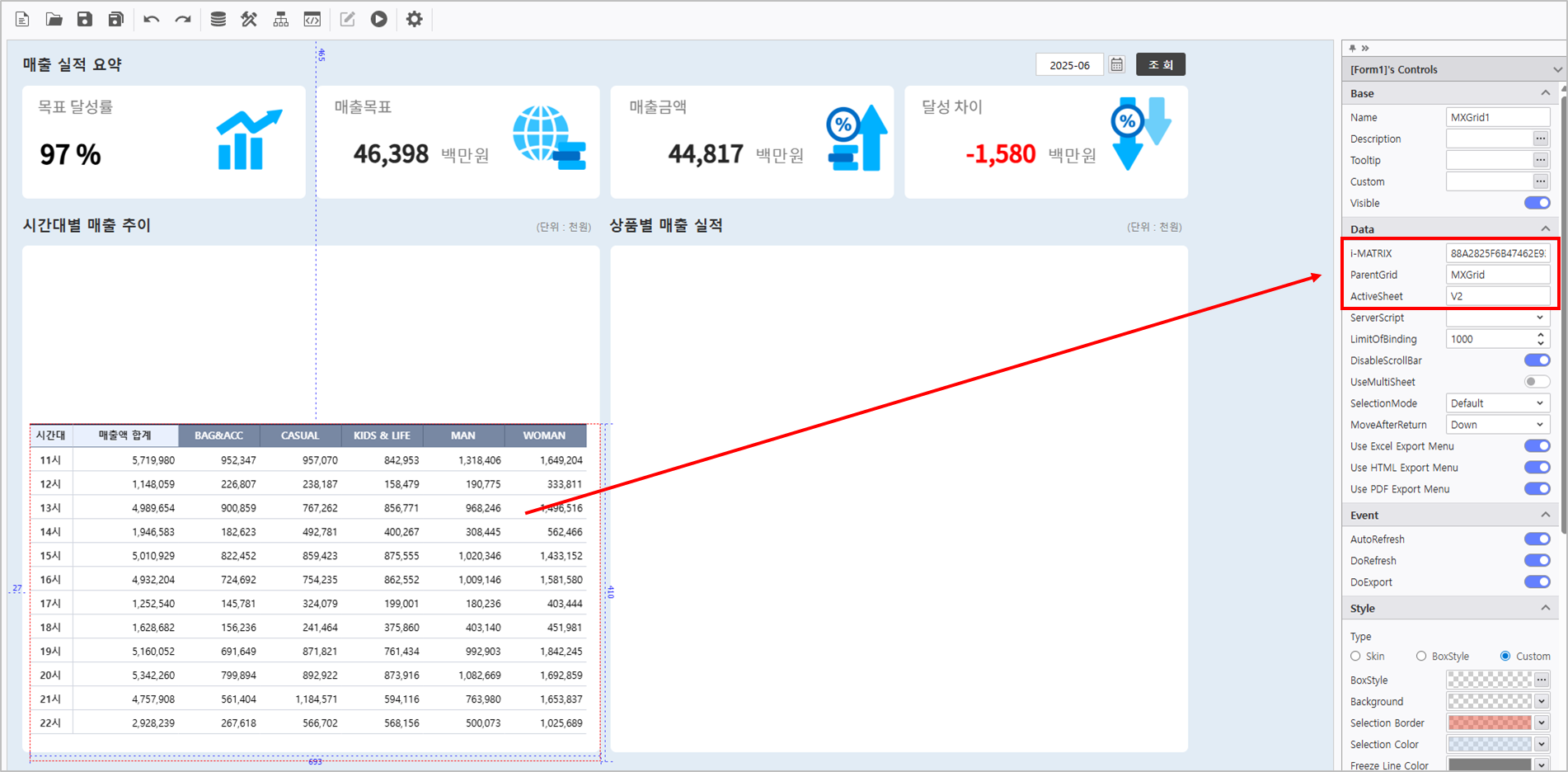
동일한 방법으로 V3도 신규 MX-Grid를 이용하여 배치합니다.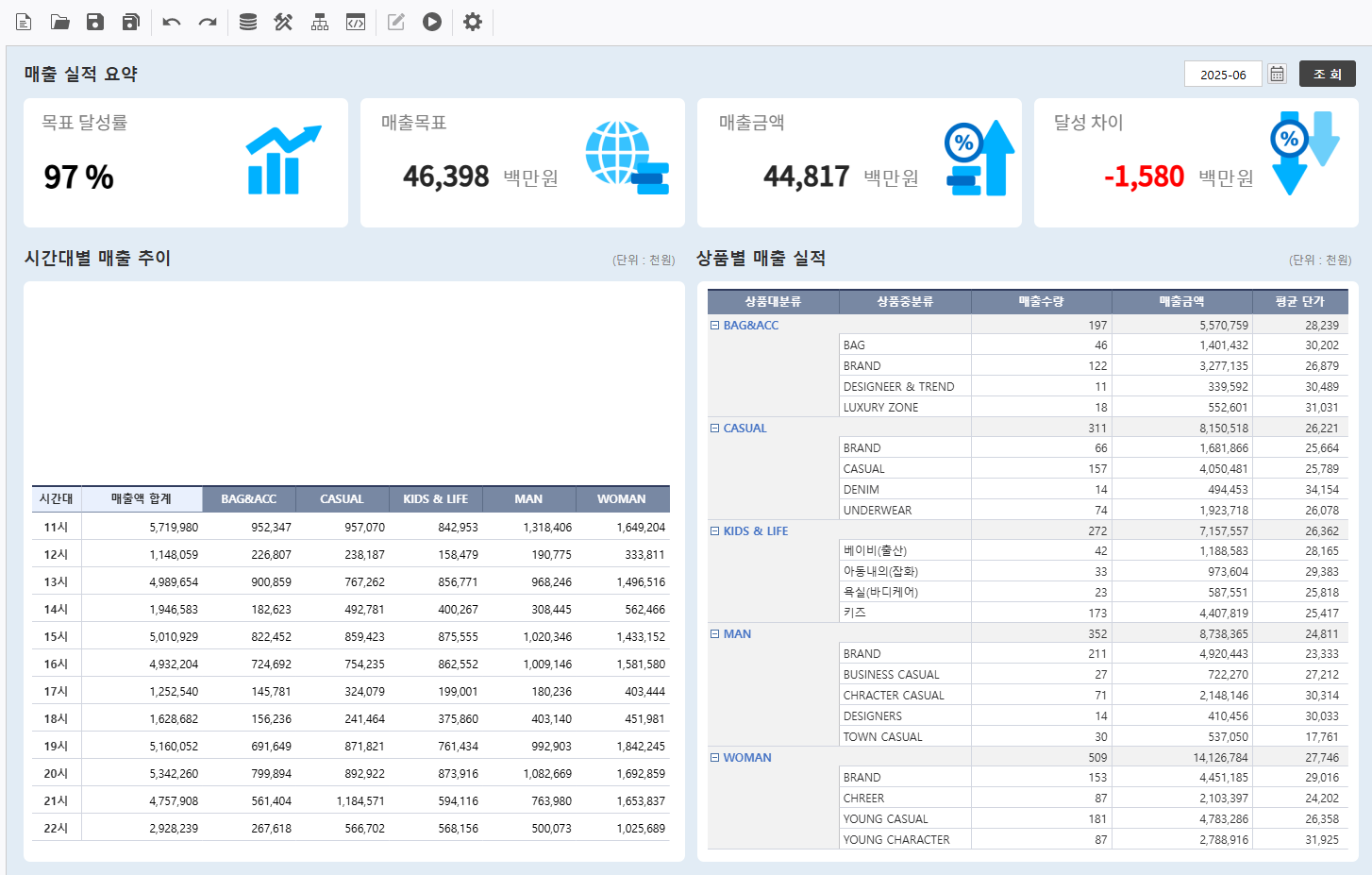
and enter V2 in ActiveSheet and MXGrid in ParentGrid.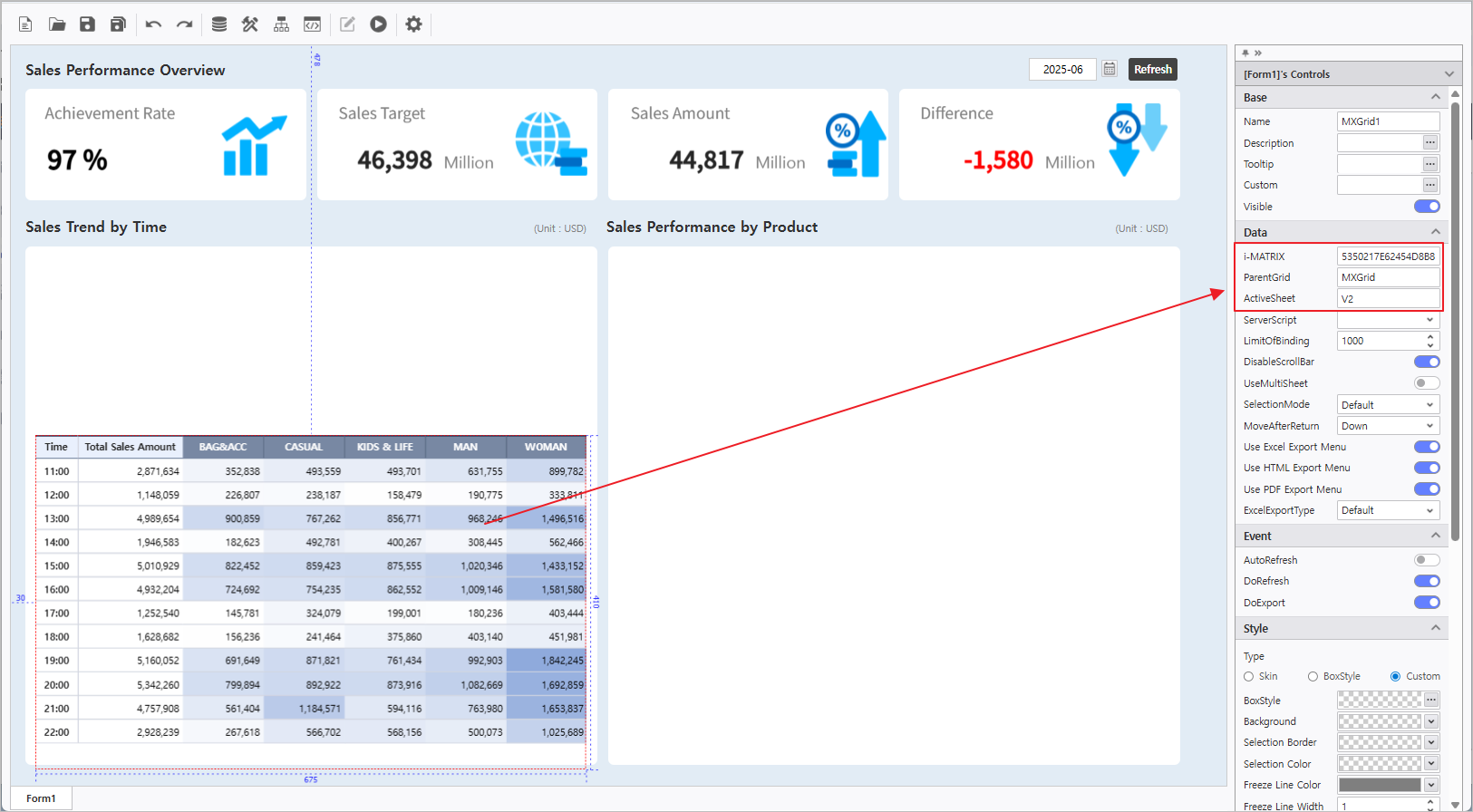
- Arrange V3 using a new MX-Grid in the same manner.
- Remove MX-Grid Background 색상 제거 : 속성창 Style탭 Background A값을 0 으로 표기
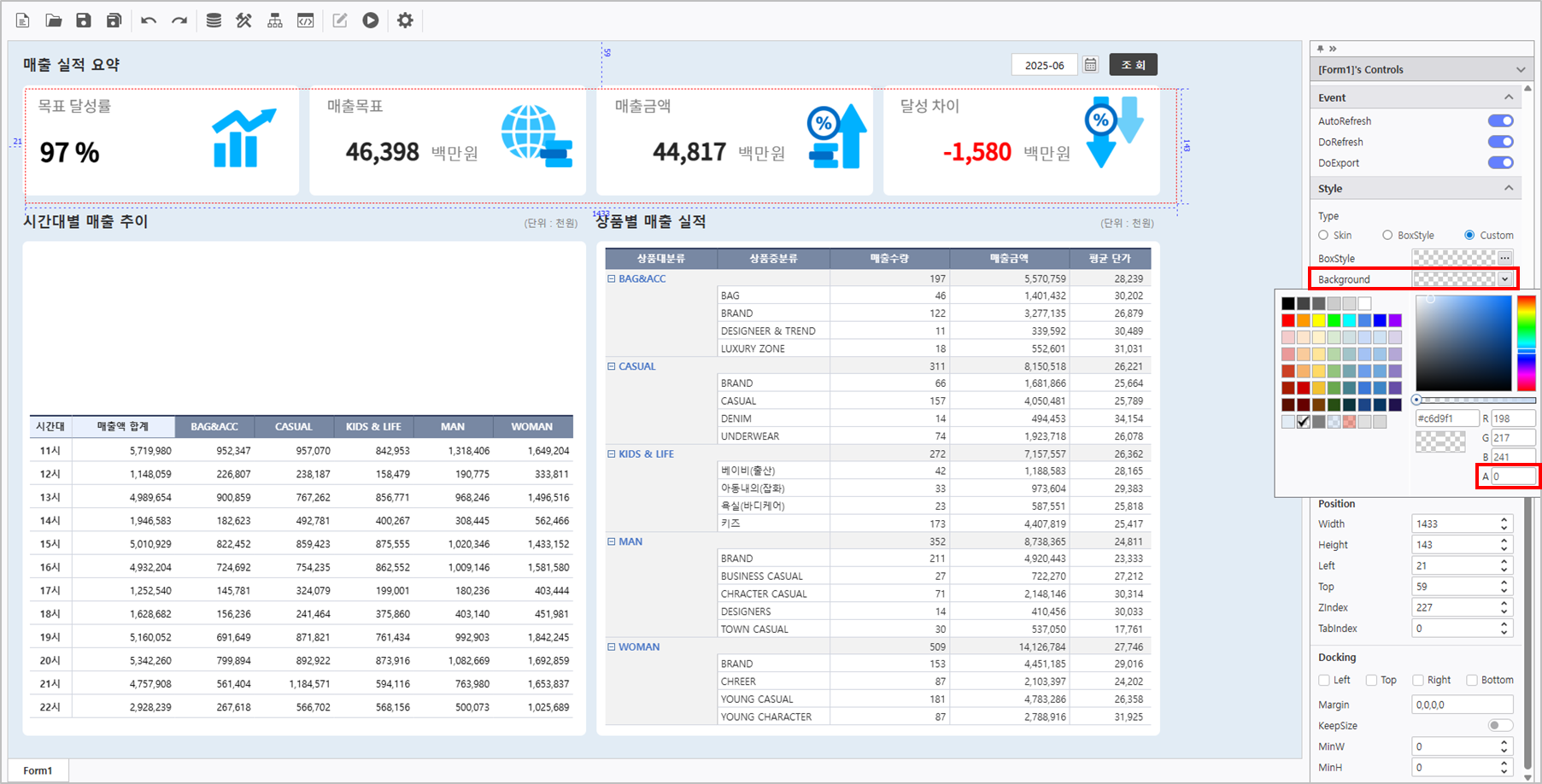
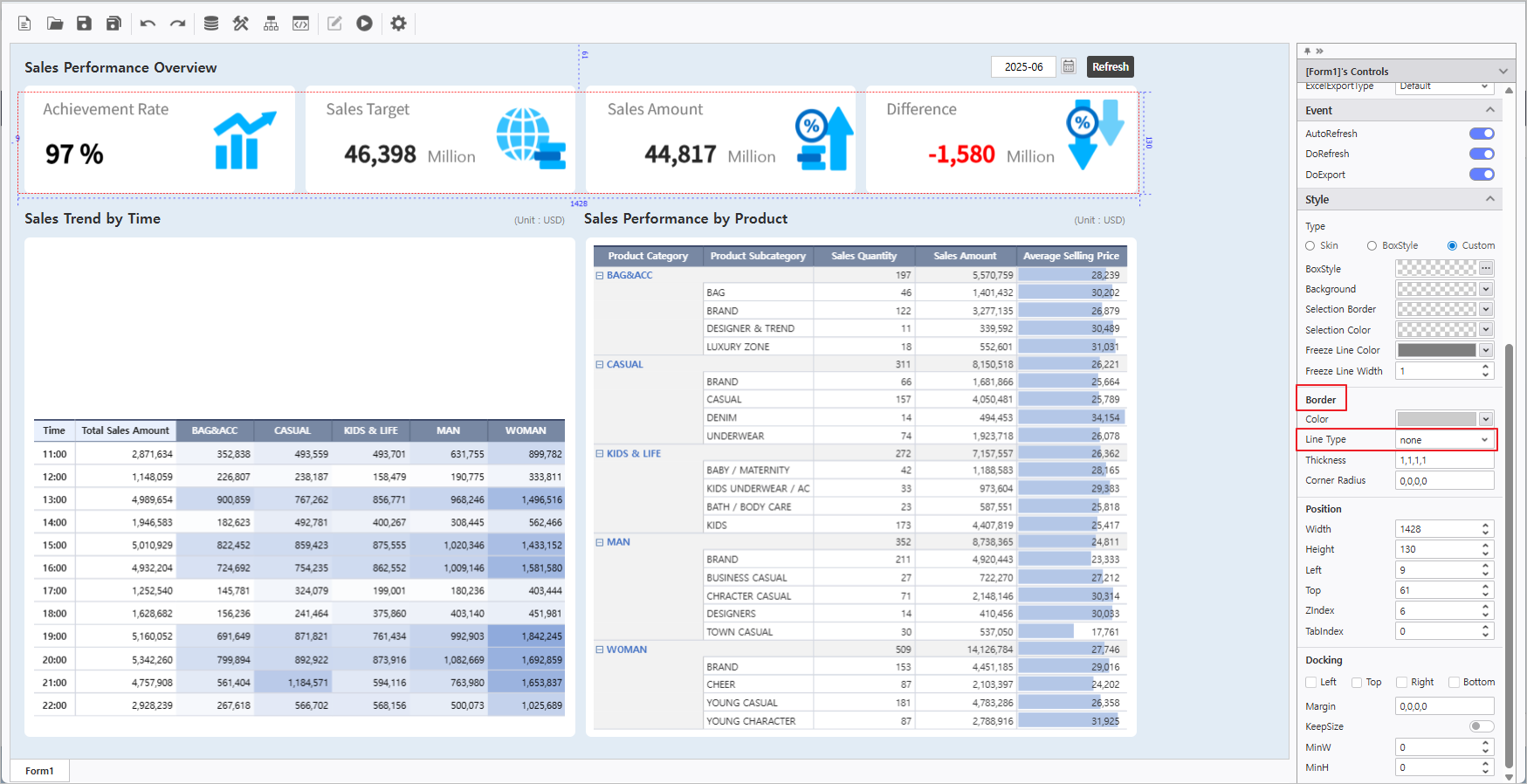
MX-Grid 파량색 Line색 제거 : 속성창 Style 탭에서 Border영역에 Line Type을 none으로 선택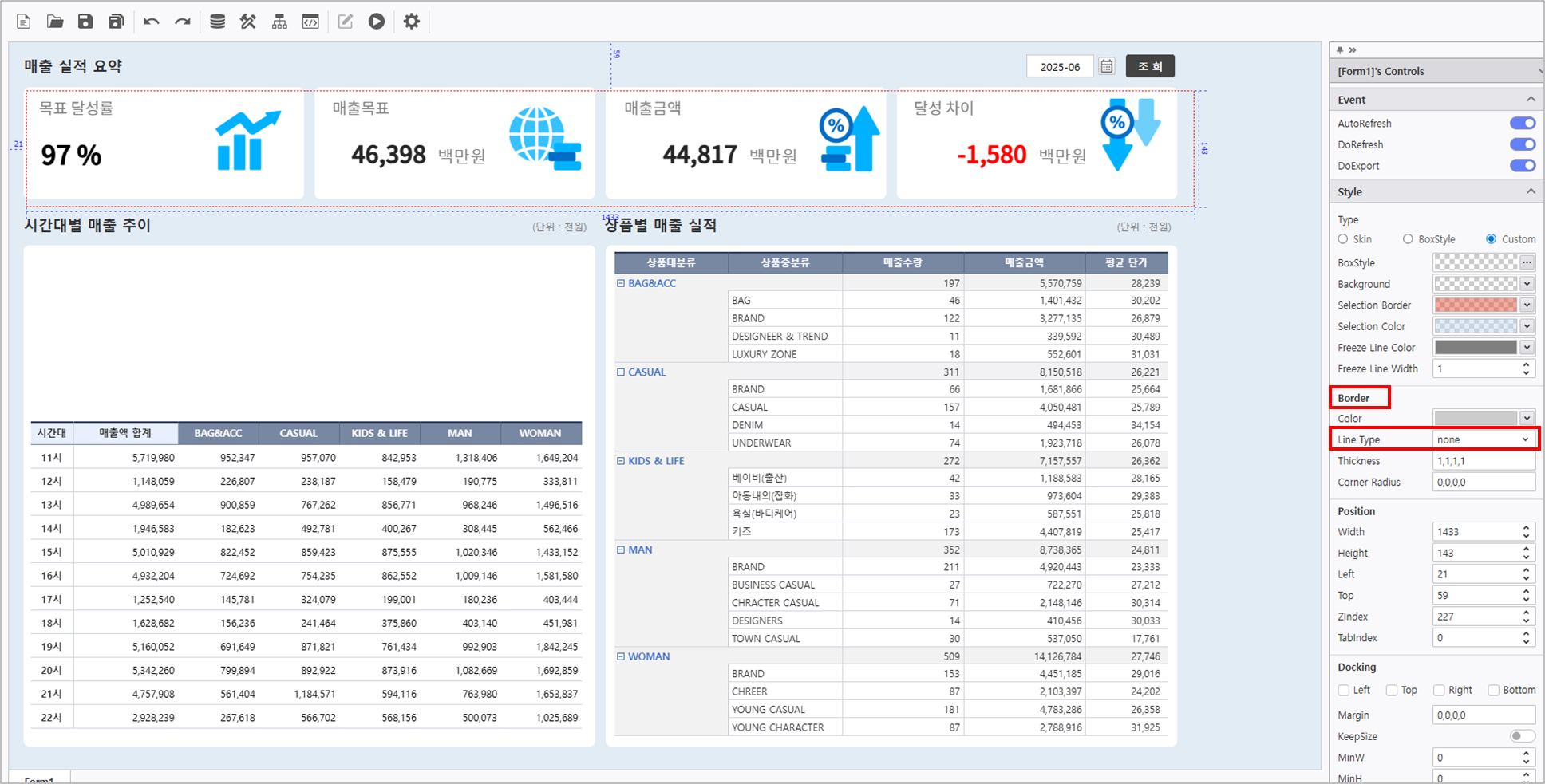 Color : Set the Background A(Alpha) value to 0 in the Style tab of the property pane.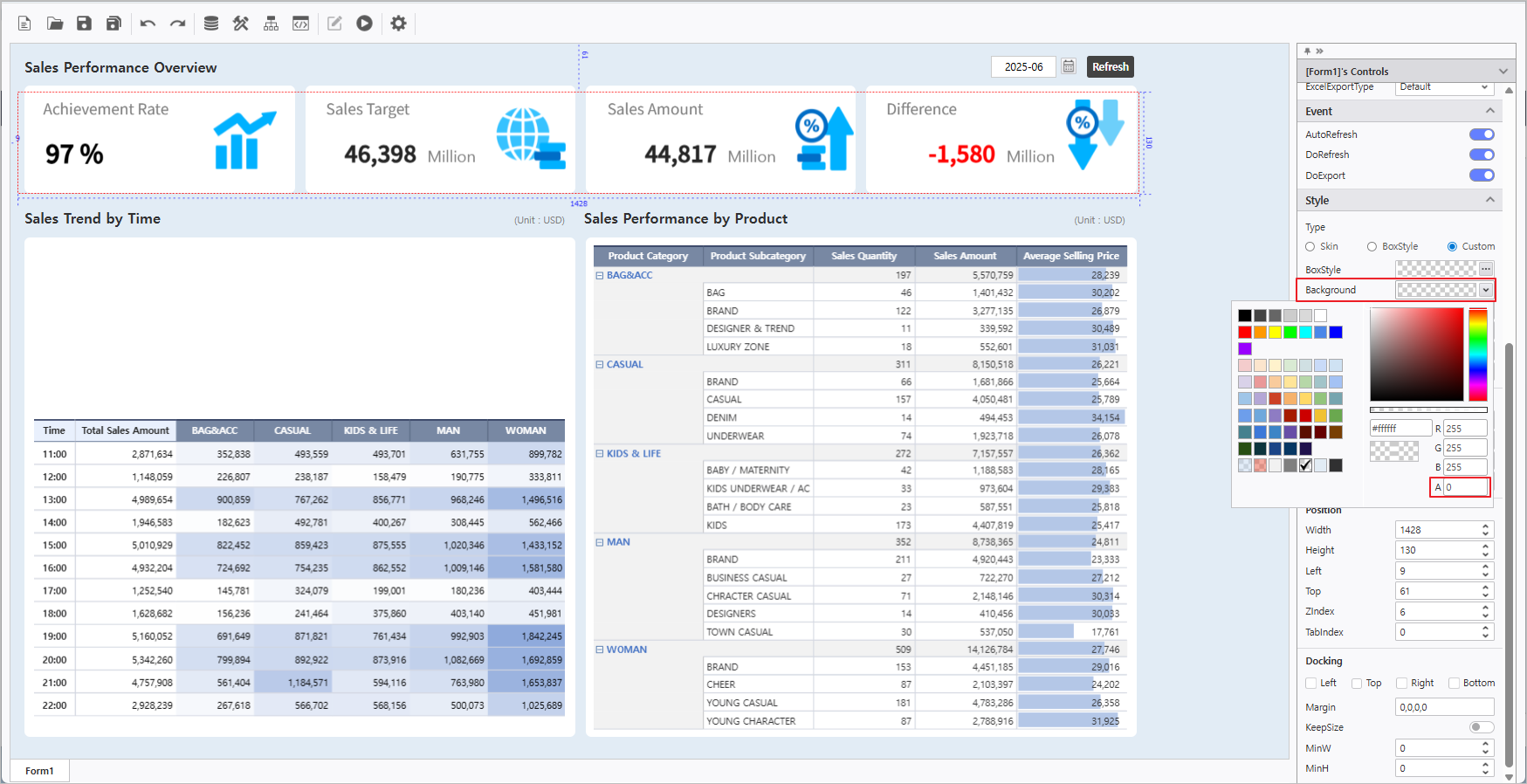
- Remove MX-Grid Blue Lines : Select Line Type: None in the Border area of the style tab.
Step 6. Create a Chart
...
시간대별 데이터를 Chart로 시각화 합니다Visualize hourly data using a Chart.
- Click UI Bot> Chart> Chart 클릭합니다.
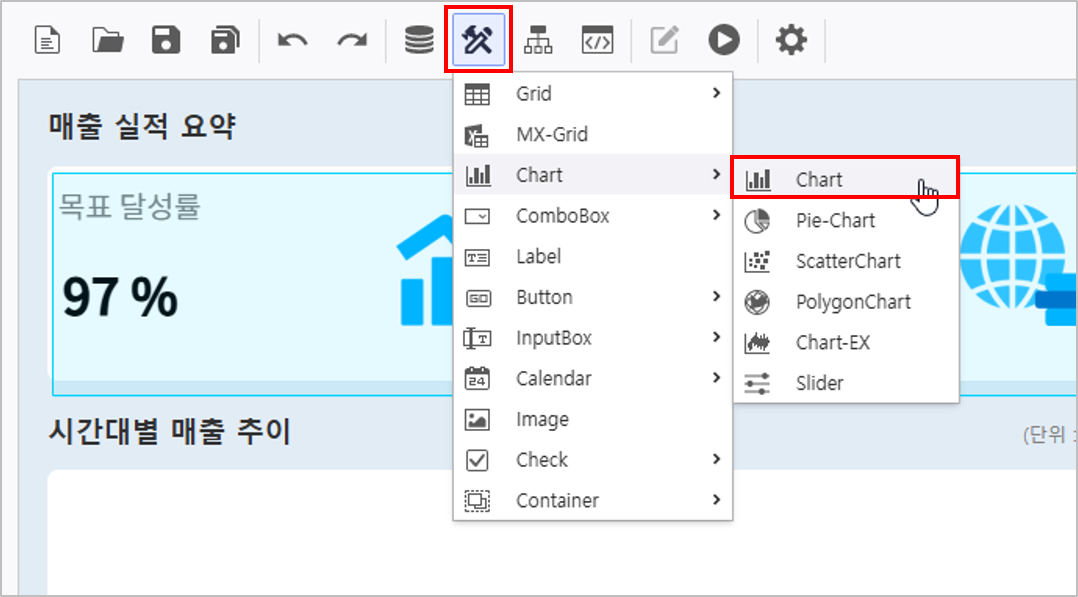
생성된 차트 속성에 NAME은 TIME 으로 기입합니다.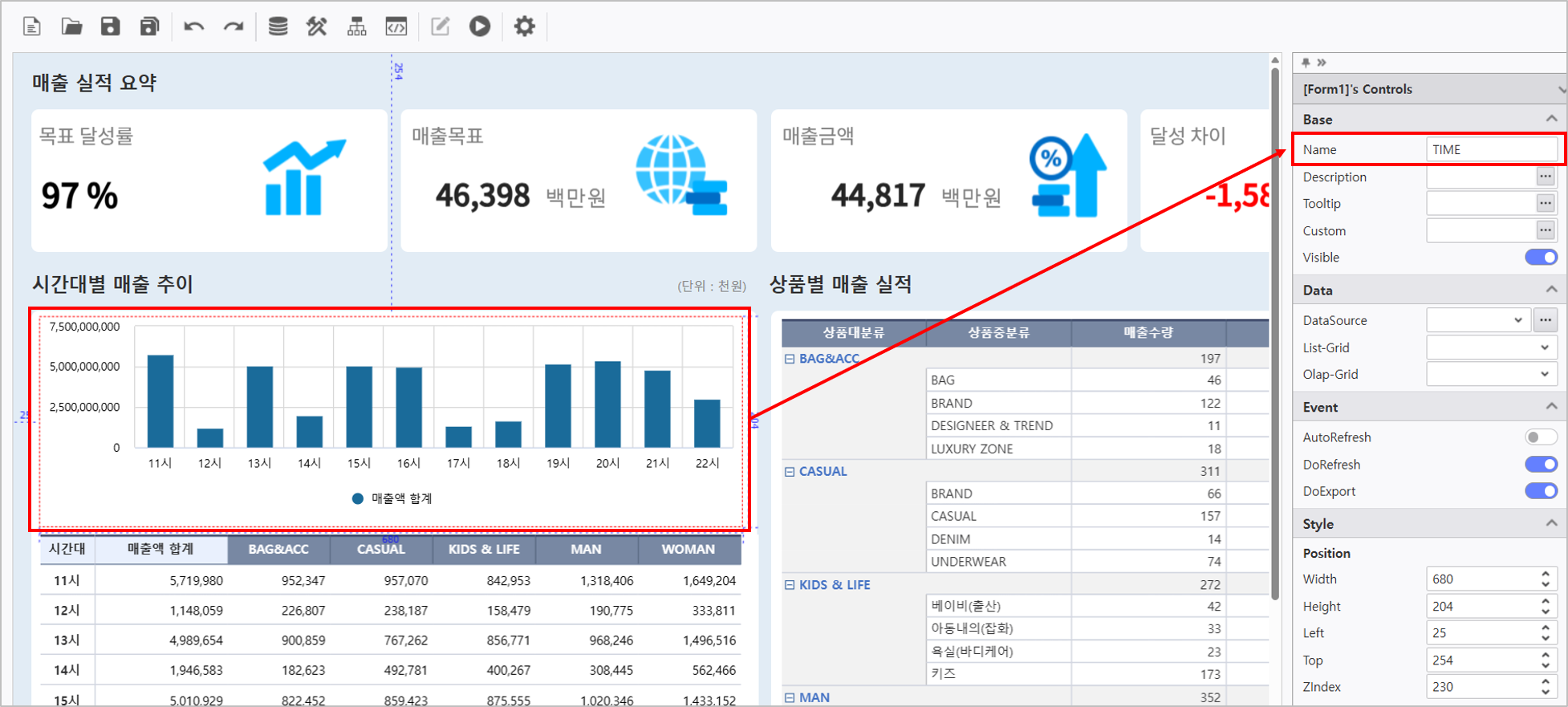
해당 차트는 V2시트에 _D_예약어를 활용한 데이터 소스가 바인딩 되어 차트에 나타납니다.
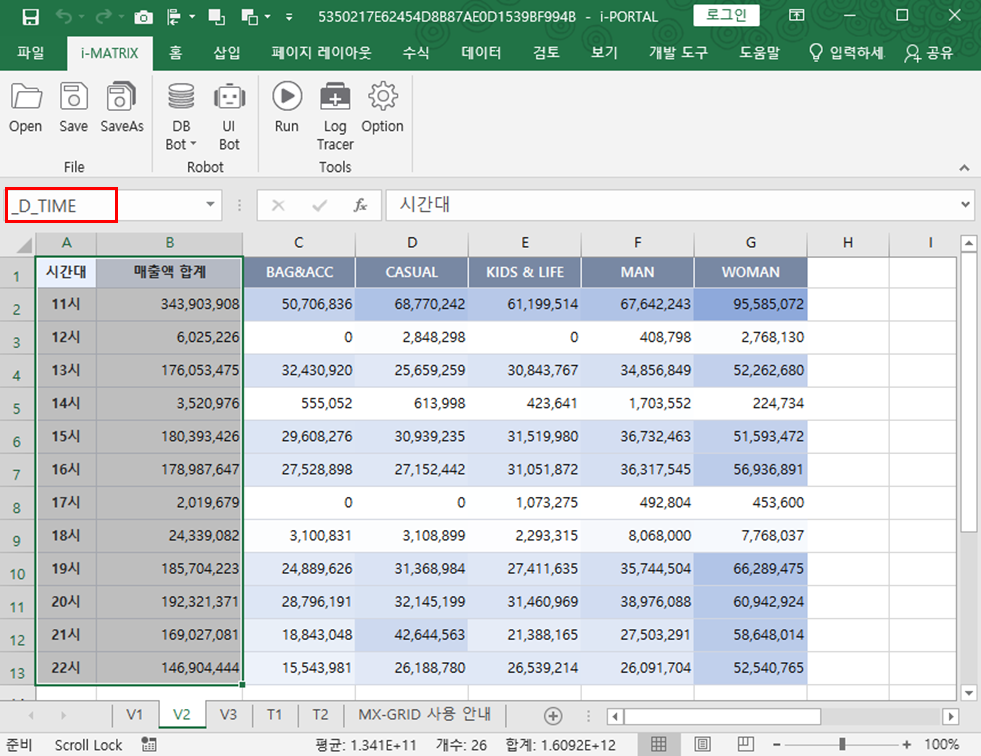
_D_컨트롤 이름 예약어는 MX-GRID에서 내 데이터를 i-AUD컨트롤에 출력할 수 있습니다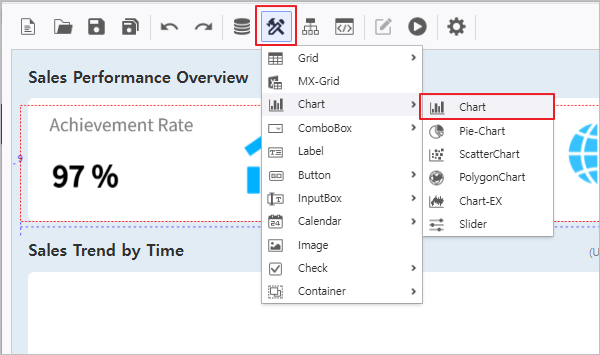
- Enter TIME in the Name property of the generated chart.
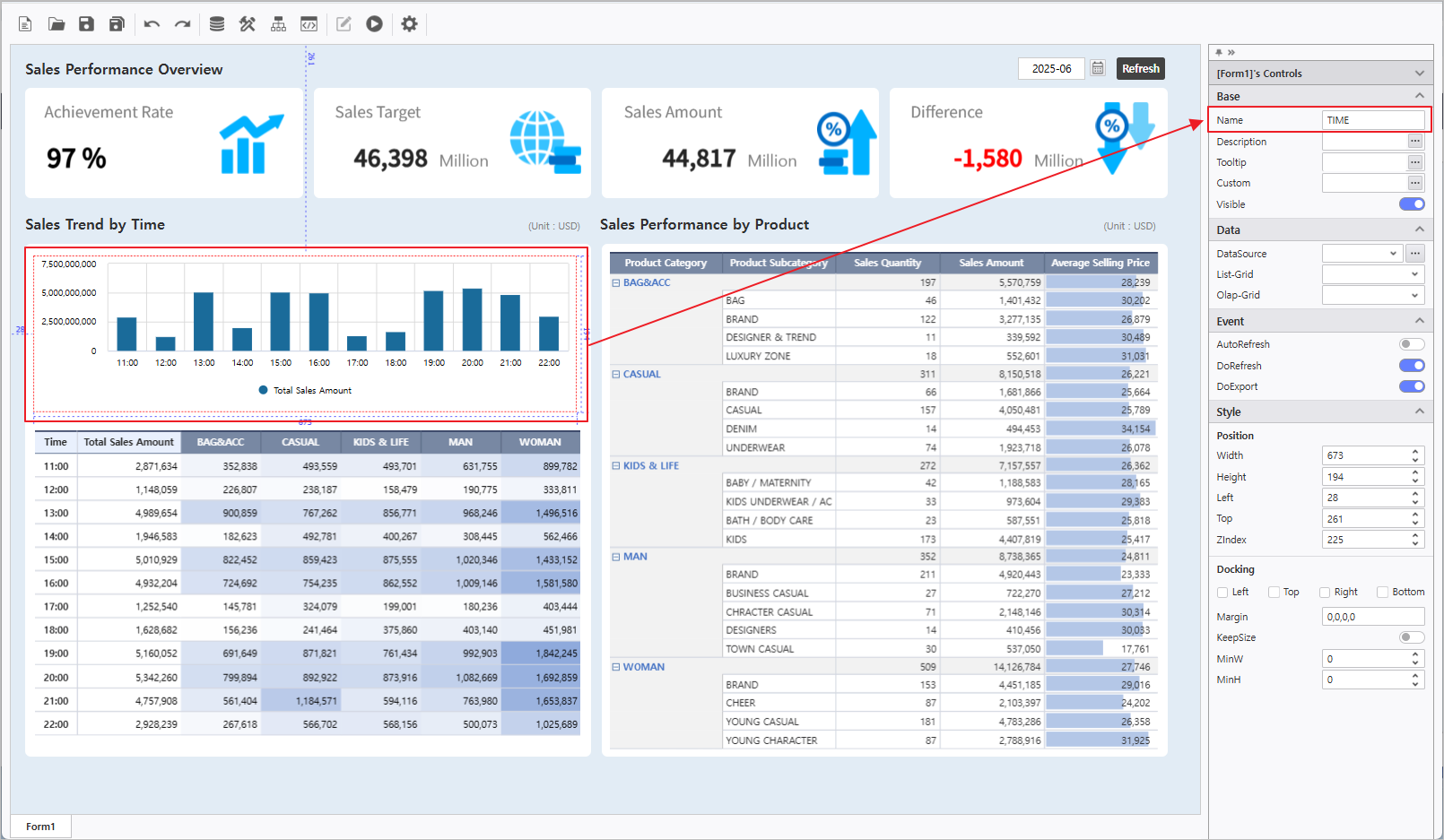
- The chart will display data bound via _D_ reserved keyword from the V2 sheet.
The _D_ControlName keyword allows MX-GRID data to be output to i-AUD controls. _D_예약어 활용하기 ☜ 상세 가이드 참조하기Refer to the detailed guide for _D_ keyword usage.
Step 7.
...
Assign Events via Process Bot
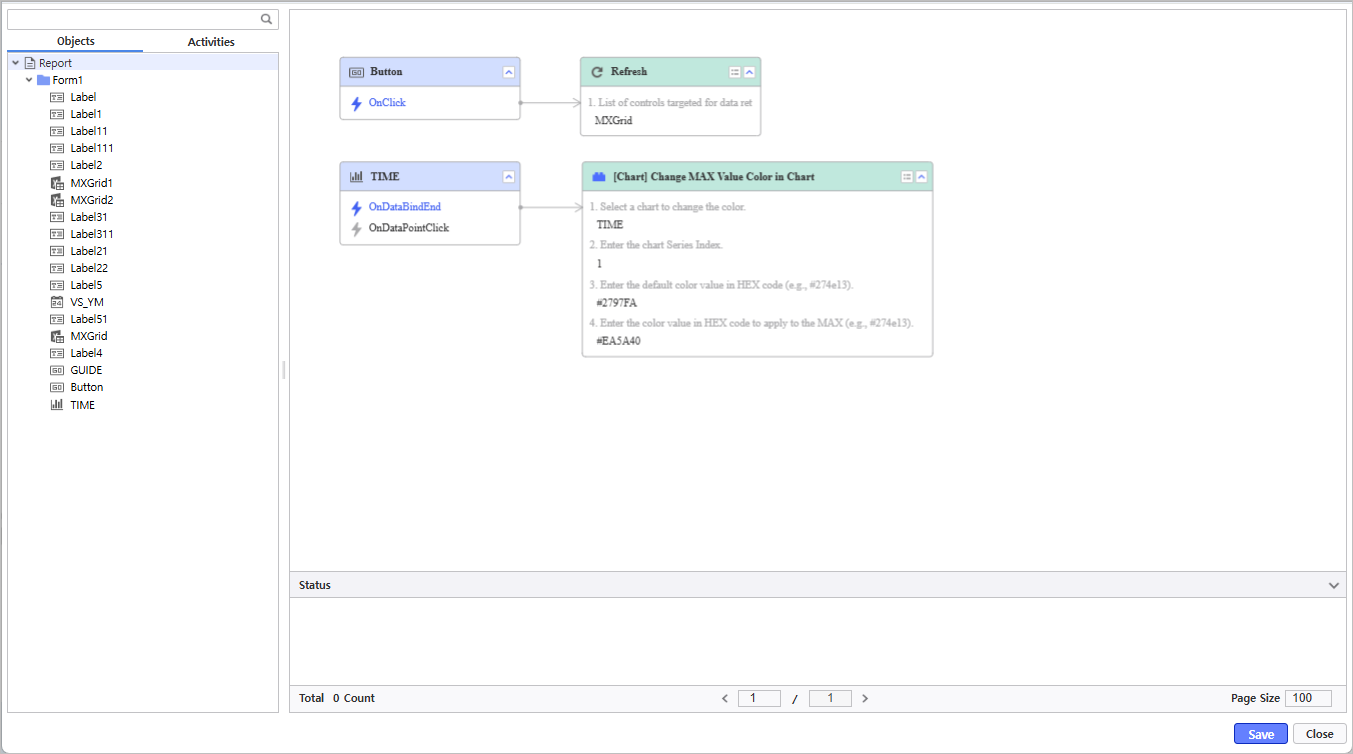
- Search for required modules in the Process Bot > Activities 탭에서 필요한 모듈을 검색하고, 더블 클릭하여 배치합니다.
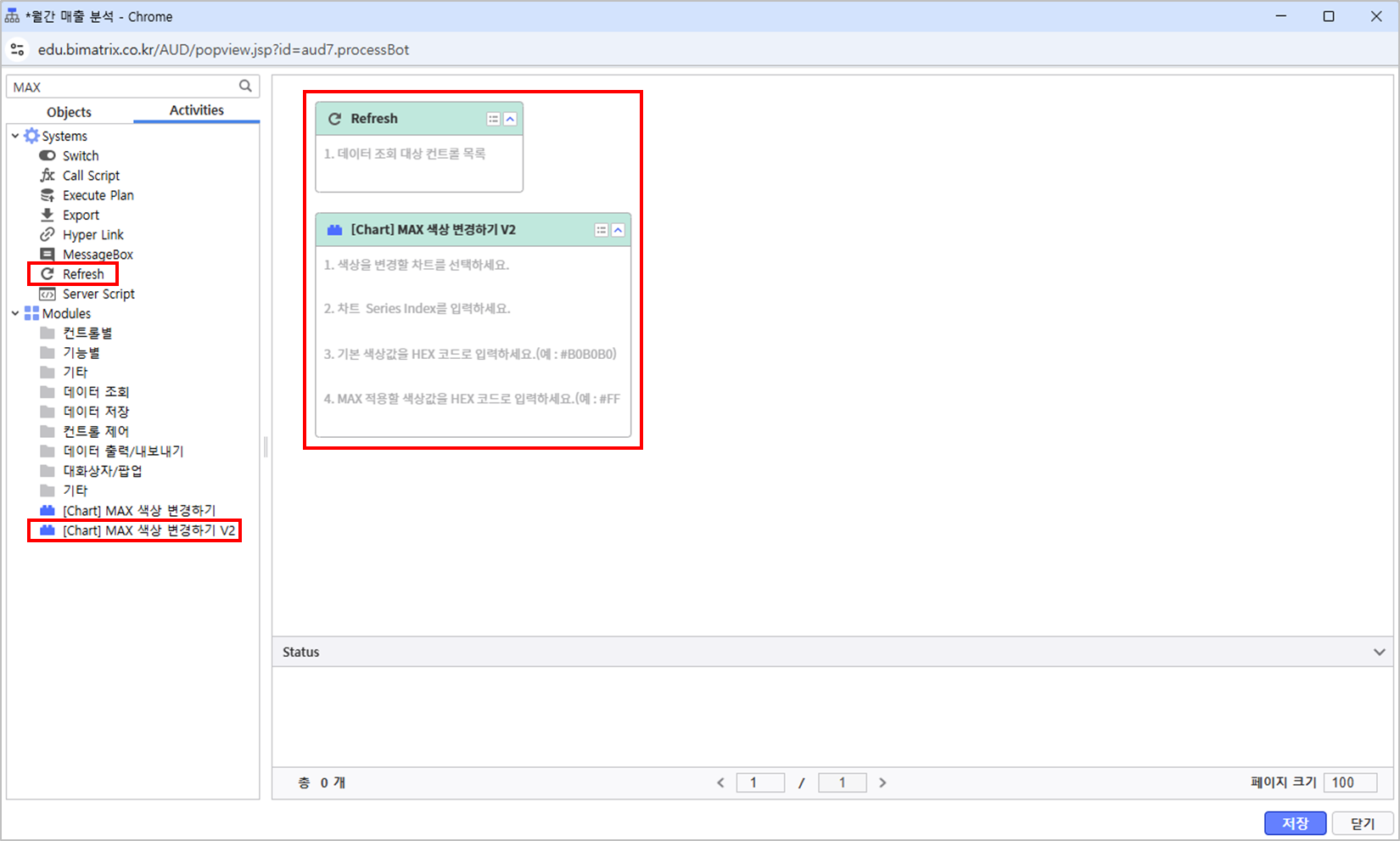
조회 버튼을 클릭할 때 MXGrid를 Refresh 합니다tab and double-click to place them.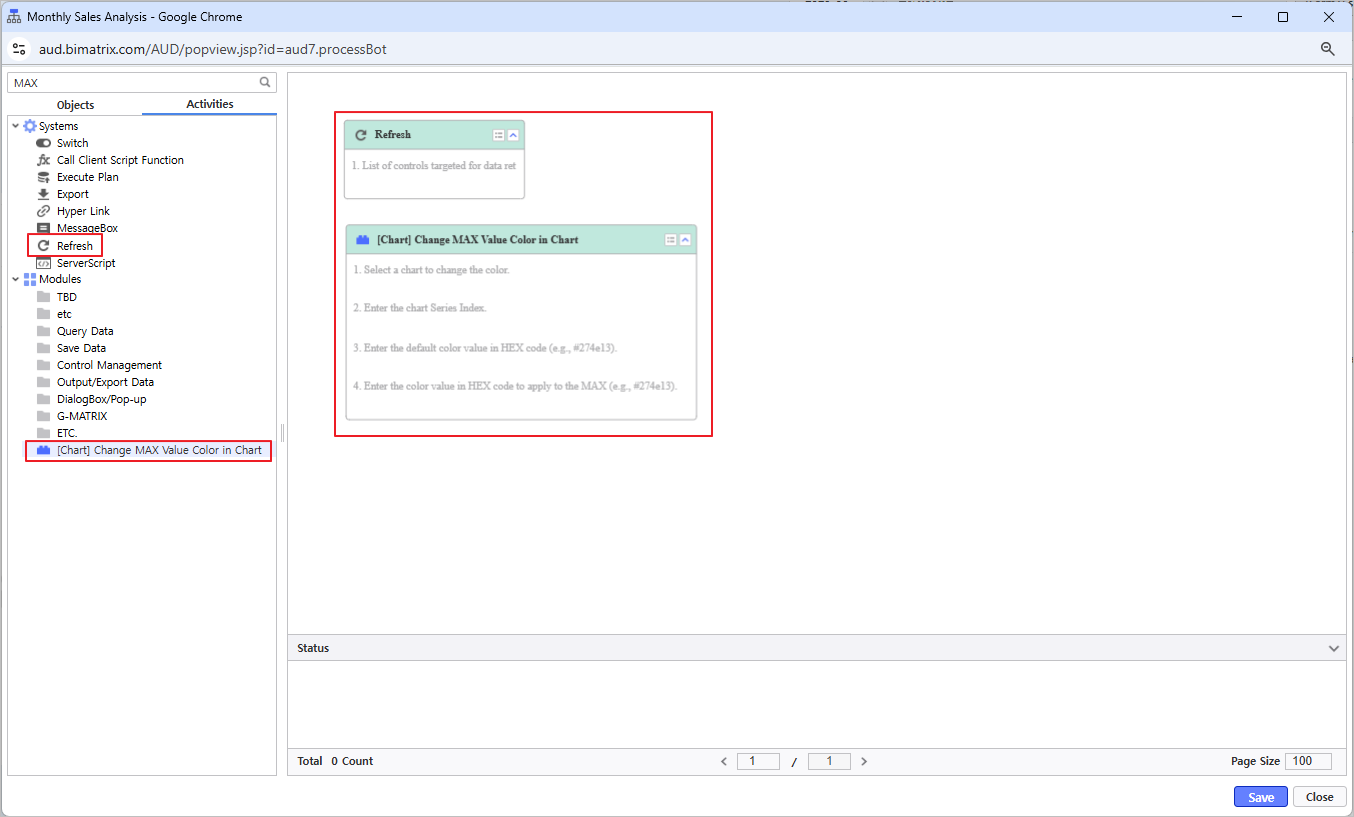
- Refresh the MXGrid when the Refresh button is clicked.
Process Bot 사용하기 ☜ 상세 가이드 참조하기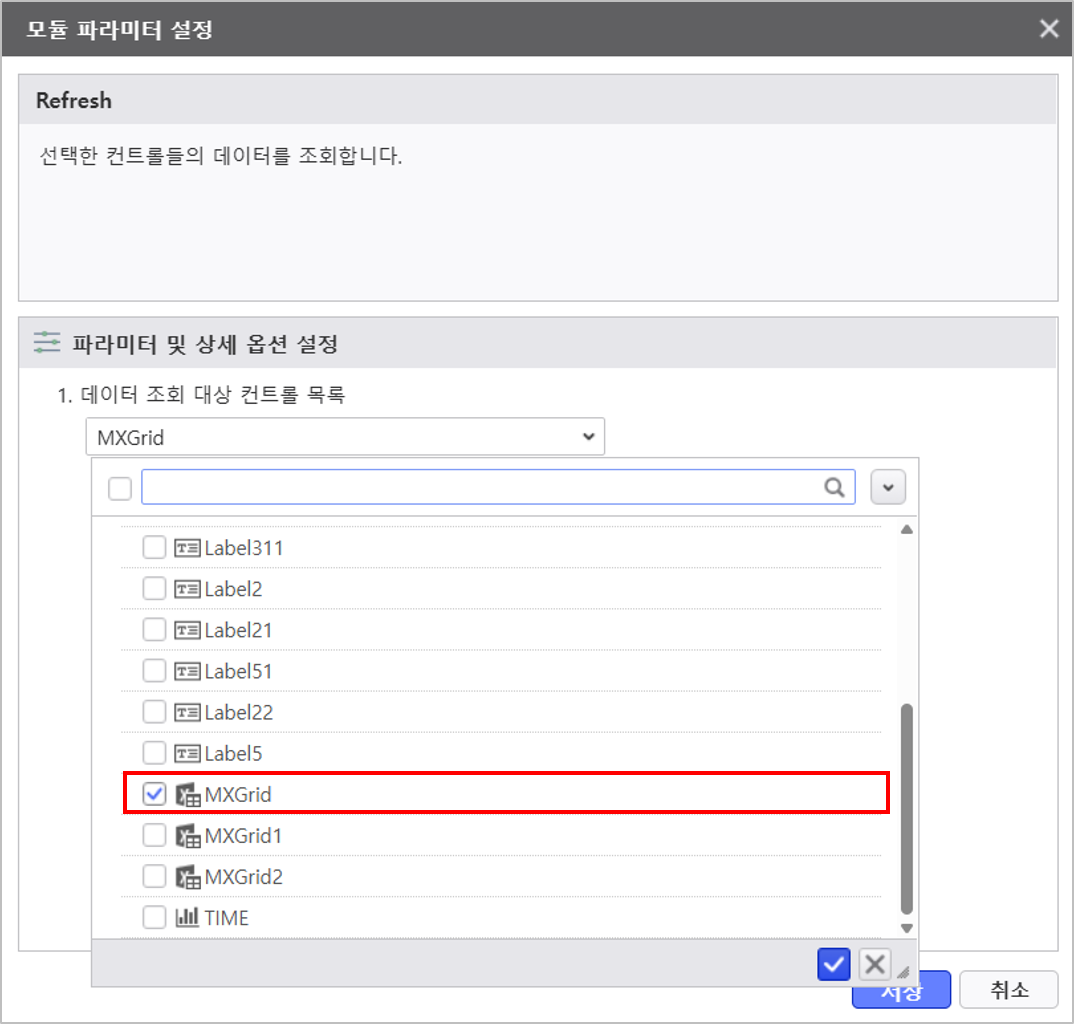
TIME차트에 MAX값에 대해 별도 색상을 표기 합니다.
기본 색상값 HEX Refer tot he detailed guide for Process Bot usage.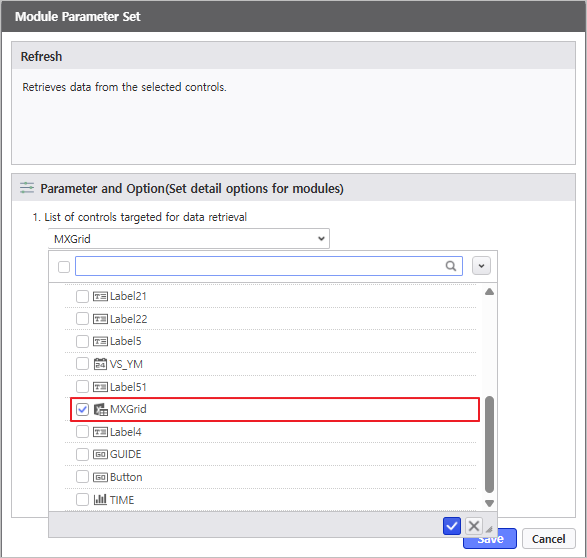
- Apply distinct colors for the MAX value in the TIME chart.
Default Color value in HEX code : #2797FA
MAX 색상값 Color value in HEX code : #EA5A40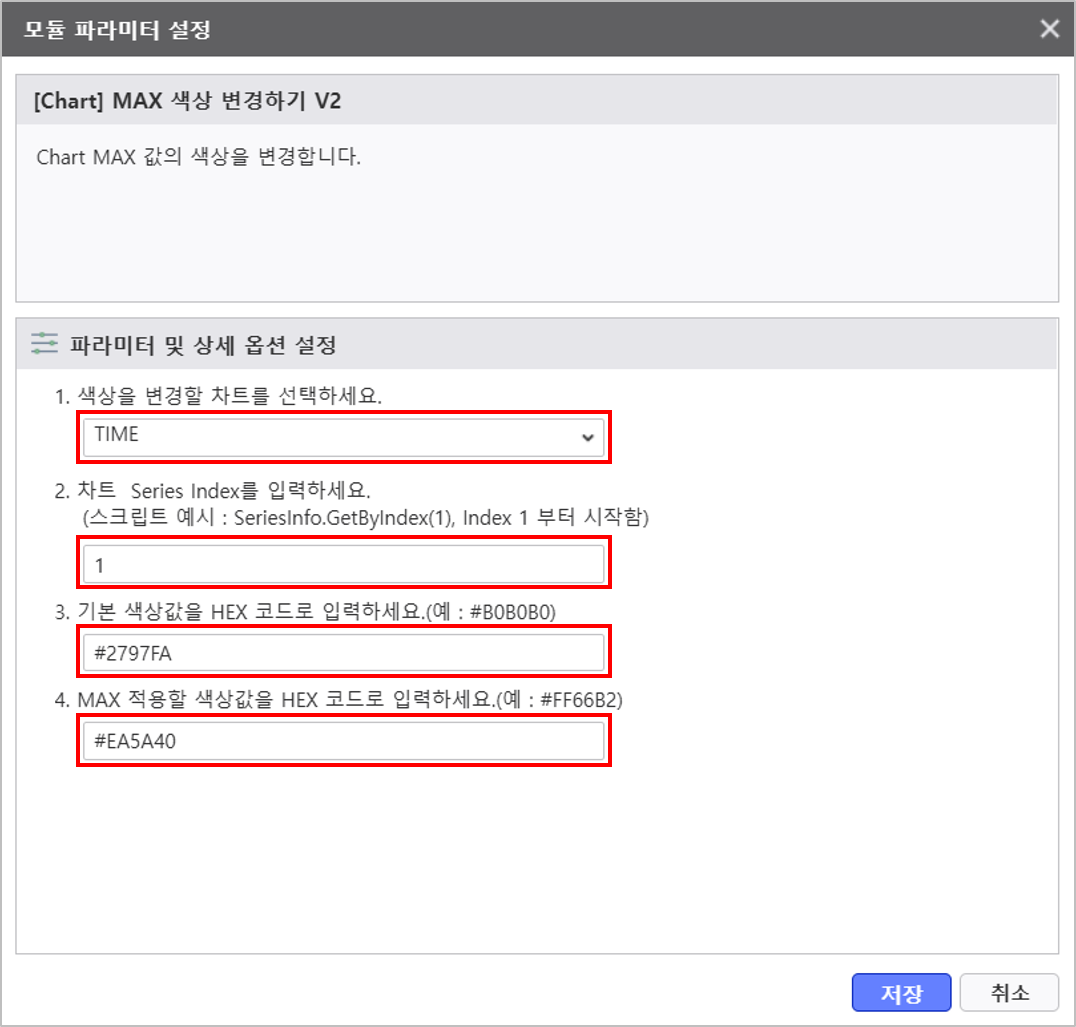
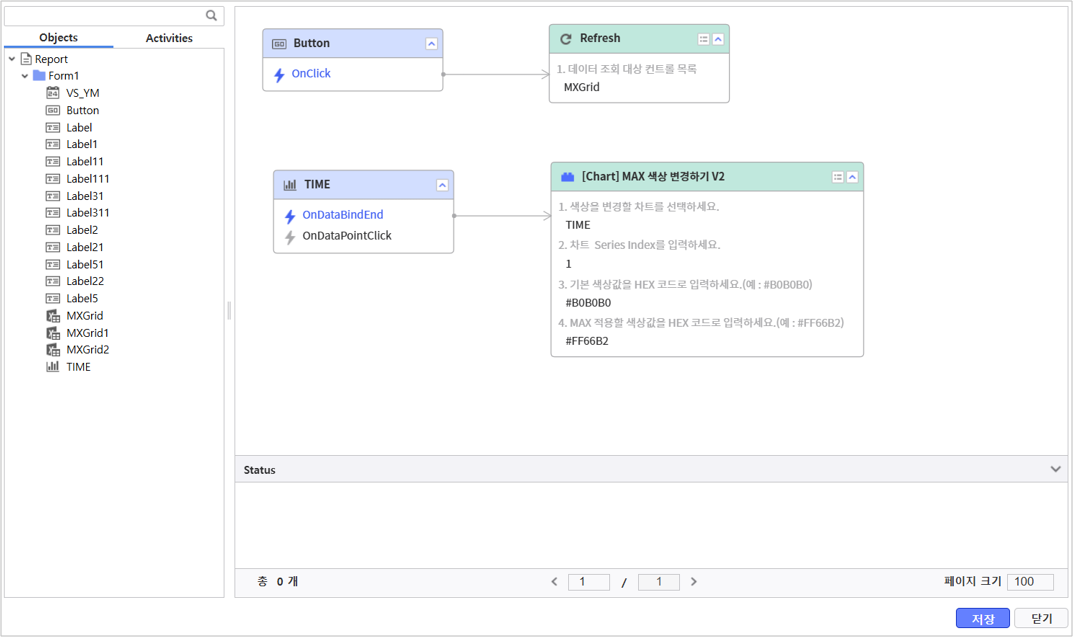
조회 버튼(Button)과 생성한 막대 차트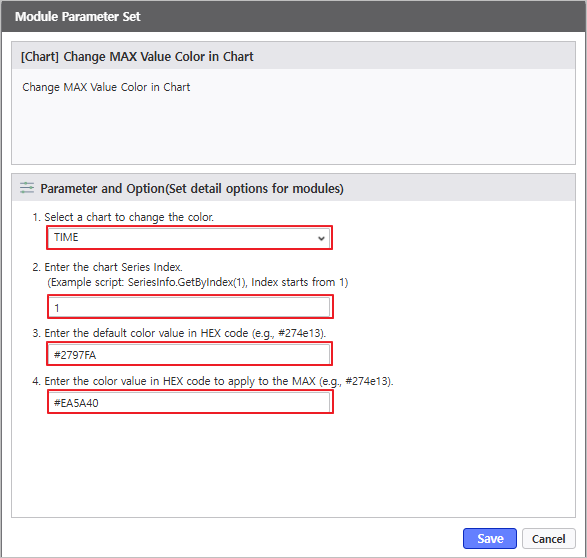
- Place the Refresh Button and the generated bar chart (TIME) 컨트롤을 선택하여 Process Bot에 배치 후 모듈과 연결합니다control into the Process Bot and link them to the module.
Step 8.
...
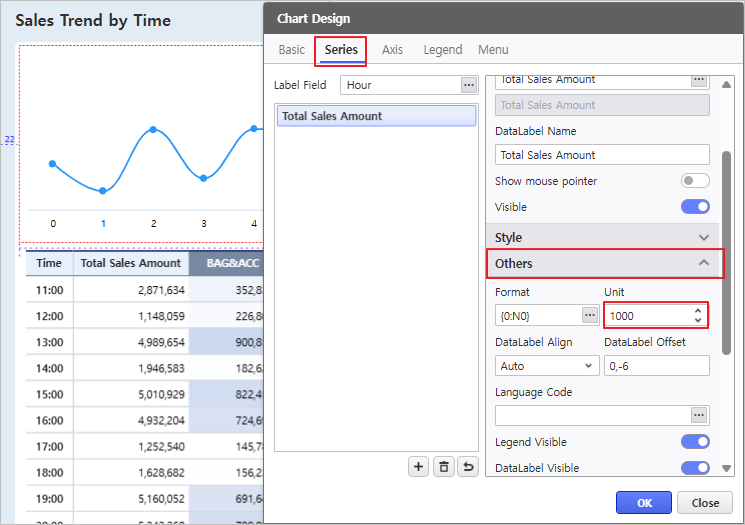
차트 단위를 '천원'으로 수정합니다.
...
Configure Chart Properties
Modify the chart units to '1K'.
- Right-click the Chart > Select Design.
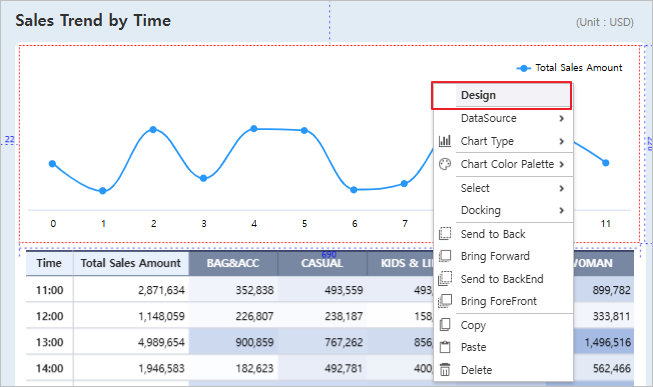
- Enter 1000 in the Series > Others > Unit area of the chart properties.