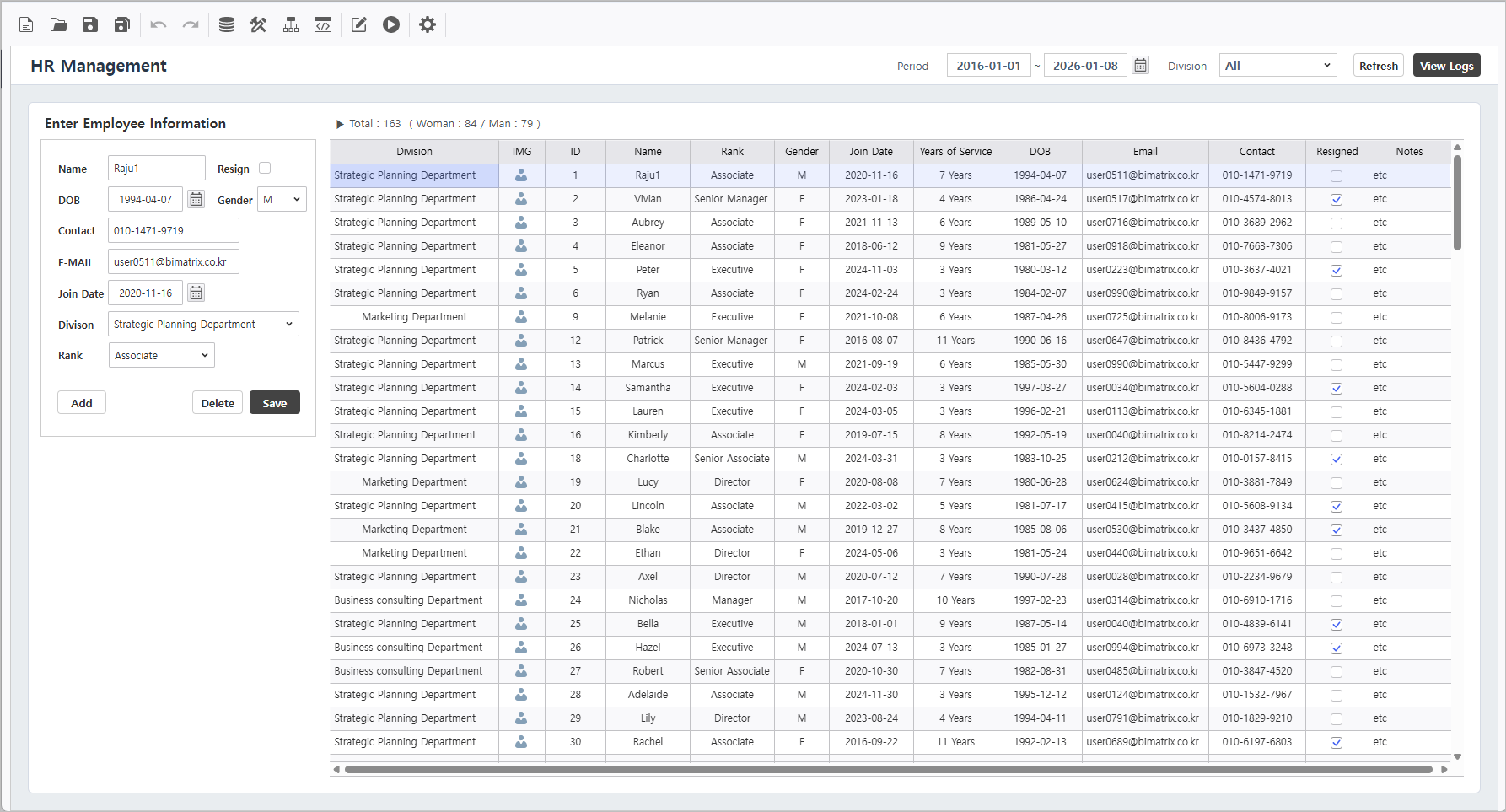
Target Screen |
|---|
|
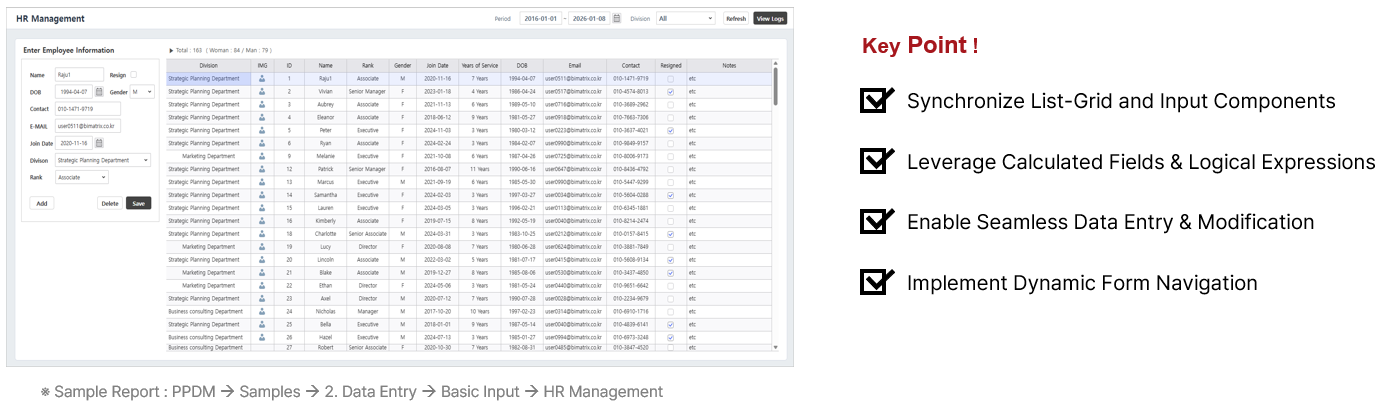
Template Report Information This practice session utilizes a pre-configured template.
|
|


Step 1. Establish Data Connections
1.1 Create Inquiry Controls
Generate the necessary components for data filtering.
1. Date Range (Join Date)
- Navigate to UI Bot > Label to create the title.
- Set the control's property to "Period".
- Text : Period
- Navigate to UI Bot > Calendar > D From To to create the date range picker.
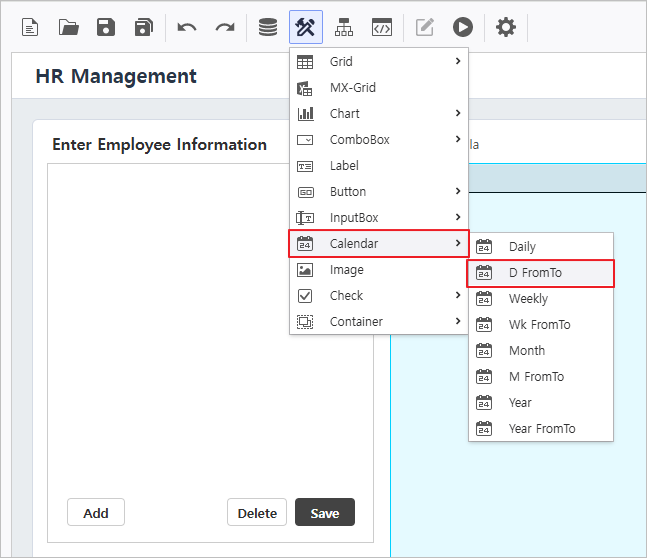
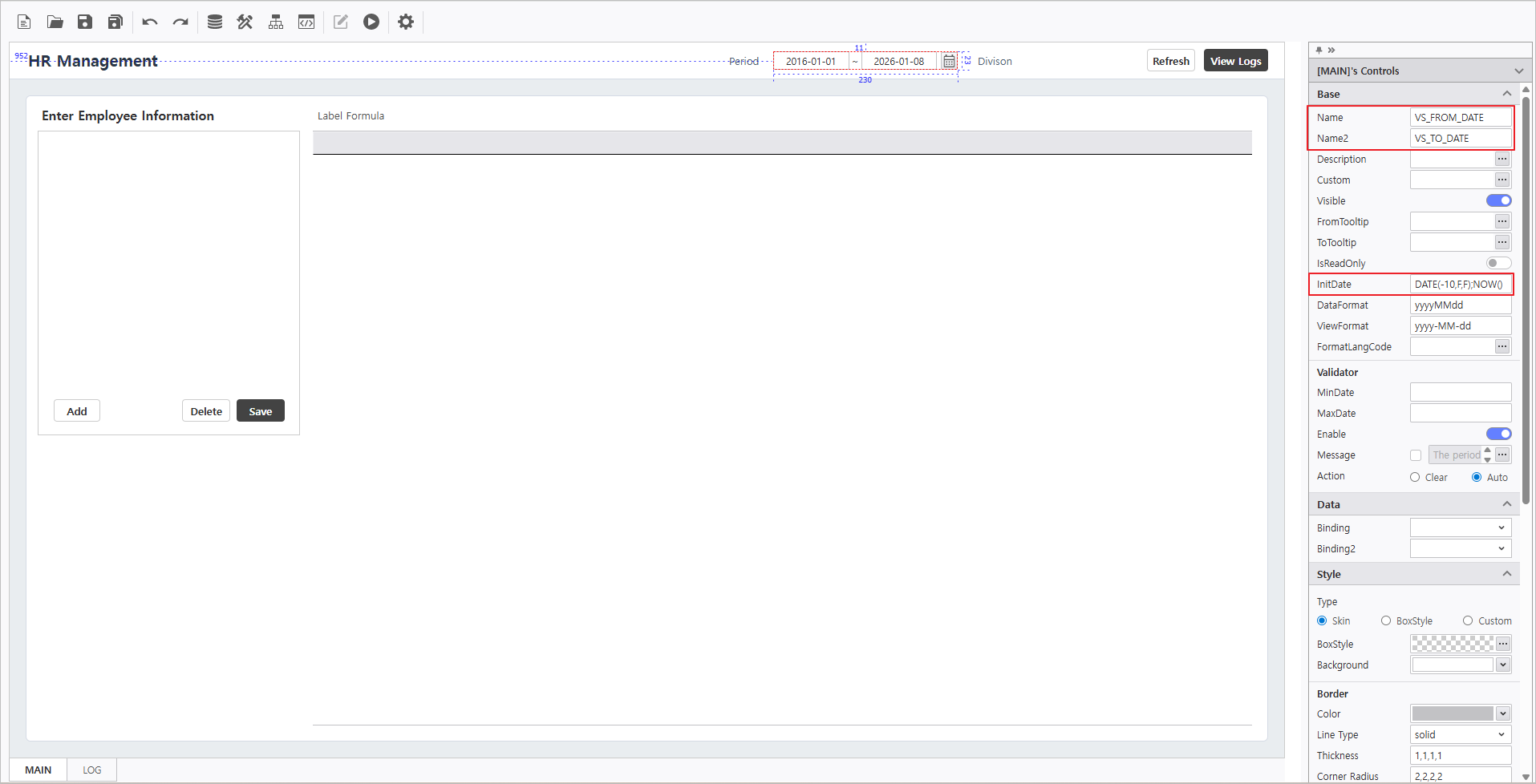
- Set the control's properties.
- Name : VS_FROM_DATE
- Name2 : VS_TO_DATE
- InitDate : DATE(-10,F,F);NOW()
2. Division
- Create via UI Bot > Label to create Division control's title.
- Set the control's property.
- Text : Division
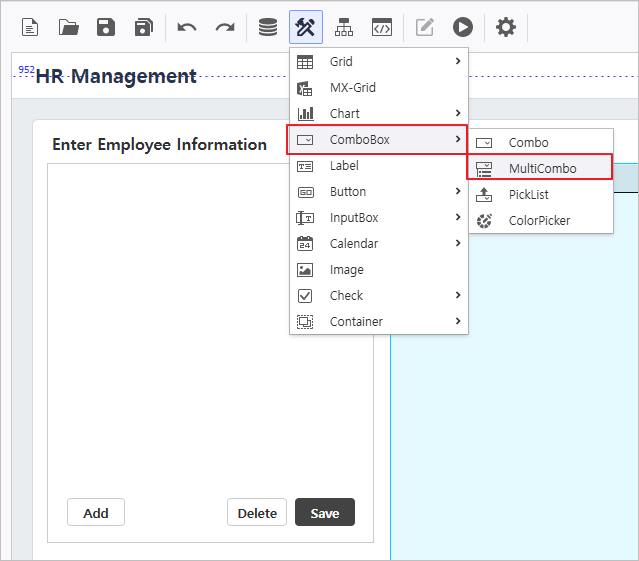
- Navigate to UI Bot > ComboBox > MultiCombo to use a combo box as a filter condition.
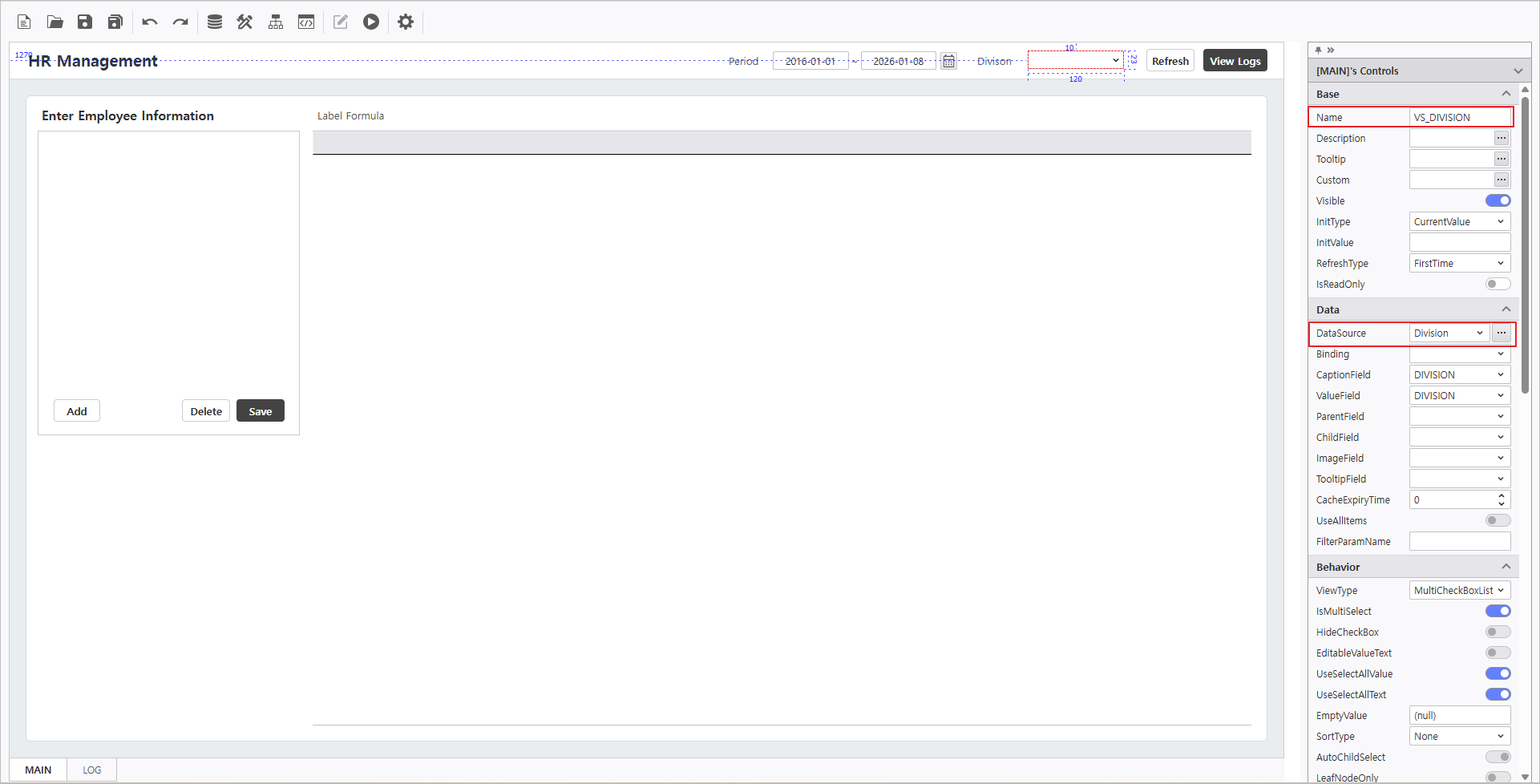
- Set the control's properties.
- Name : VS_DIVISION
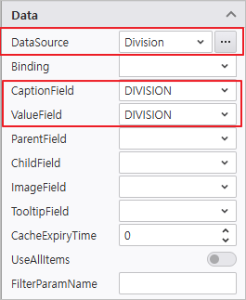
- DataSource : Division
- CaptionField : DIVISION
- ValueField : DIVISION
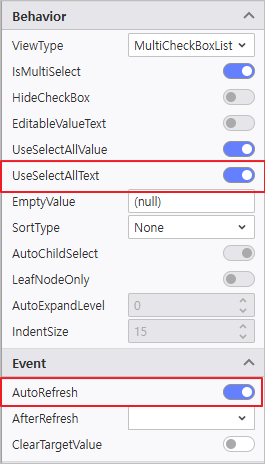
- Enable UseSelectText
- Enable AutoRefresh
1.2 Bind List-Grid Data Source
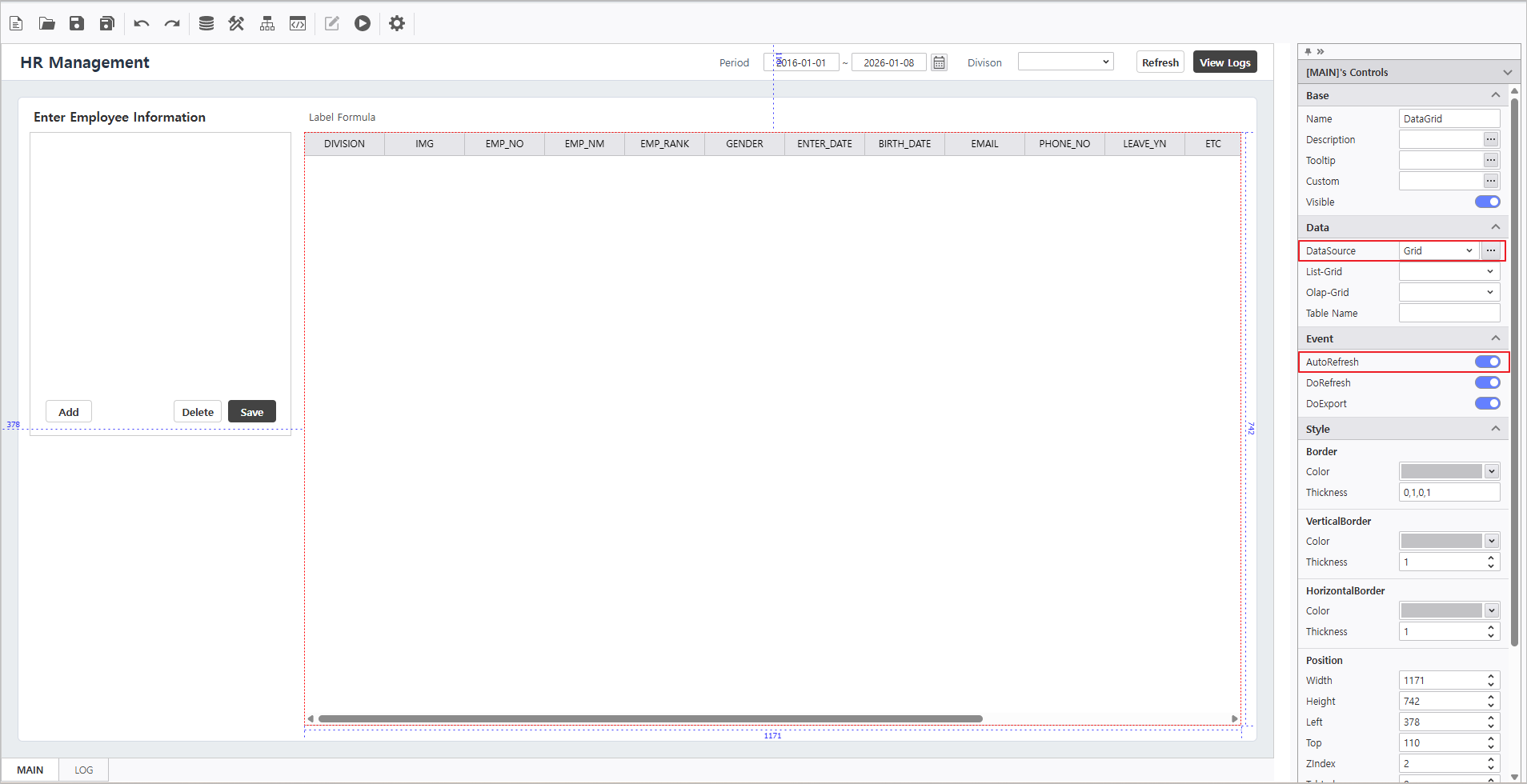
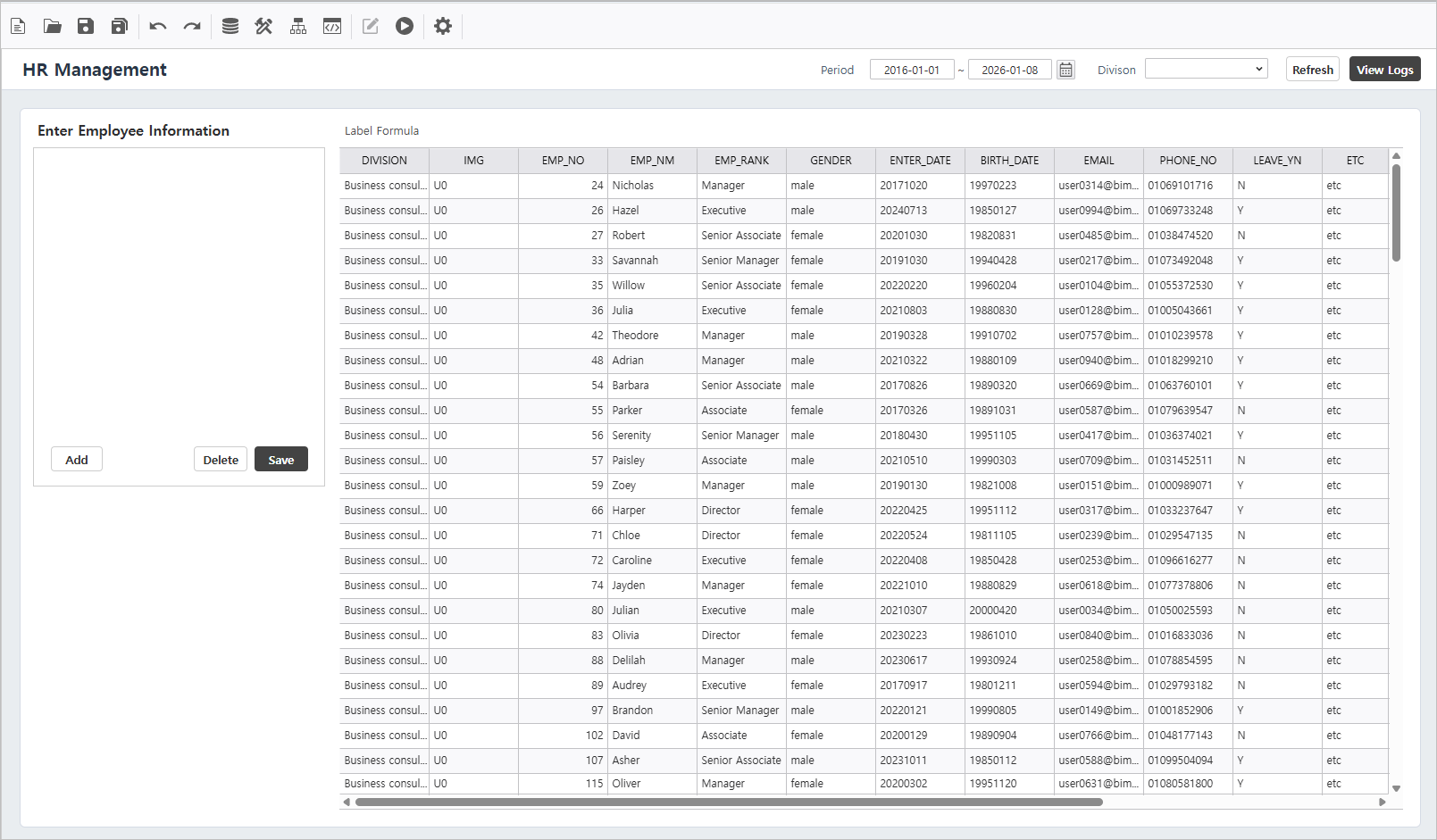
Connect the "Grid" data source to the grid control and execute the report to verify the data stream.
Reference : Grid Data Source Query Statement
Step 2. Configure List-Grid Properties
Description
Define the List-Grid's field types for optimized data entry.

| Field Name | Caption | Field Type | Data | Alignment > Data Alignment | ||
|---|---|---|---|---|---|---|
| 1 | DIVISION | Division | ComboBox | Datasource : Division | Center | |
| 2 | IMG | IMG | Image | Center | ||
| 3 | ENP_NO | ID | Center | |||
| 4 | EMP_NM | Name | Center | |||
| 5 | EMP_RANK | Rank | ComboBox | Datasource : Rank | Center | |
| 6 | GENDER | Gender | ComboBox | Datasource : Gender | Center | |
| 7 | ENTER_DATE | Join Date | DateTime | Format > {0:yyyy-MM-dd} | Center | |
| 8 | BIRTH_DATE | DOB | DateTime | Format > {0:yyyy-MM-dd} | Center | |
| 9 | Left | |||||
| 10 | PHONE_NO | Contact | MaskEdit | Format > 000-0000-0000 | Center | |
| 11 | LEAVE_YN | Resigned | CheckBox | CheckedValue : Y, UnCheckedValue : N | Center | |
| 12 | ETC | Notes | Left |
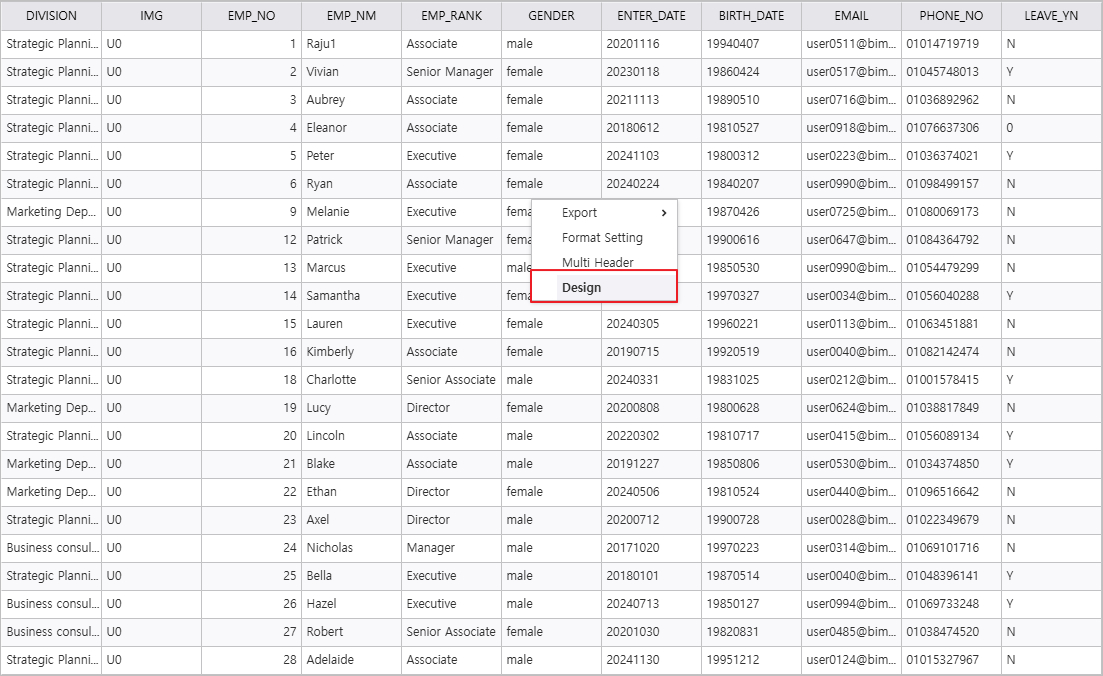
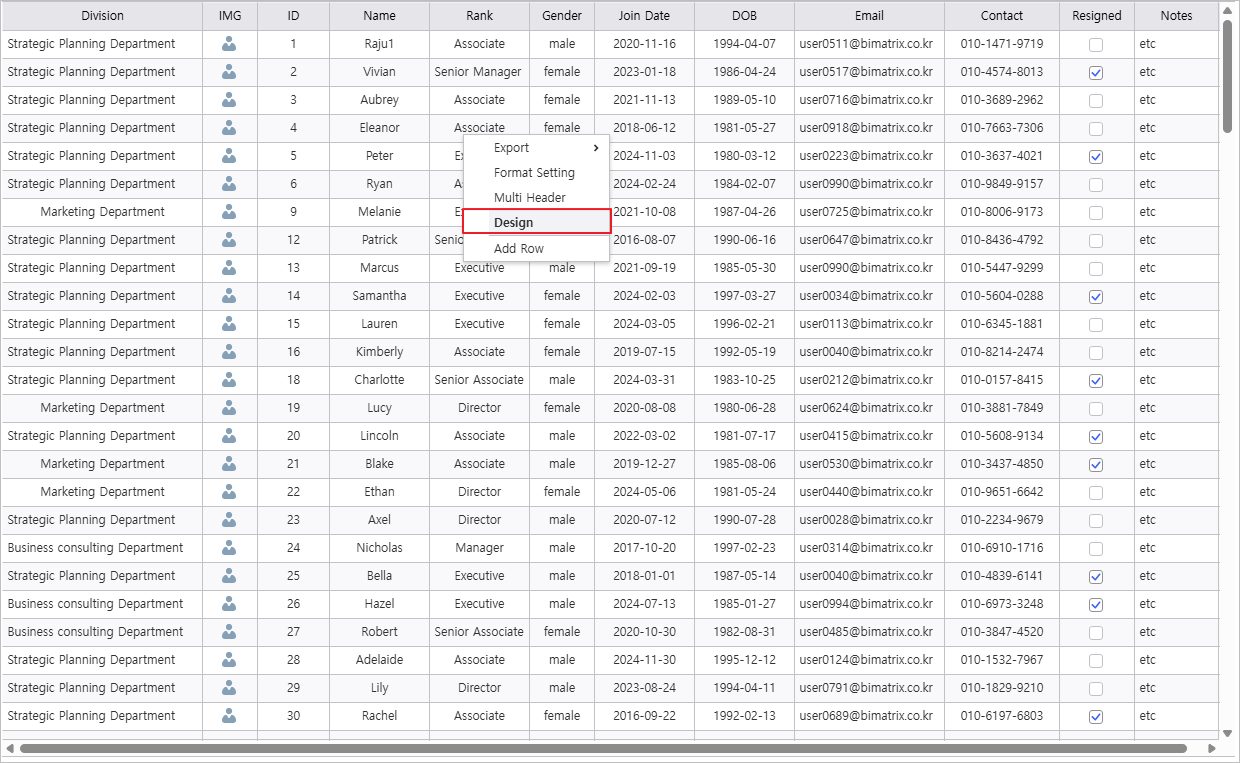
Right-click the List-Grid and select [Design] to launch the configuration window.
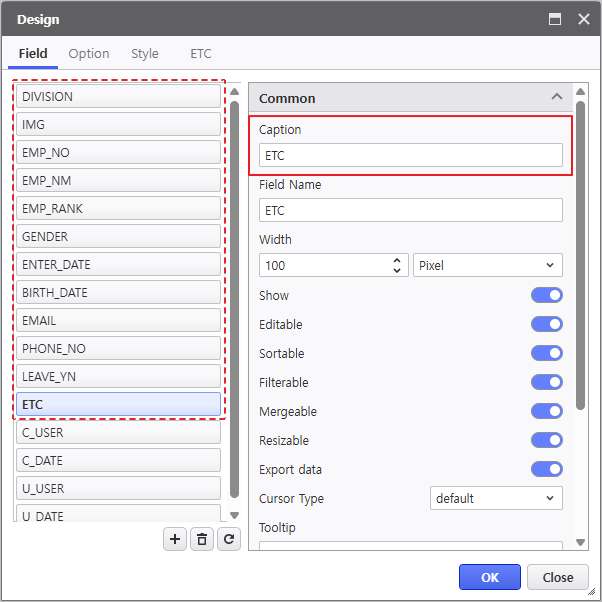
- Update the Caption for each field.
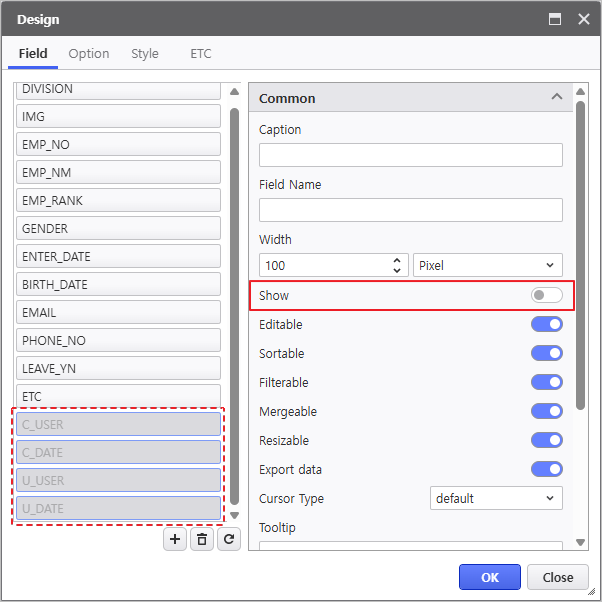
- Select and deactivate Show property to hide unused fields.
- C_USER, C_DATE, U_USER, U_DATE - Deactivate "Show"
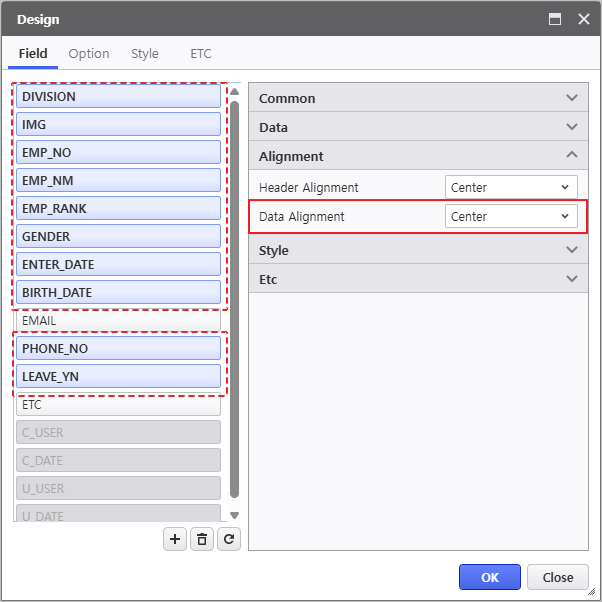
Set Data Align for all relevant fields.
- Alignment - Data Alignment : Center
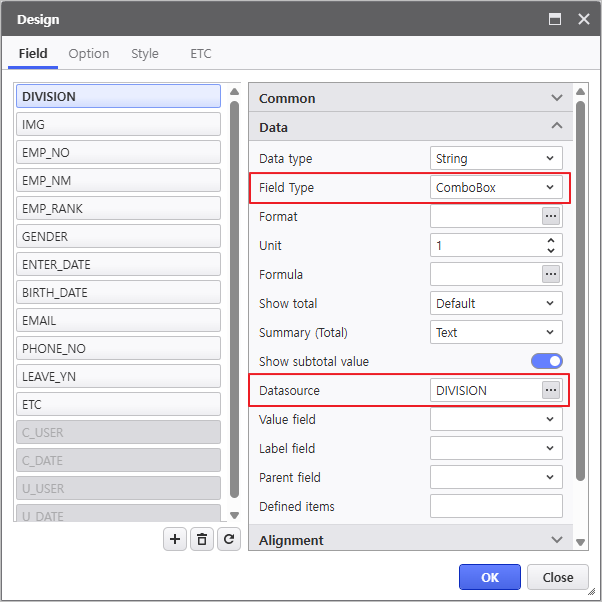
Configure field types to enable intuitive data entry.
Field Names Field Type Division / Rank / Gender Field Type & Data Source Configuration
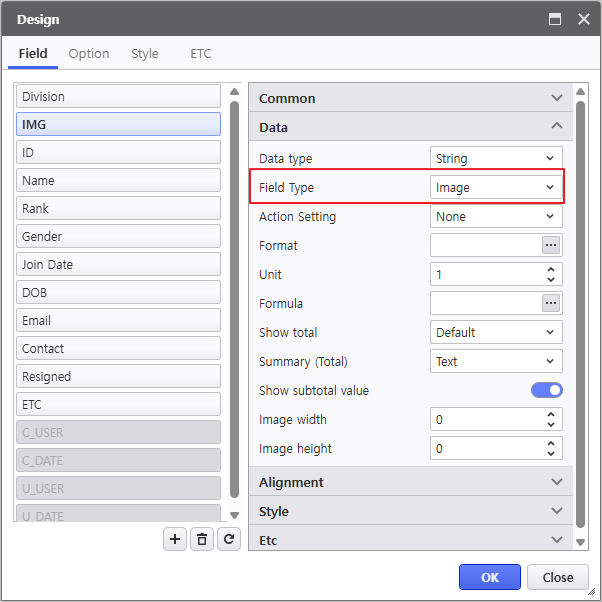
IMG Field Type Configuration
DOB / Join Date Field Type & Format Configuration
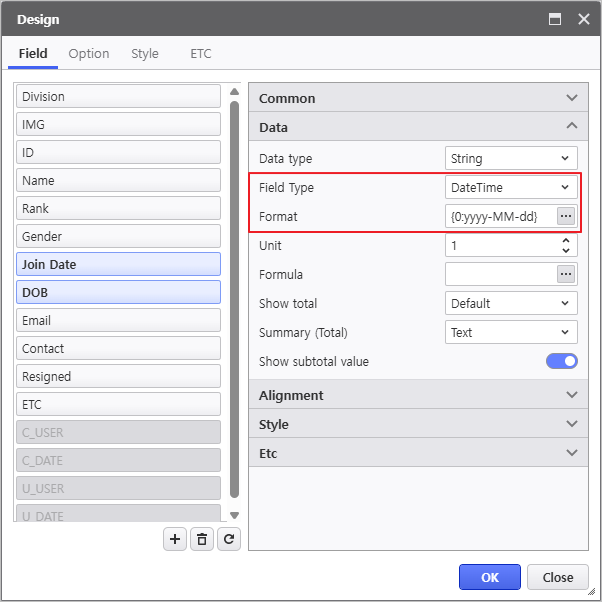
Contact Field Type & Format Configuration
(Enter formats in the Format window.)
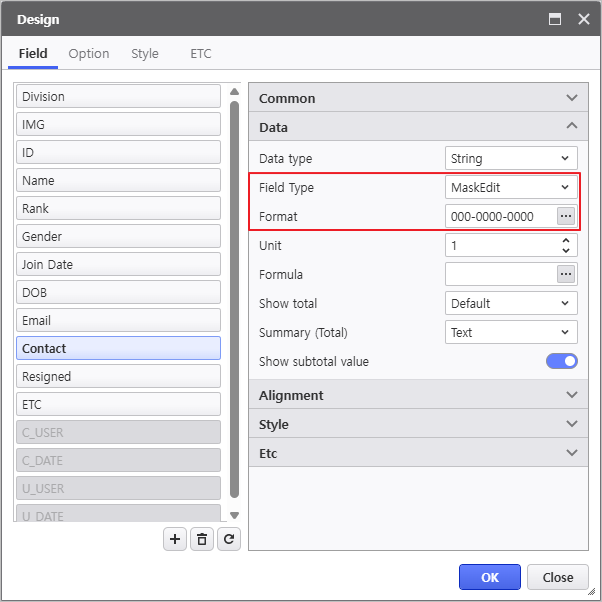
Resigned Field Type, CheckedValue, and UnCheckedValue Configuration
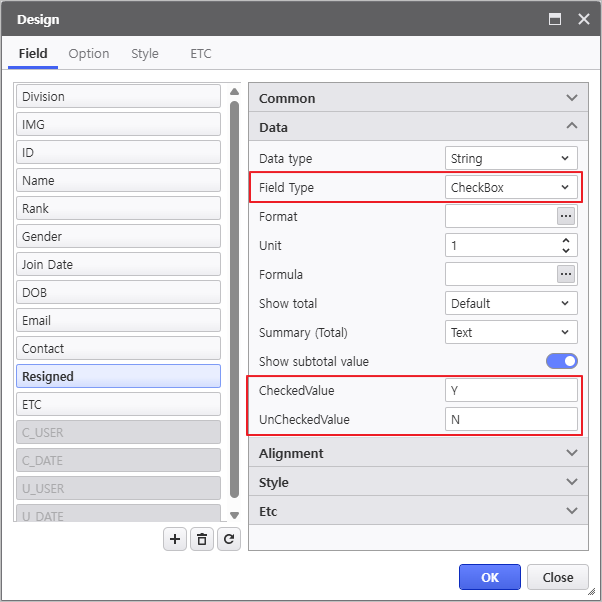
- Deactivate the "Editable" property for IMG and EMP_NO(ID).
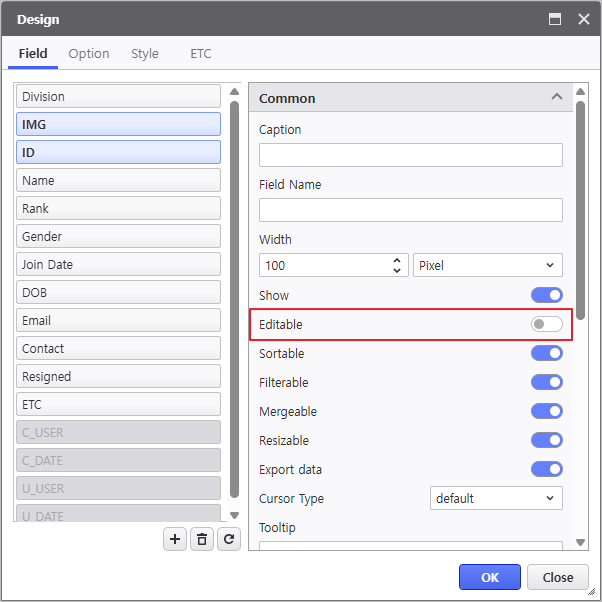
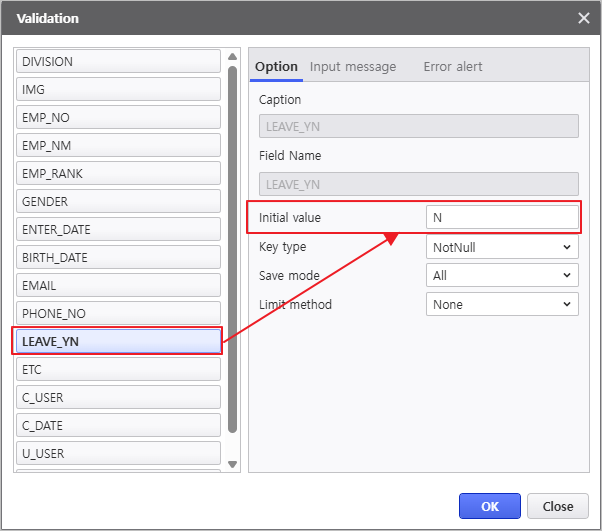
- Access right-click the List-Grid > Validation menu to set the default initial value for the [LEAVE_YN](Resigned) field when records are modified.
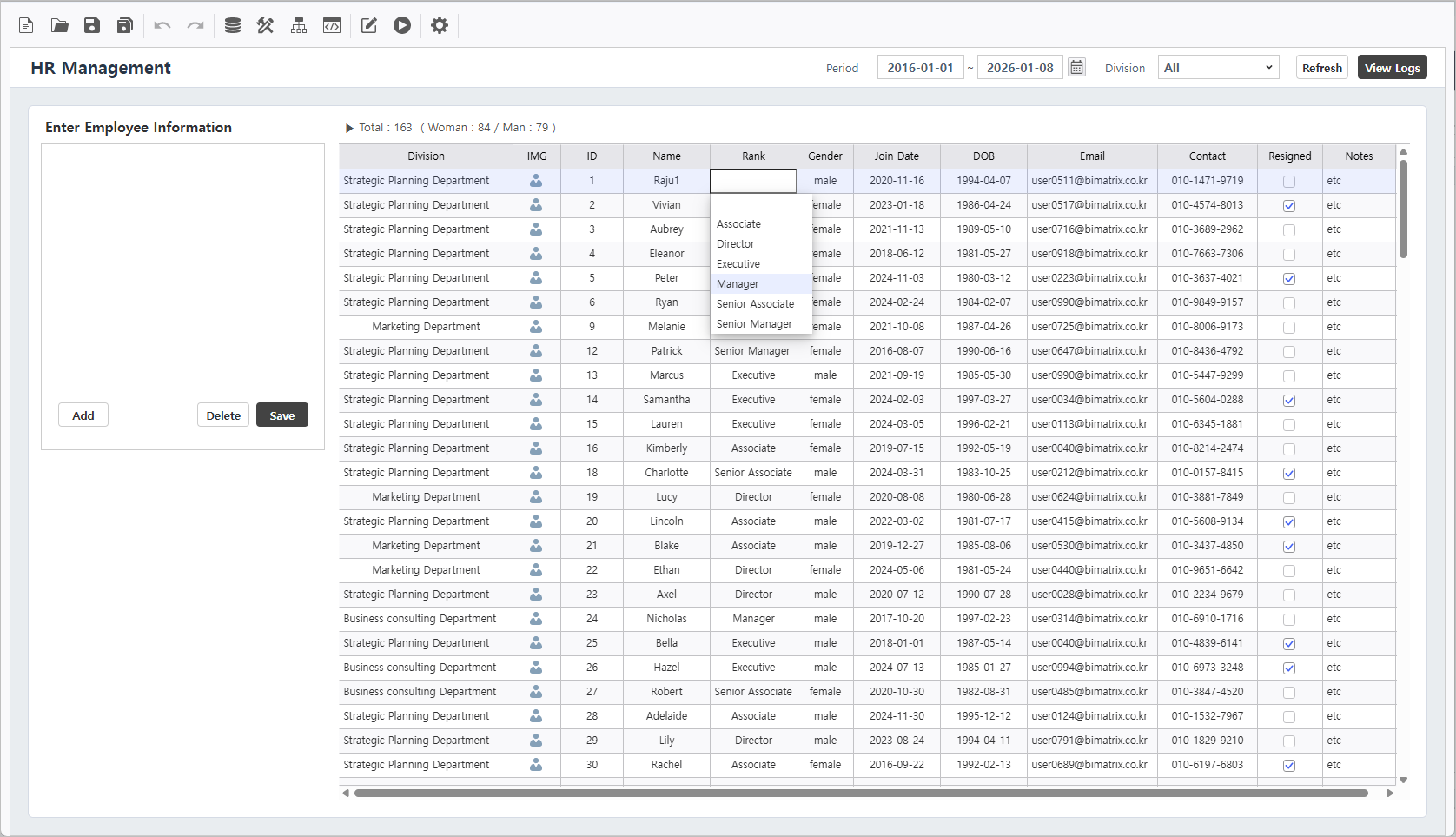
Run the report to verify that the design configurations have been successfully applied.
Step 3. Utilizing the Formula Editor
Calculate employee metrics such as "Years of Service" and "Headcount" using Formula Editor.
3.1 Add Calculated Fields
- To add a new calculated field, click [Design] menu and open the Design window.
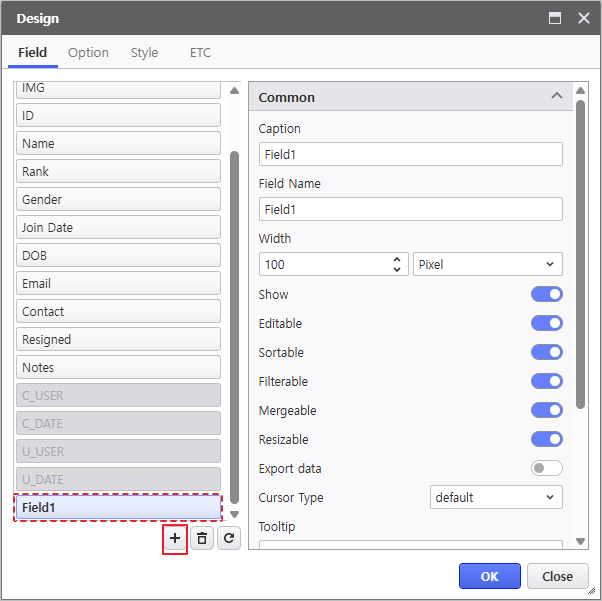
- Add
 button to insert a new field.
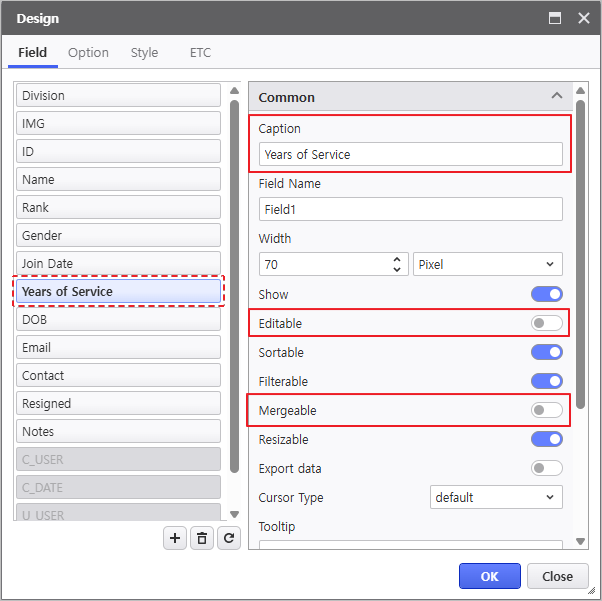
- Move the field between DOB and Join Date fields and set the default settings.
- Caption : Years of Service
- Deactivate Editable
- Deactivate Mergeable
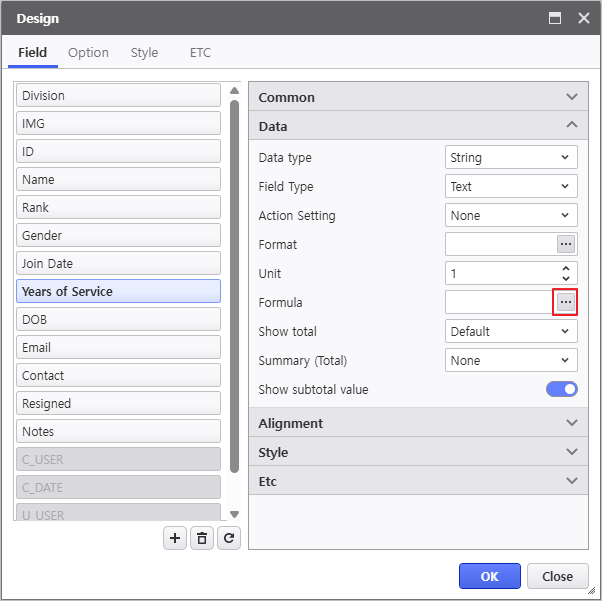
- Navigate to Data > Formula and click
 button to open Formula Editor window.
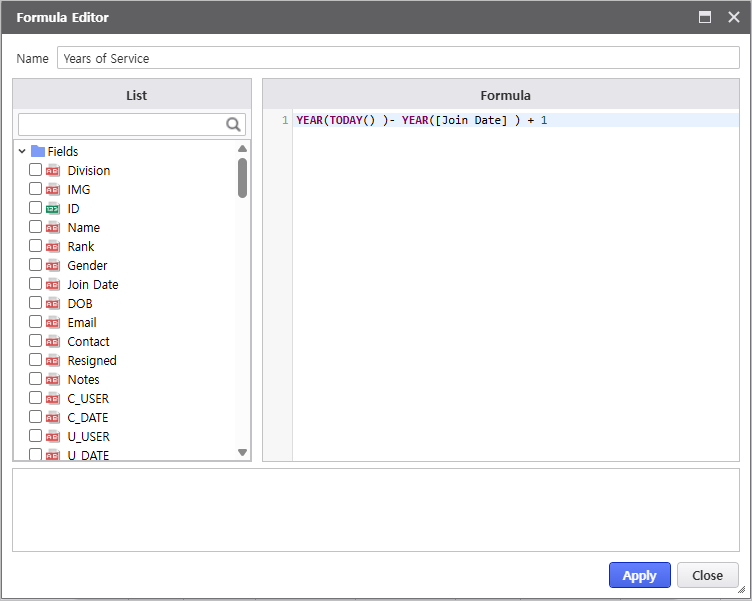
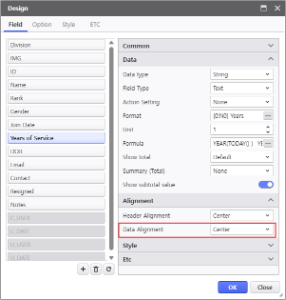
Use YEAR function and [Join Date] field on the left to calculate "Years of Service" and click Apply button to finish writing.
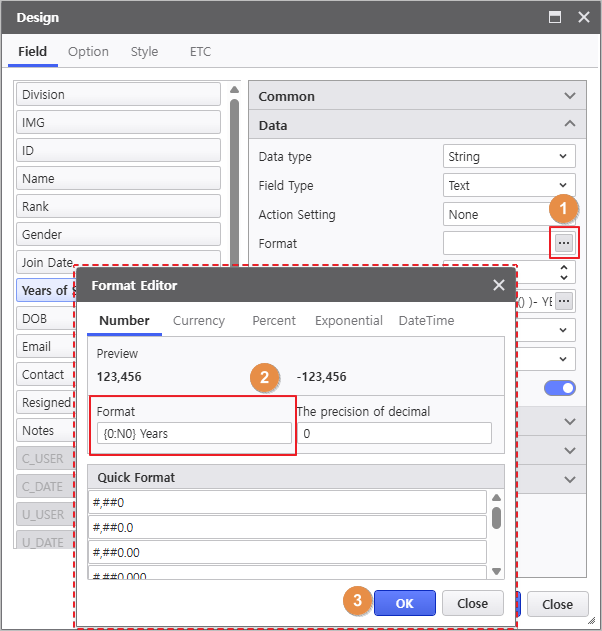
- Click the Format button and enter "{0:N0] Years" in the Numeric format field.
- Set its data alignment.
- Alignment - Data Alignment : Center
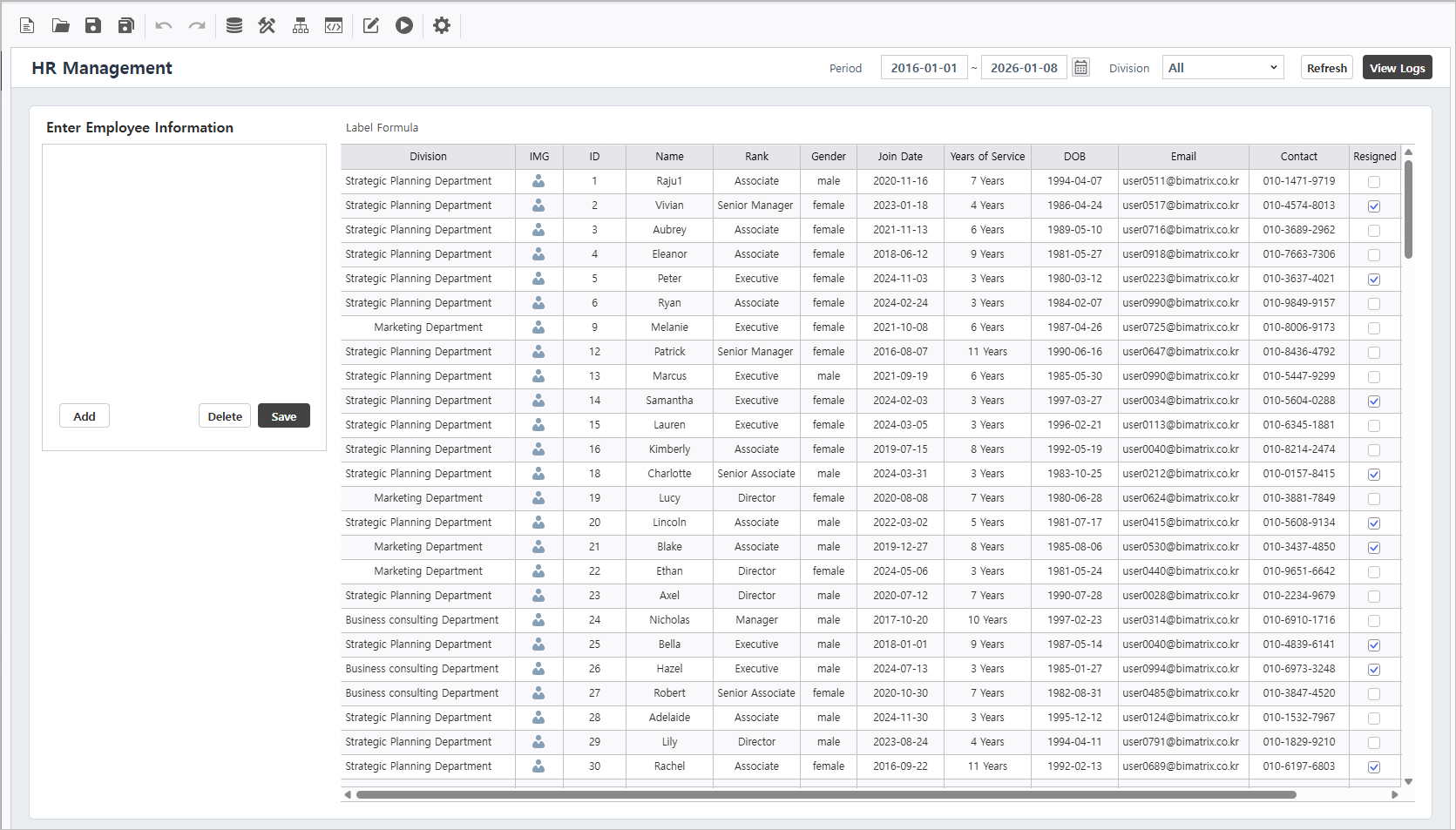
Run the report to confirm the "Years of Service" field has been successfully added.
3.2 Apply Label Formula
Use Formula property of a Label to display aggregated employee statistics.
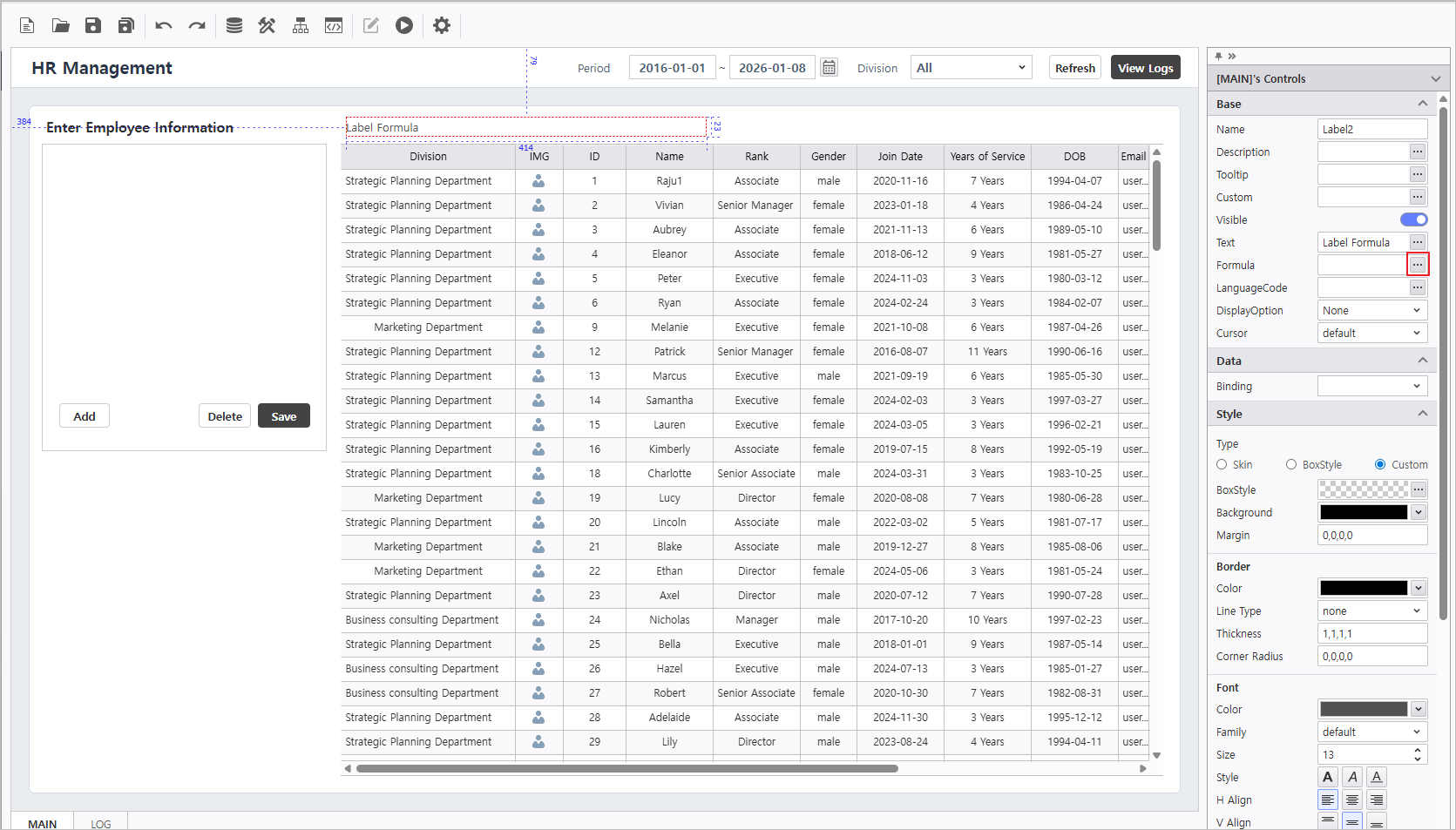
Select [Label2] at the top of the List-Grid and click the Formula
button to open the Formula Editor window.
Description
 How to Locate Controls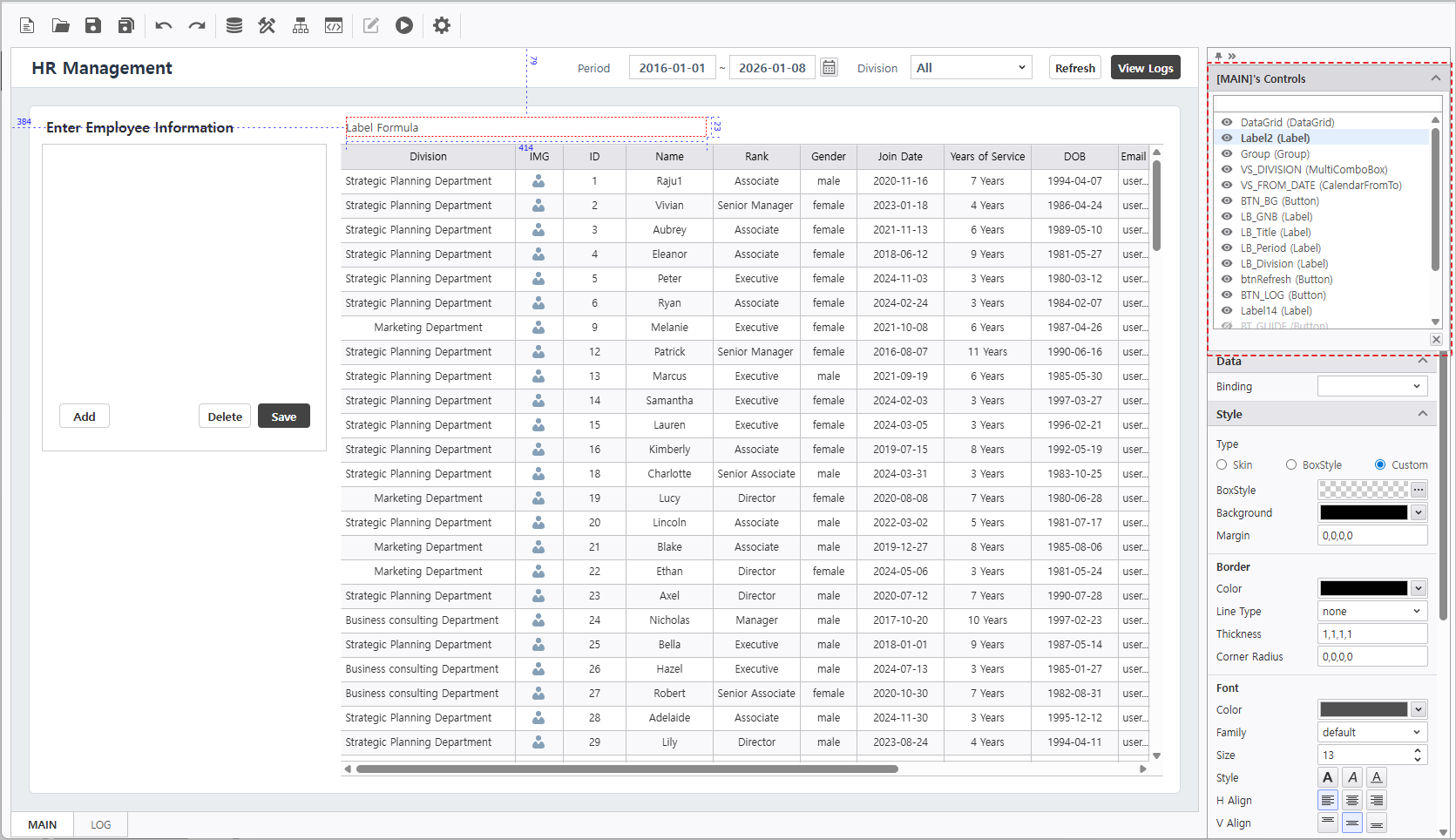
Click the "[Form Name]'s Controls" in the top right of the Designer.
View the list of controls in the popup to modify visibility states or focus on specific components to edit their properties.
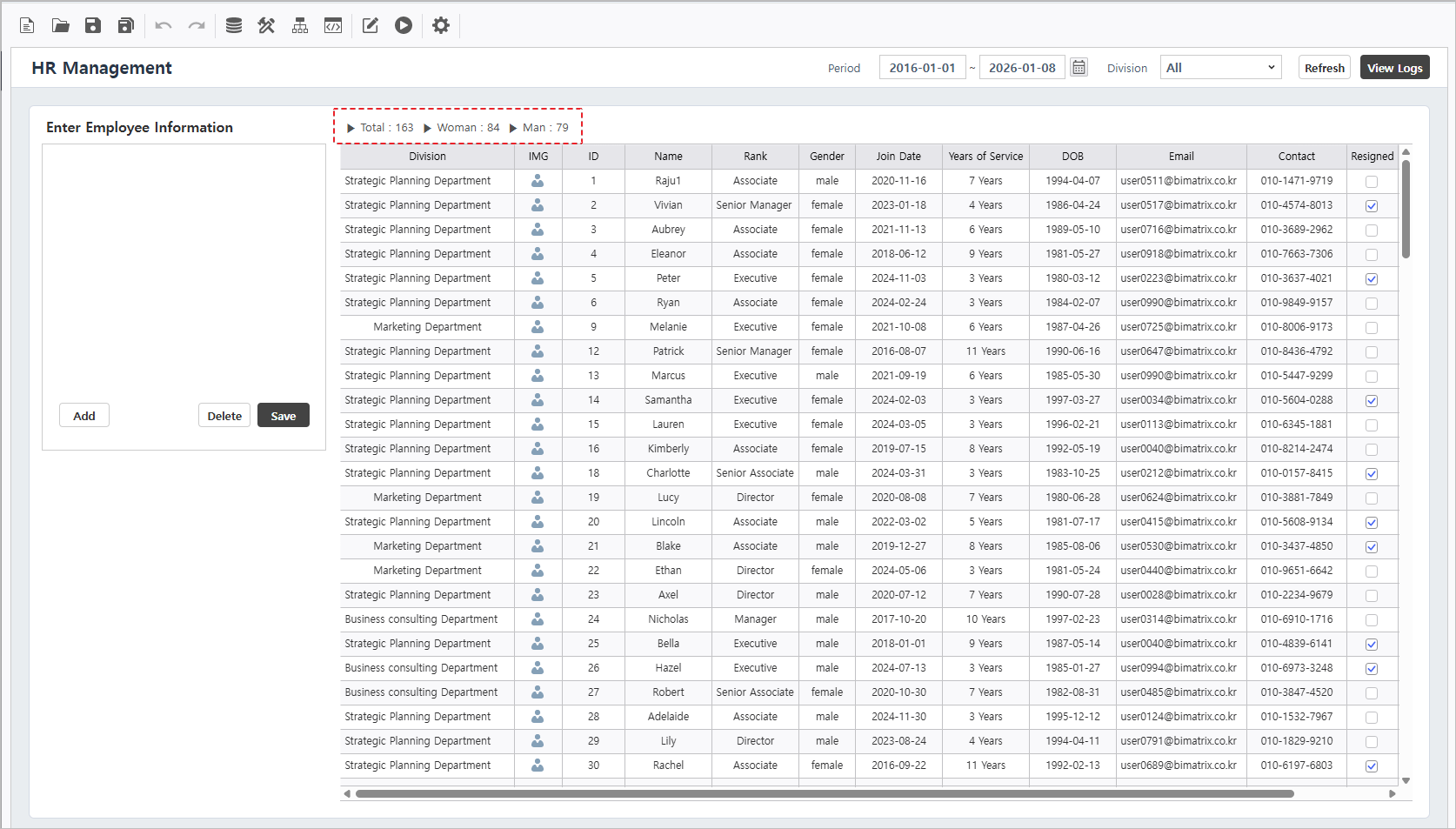
Combine static text and COUNTIF function using the + operator to display total, female, and male headcounts.
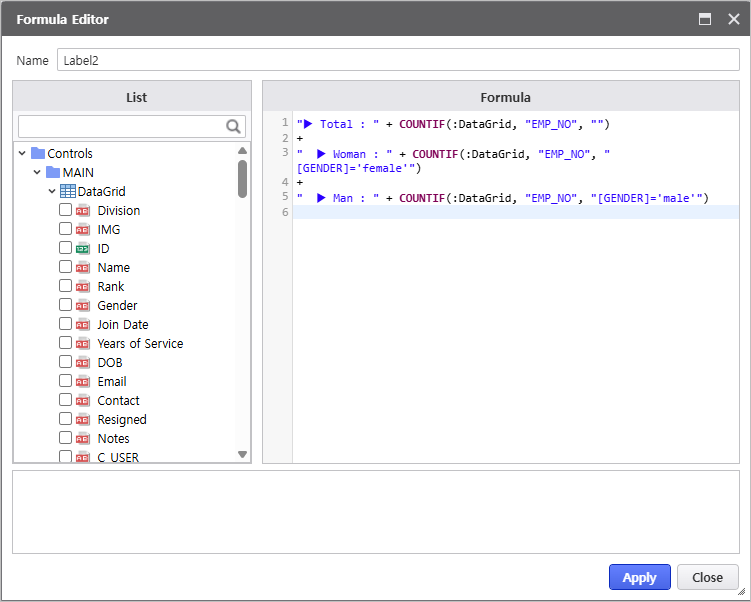
- Click the [Apply] button to verify that the employee headcount is calculated correctly according to the formula.
Step 4. CRUD Configuration
Enable data creation, inquiry, updates, and deletions using Create Input Form and DB Upload features.
4.1 Create Input Form
Link input controls to the List-Grid using the "CreateInputForm" feature.
- In [Edit Mode], right-click the List-Grid and select [CreateInputForm] menu.
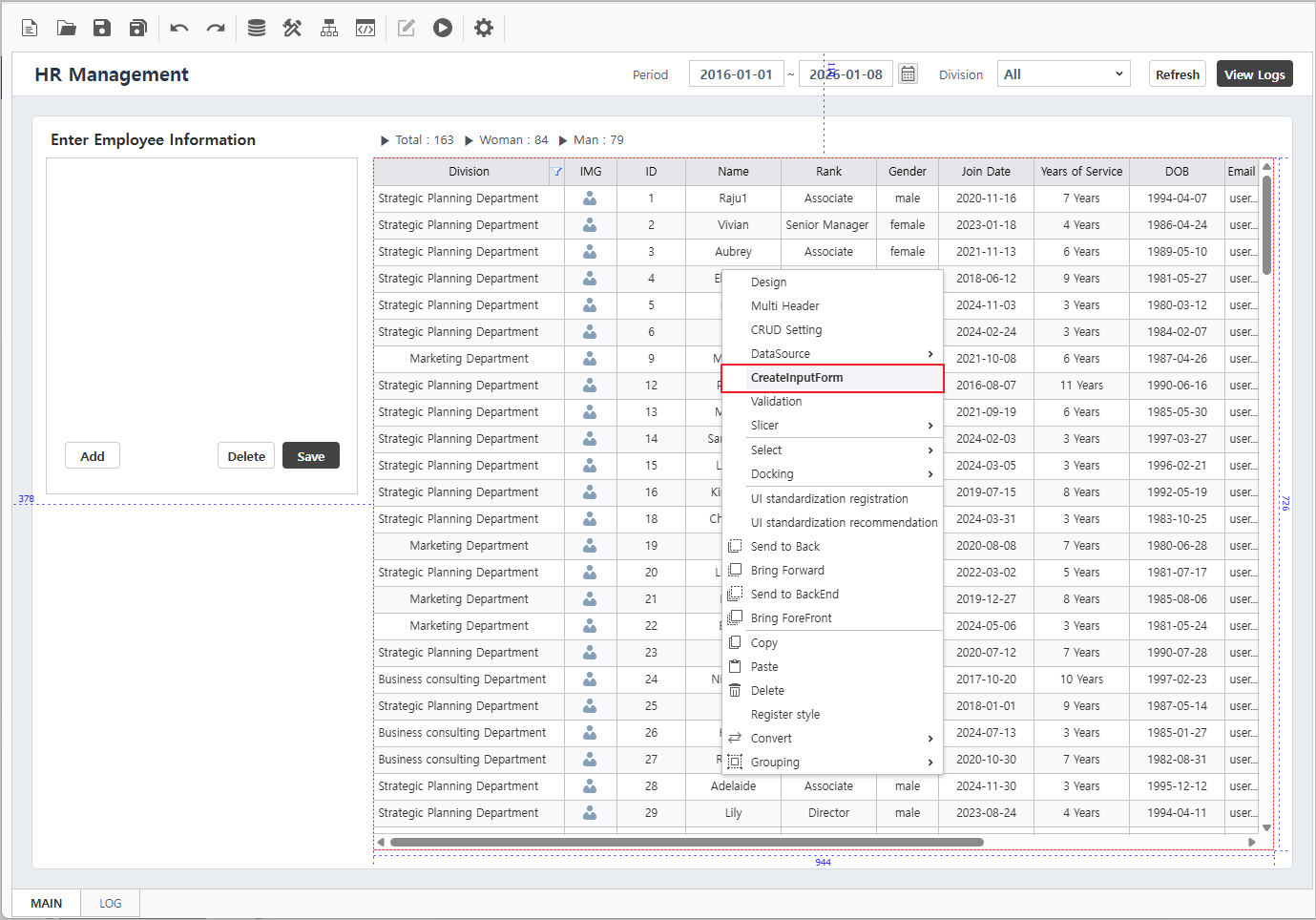
- Labels and input controls will be auto-generated based on the grid's field types.
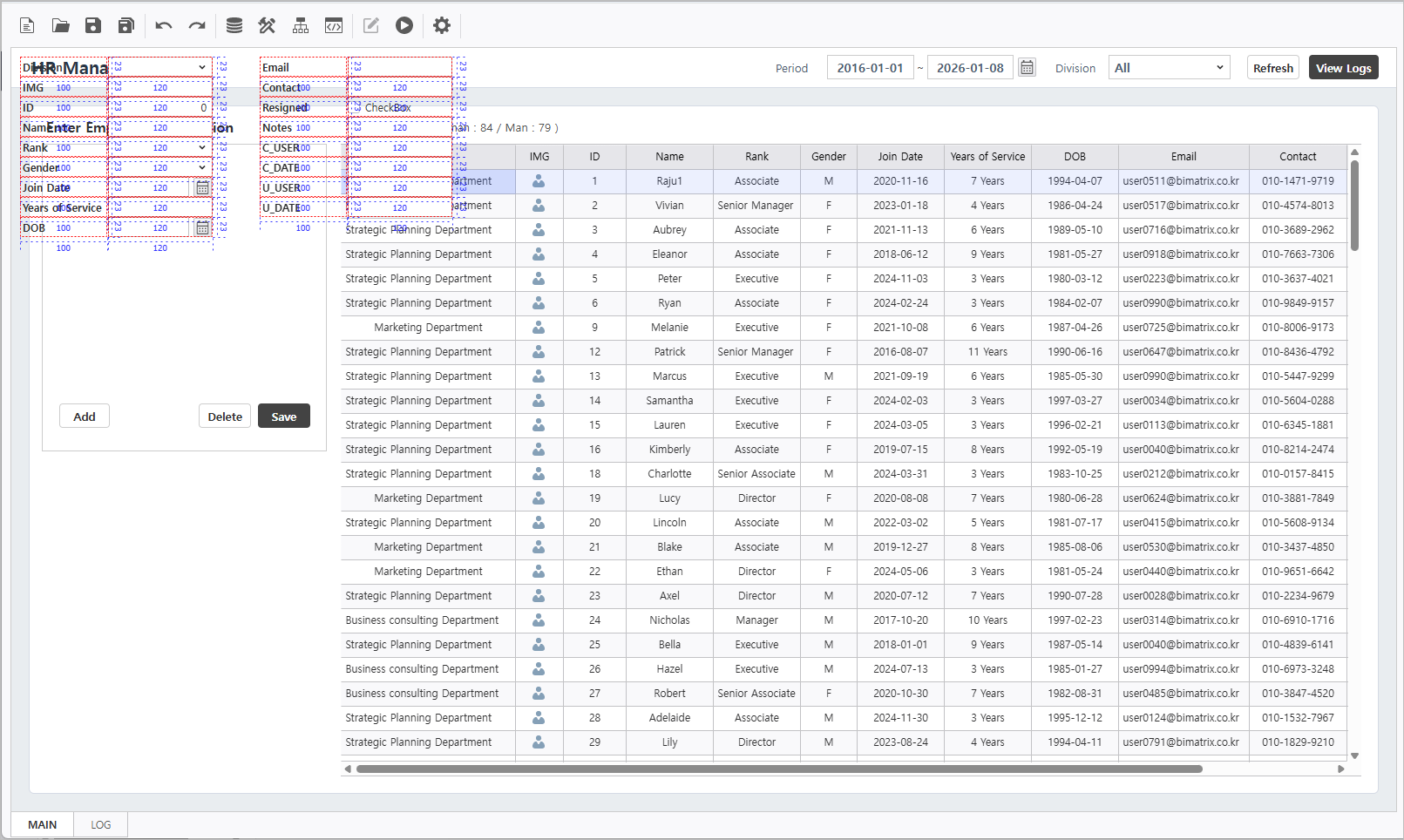
Rearrange and style these controls to match the target layout.
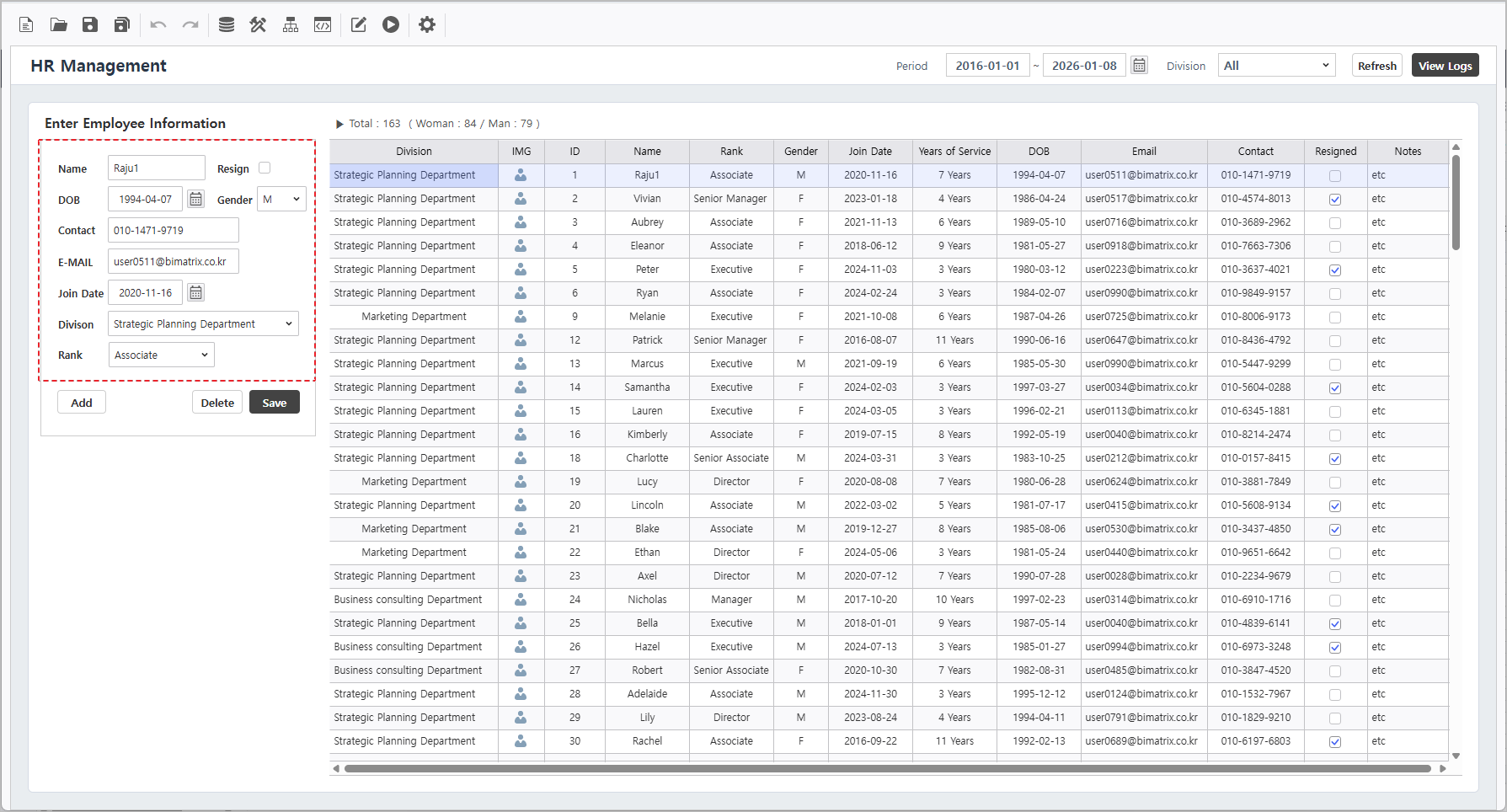
Description
Controls generated via "CreateInputForm" can be resized or repositioned,and unused components can be deleted.
Additionally the text and design properties of these controls can be fully customized.
4.2 Execution Plan Design
Open the DB Bot - DB Upload menu to configure the execution plan.
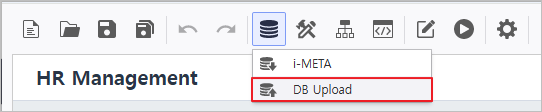
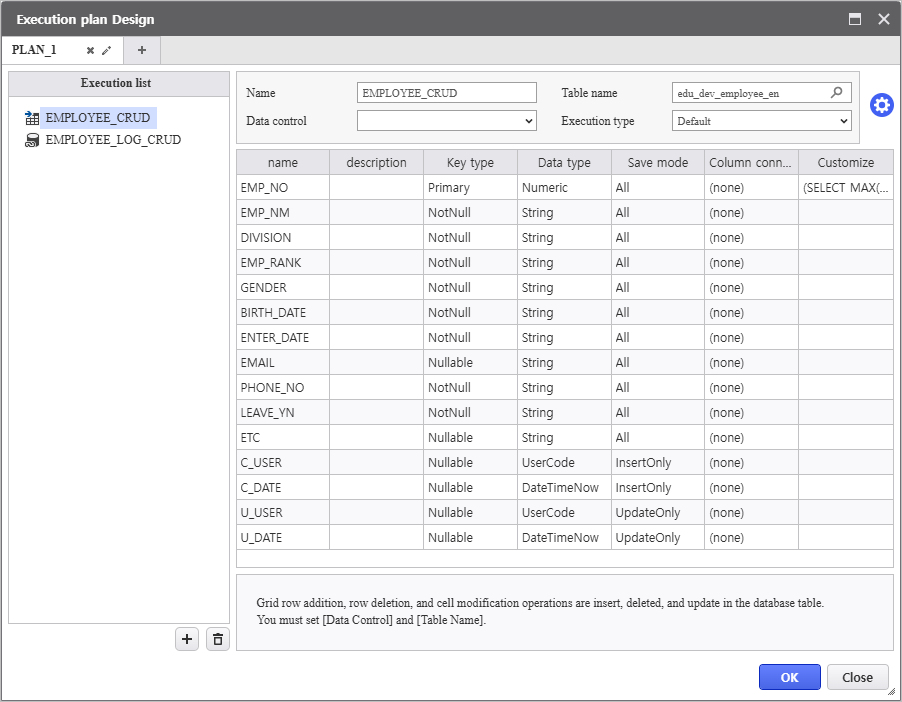
Description
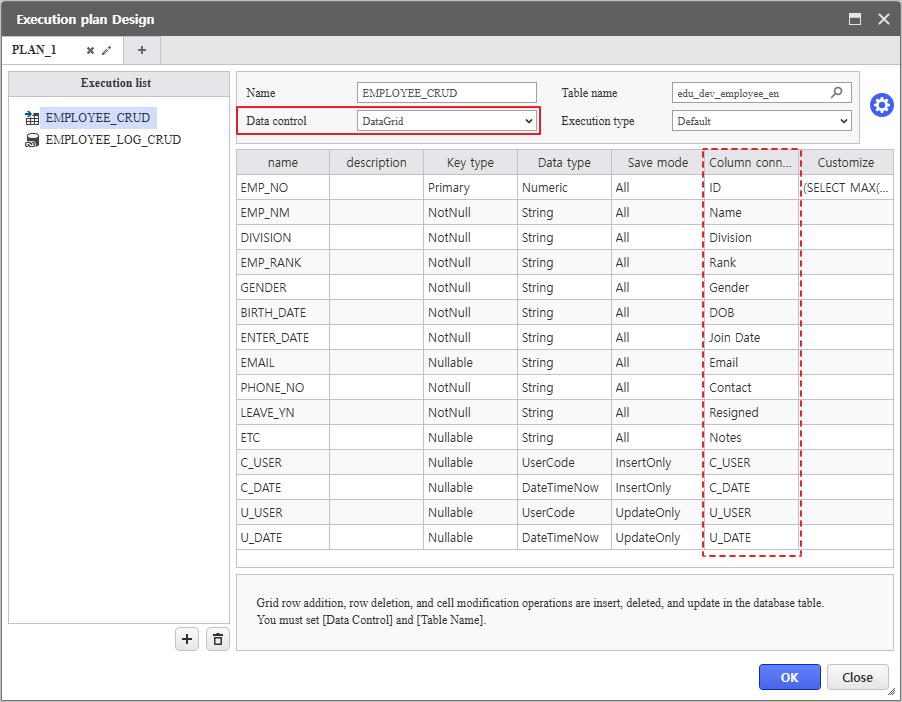
Since this is a template, the core logic is pre-defined.Connect Data control to verify that the DataGrid is correctly mapped to the database columns.
- Data control : DataGrid
Step 5. Process Bot Configuration
Configure data CRUD and navigate actions using Process Bot.
Click the Process Bot( ) button to launch the configuration window.

5.1 Data Persistence Module
Configure CRUD operations using functional modules.
- Click Process Bot icon(
 ) to launch the window and double-click the Report object.
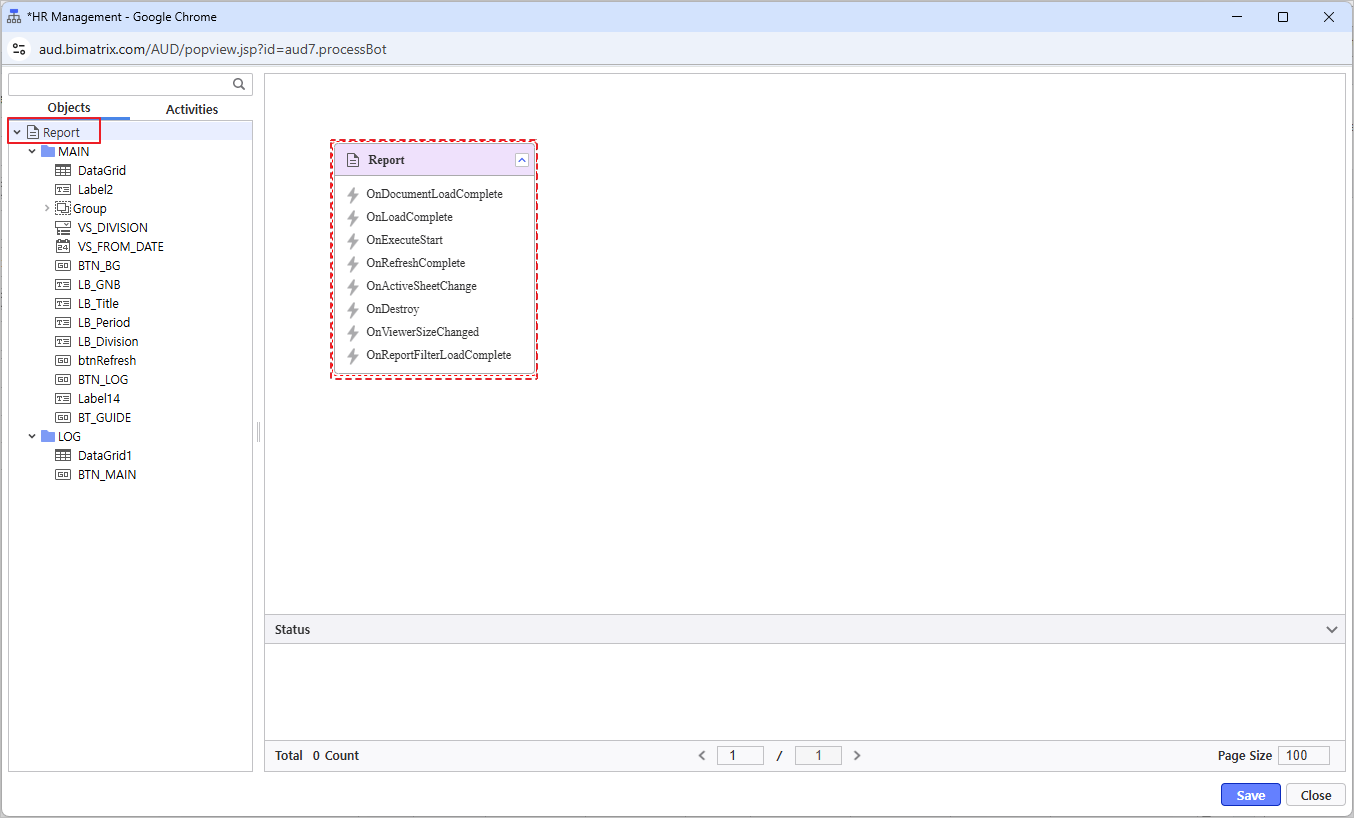
- From the Activities tab, navigate to Modules > Save Data and double-click the 'DataGrid CRUD Template' module.
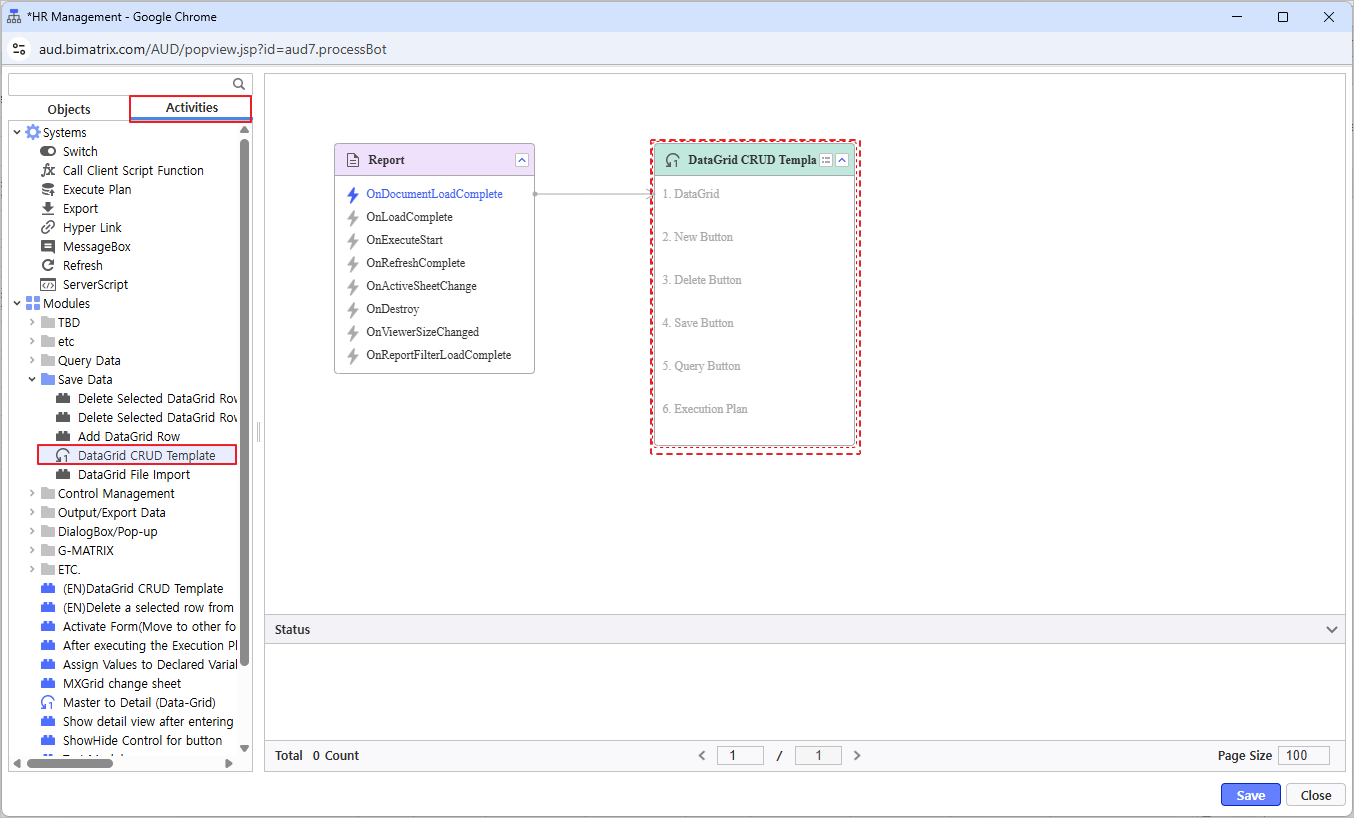
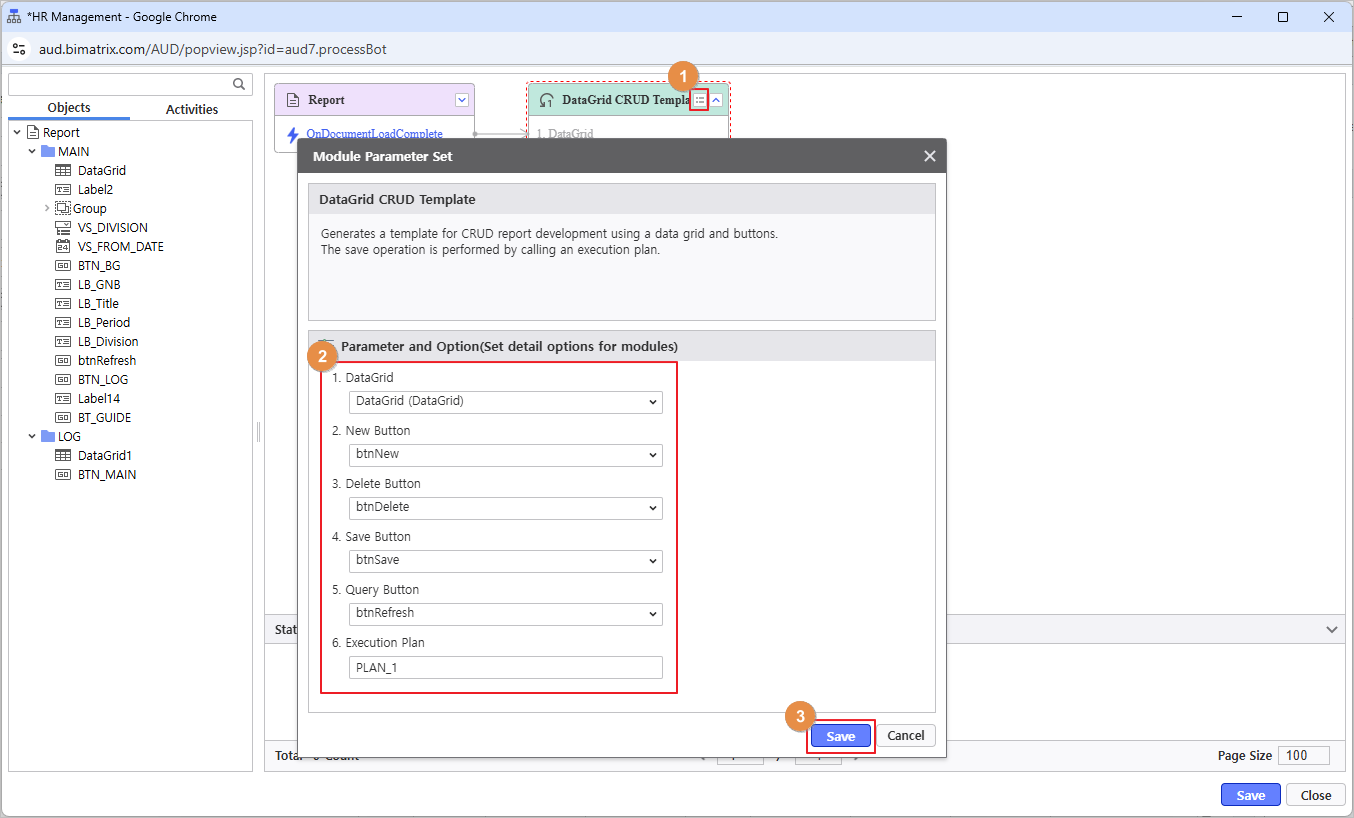
- Click the module icon(
 ) to configure detailed options:
- Select options according to the module configuration.
- Click [Save] button to complete the module setup.
5.2 Form Navigation Modules
Configure navigation to different forms upon button clicks within the report.
- Configure the action to navigate to the Log form when the BTN_LOG button is clicked.
- Double-click the BTN_LOG button.
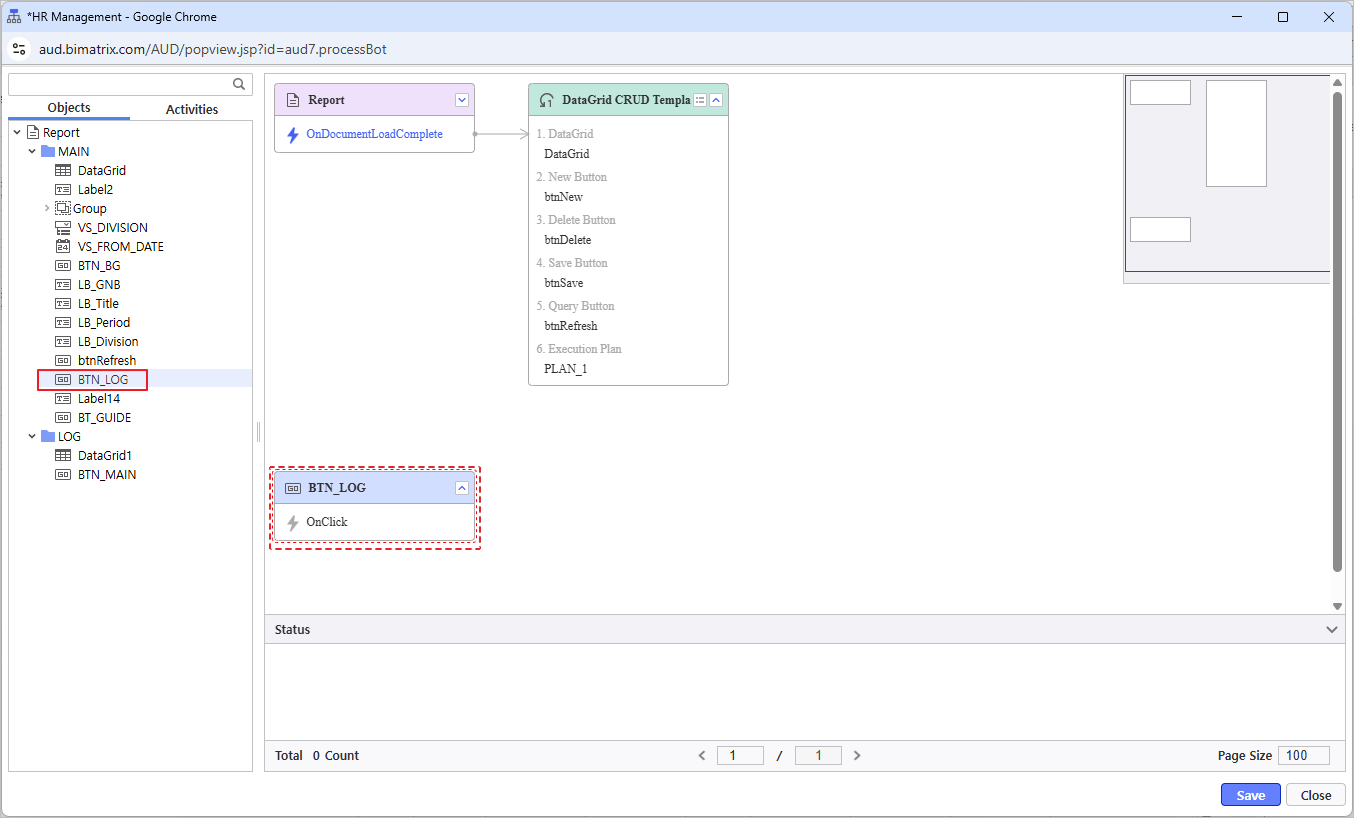
- From the Activities tab, navigate to Modules and double-click the 'Activate Form(Move to other form + Refresh)' module.
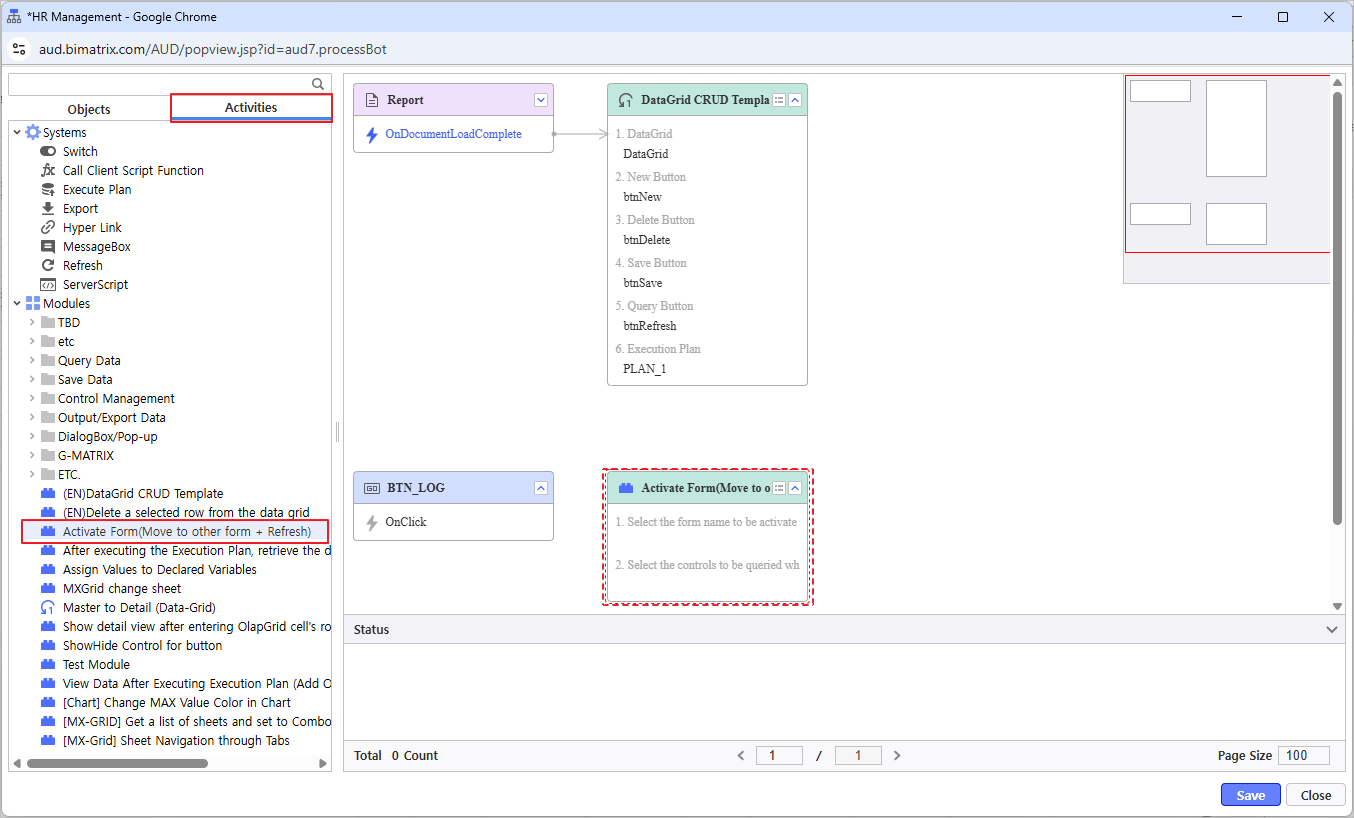
- Click the module icon( ) to configure detailed options:
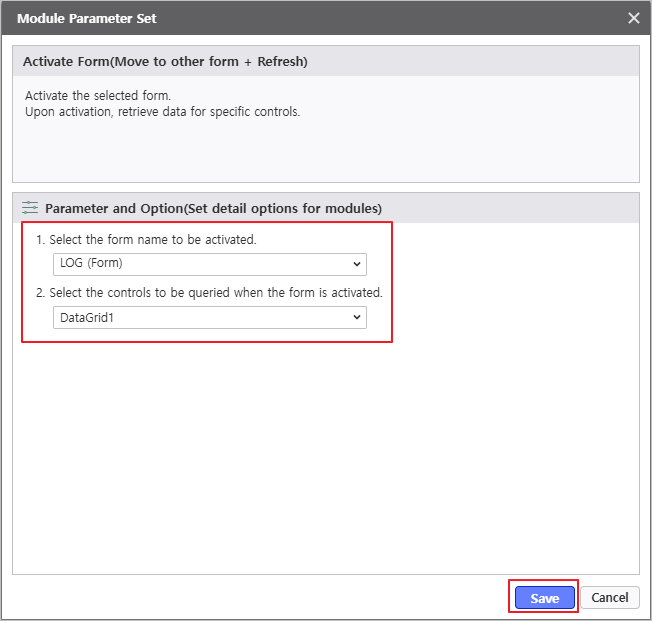
- Select options according to the module configuration.
- Configure navigation to the LOG form and inquiry for DataGrid1 upon clicking BTN_LOG button.
- Click [Save] button to complete the module setup.
- Link this module to the BTN_LOG > OnClick event.
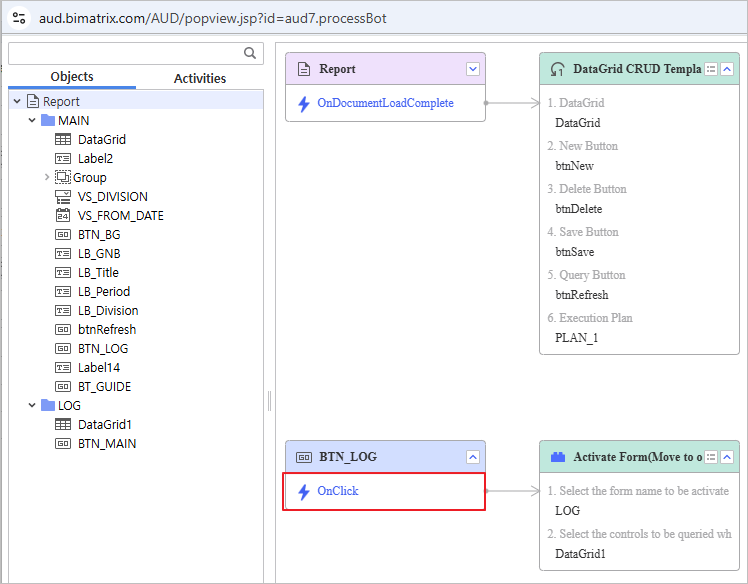
- Configure the action to navigate to the MAIN form when the BTN_MAIN button is clicked.
- Double-click the BTN_MAIN.
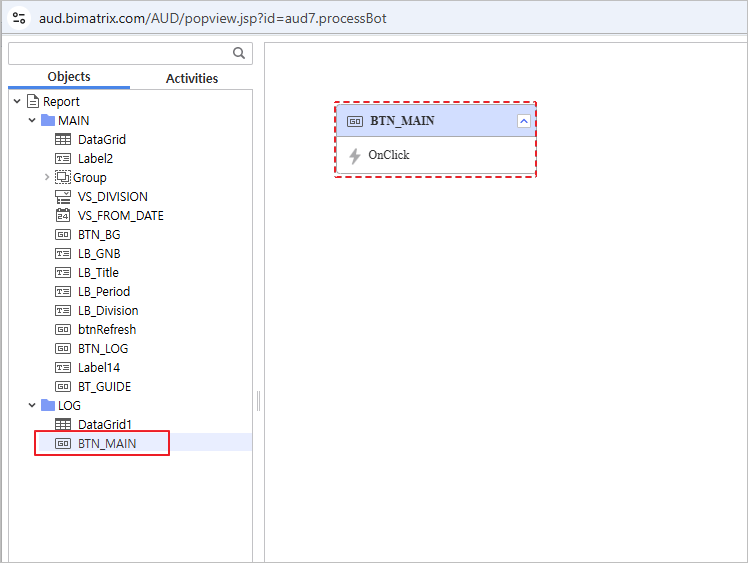
- From the Activities tab, navigate to Modules and double-click the 'Activate Form(Move to other form + Refresh)' module.
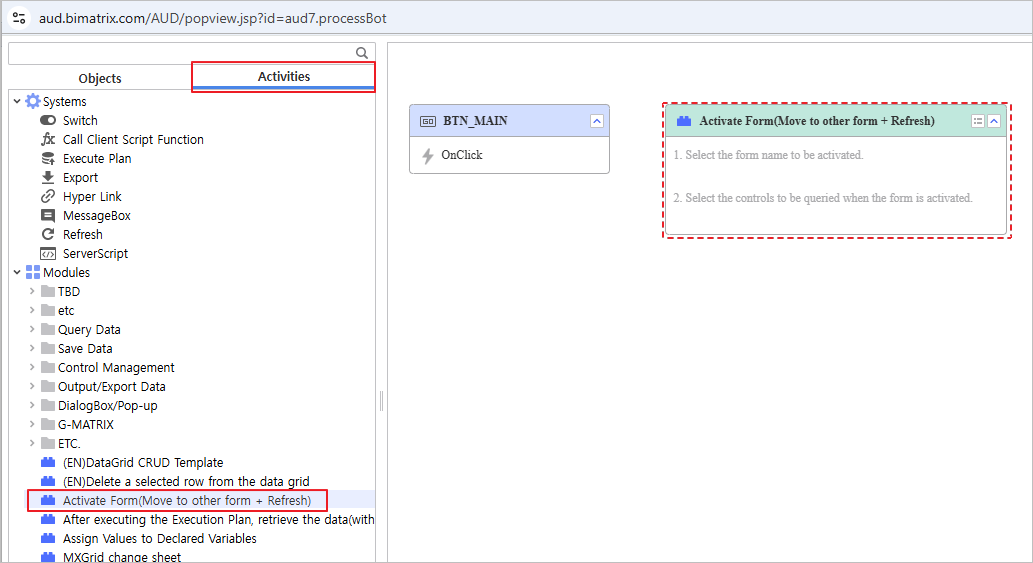
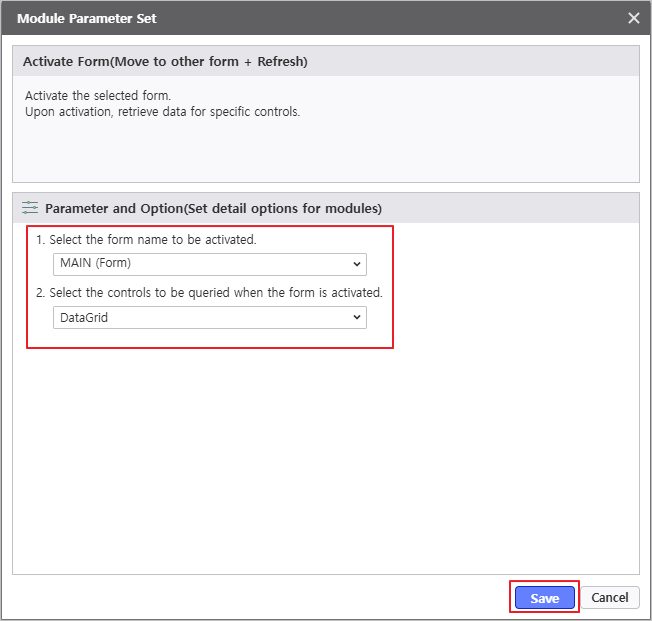
- Click the module icon( ) to configure detailed options:
- Select options according to the module configuration.
- Configure navigation to the MAIN form and inquiry DataGrid upon clicking BTN_MAIN button.
- Click [Save] button to complete the module setup.
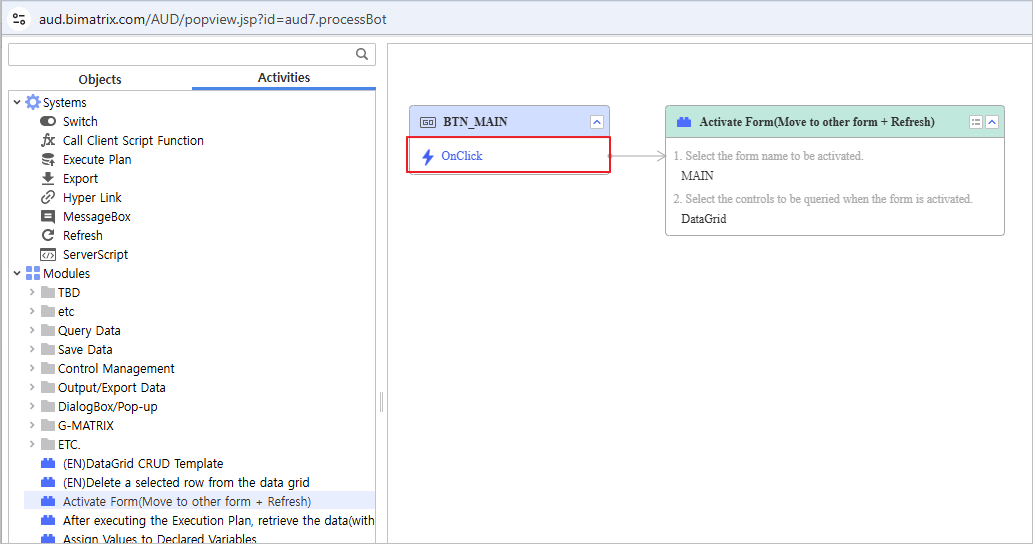
- Link this module to the BTN_MAIN > OnClick event.
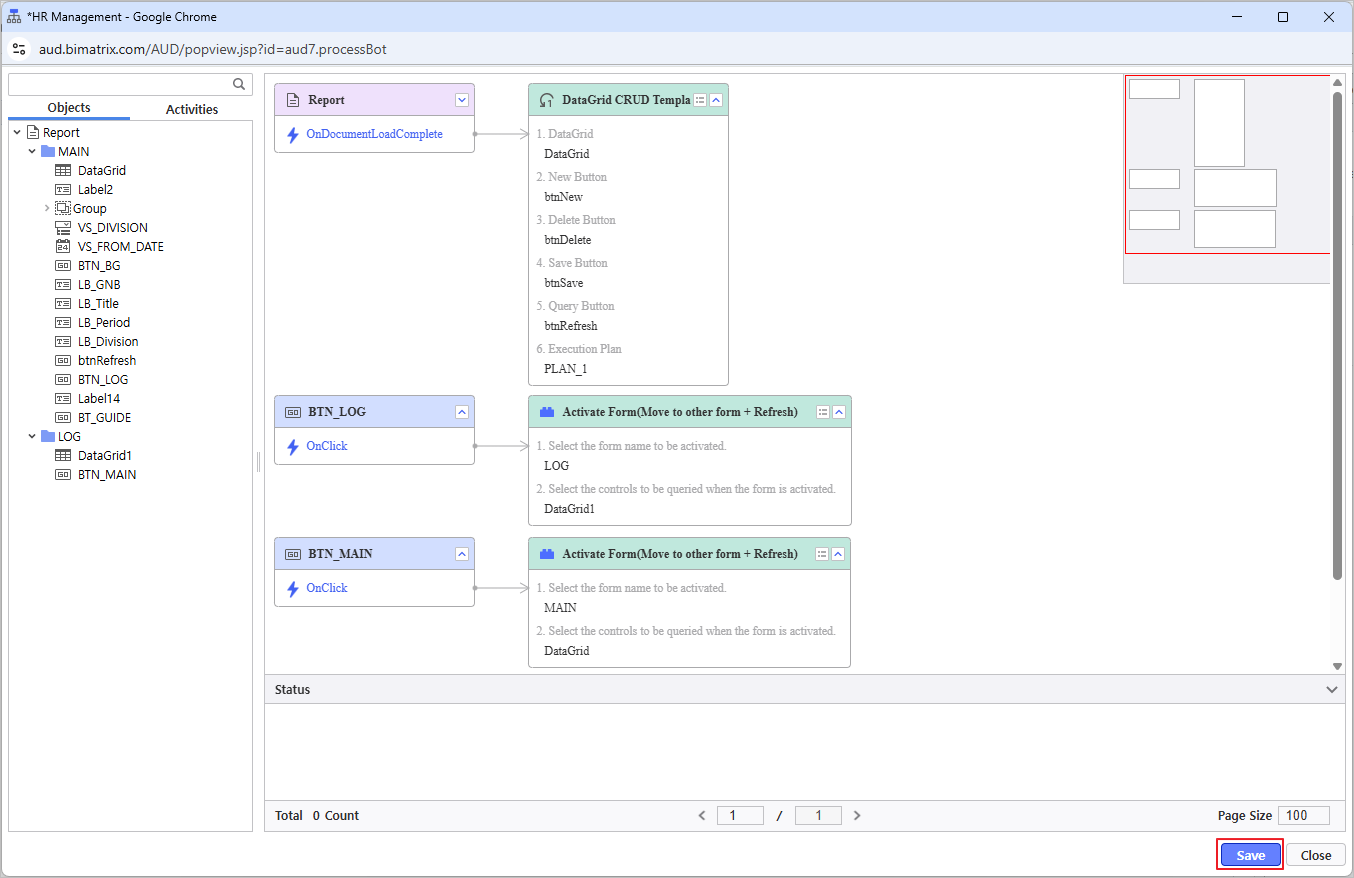
- Verify that the Process Bot is configured as shown below and save.
Verify that the report is functioning correctly.