...
1. Navigate to T1, click cell [G1E1], and define the name as VS_YM to load data based on specified inquiry criteria.
...
2. Click the [DB Bot] icon in the [i-MATRIX] toolstab.
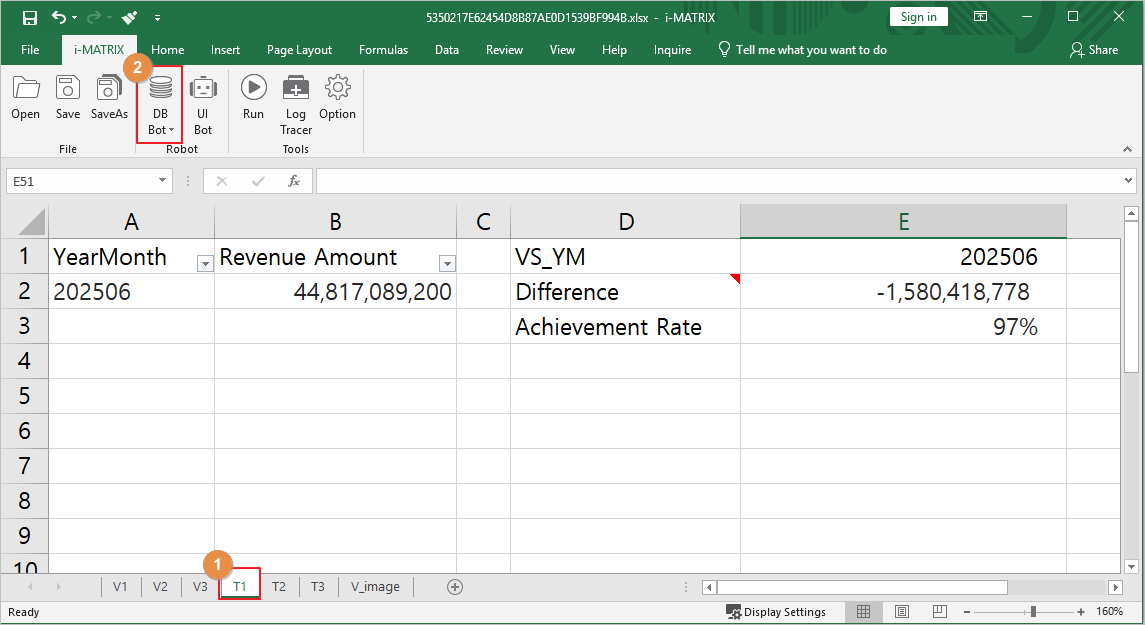
2. Path : PPDM > Samples > 3. i-META > Sales Analysis
...
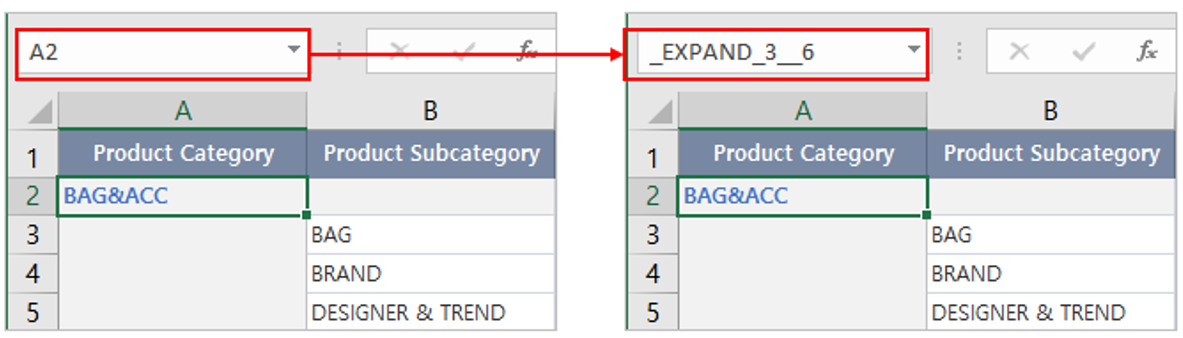
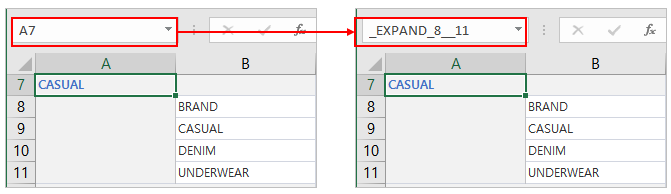
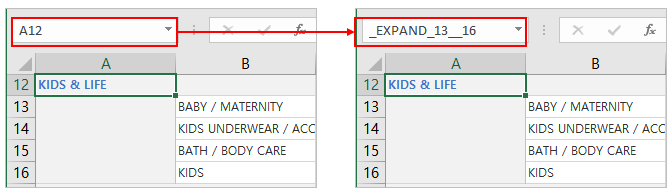
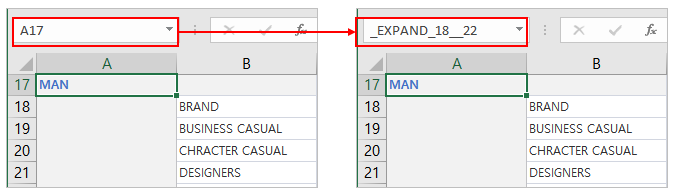
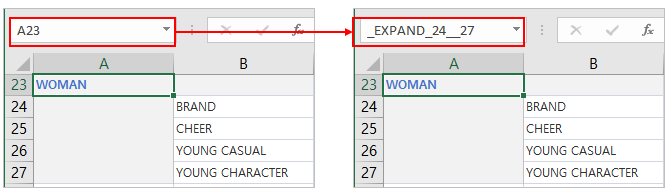
_EXPAND_?__?? : You can verify quantity, revenue amount, and average unit price by expanding/collapsing the designated number of rows for each product category. MX-Grid 예약어 ☜ Refer to the detailed guide for MX-Grid reserved keyowrds.
- V3 Sheet Defining Names of each Product Category Name Definiitonin V3 Sheet
- A2 → _EXPAND_3__6
- A7 → _EXPAND_8__11
- A12 → _EXPAND_13__16
- A17 → _EXPAND_18__22
- A23 → _EXPAND_24__27
- A2 → _EXPAND_3__6
...
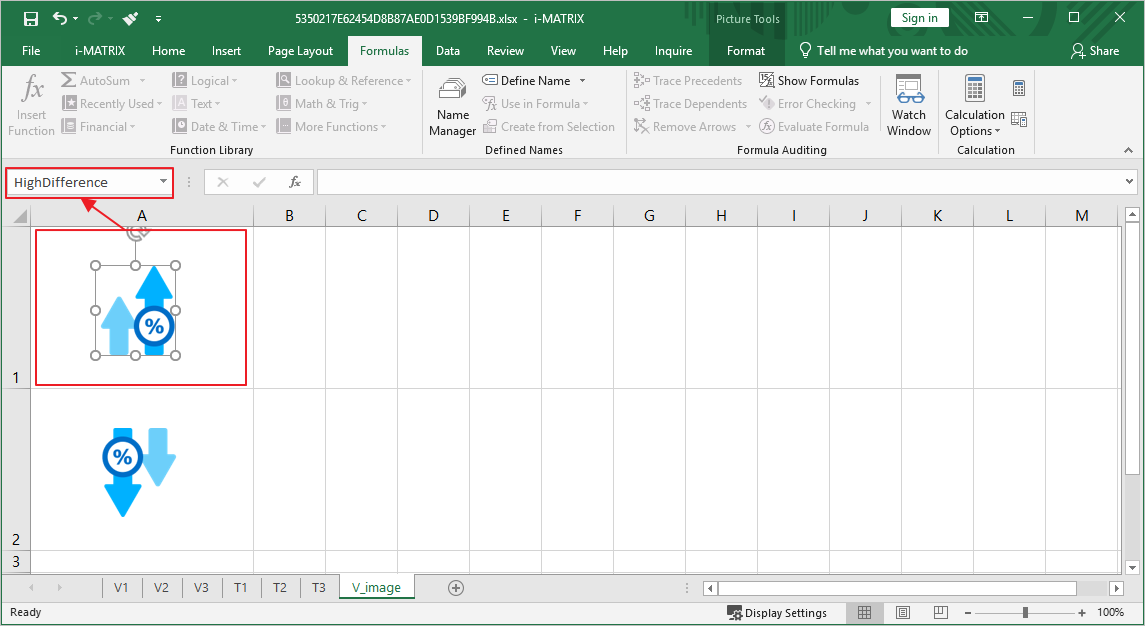
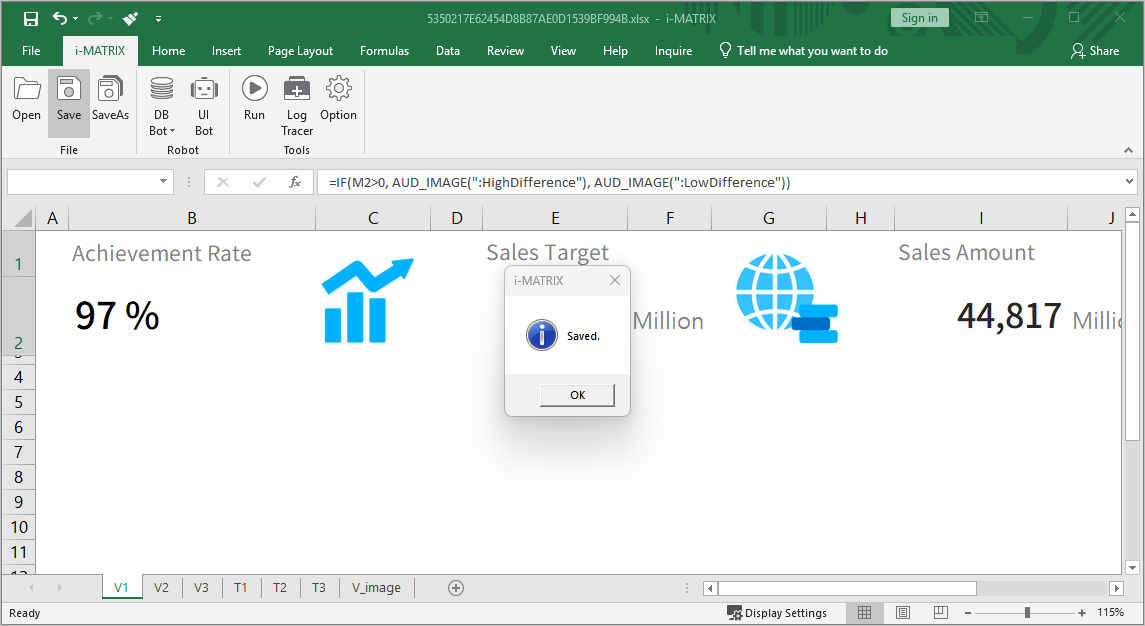
- Reference images in the V_image sheet to output different images to cells depending on whether the cell value is greater or less than 0. (Verify image name definitions)
- Enter the function into a specific cell in the V1 sheet.
Formula : =IF(L2 > 0M2>0, AUD_IMAGE(":차이상HighDifference"), AUD_IMAGE(":차이하LowDifference"))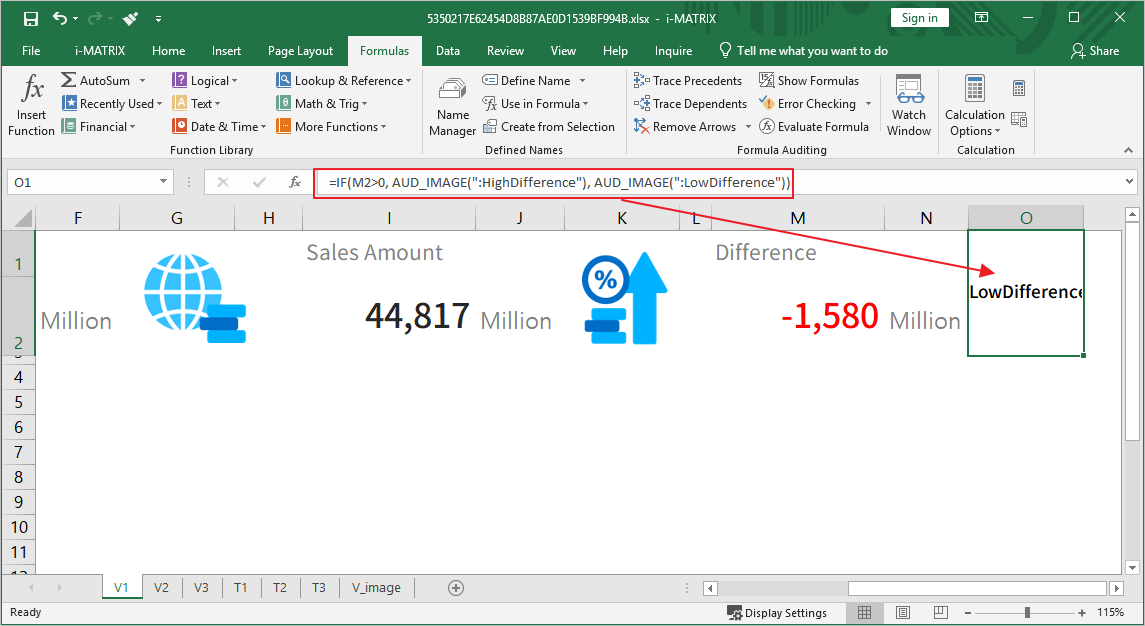
- Click the Save button in the [i-MATRIX] tools tab and close the window.
Step 6. Layout MX-Grid Screens via ActiveSheet
...
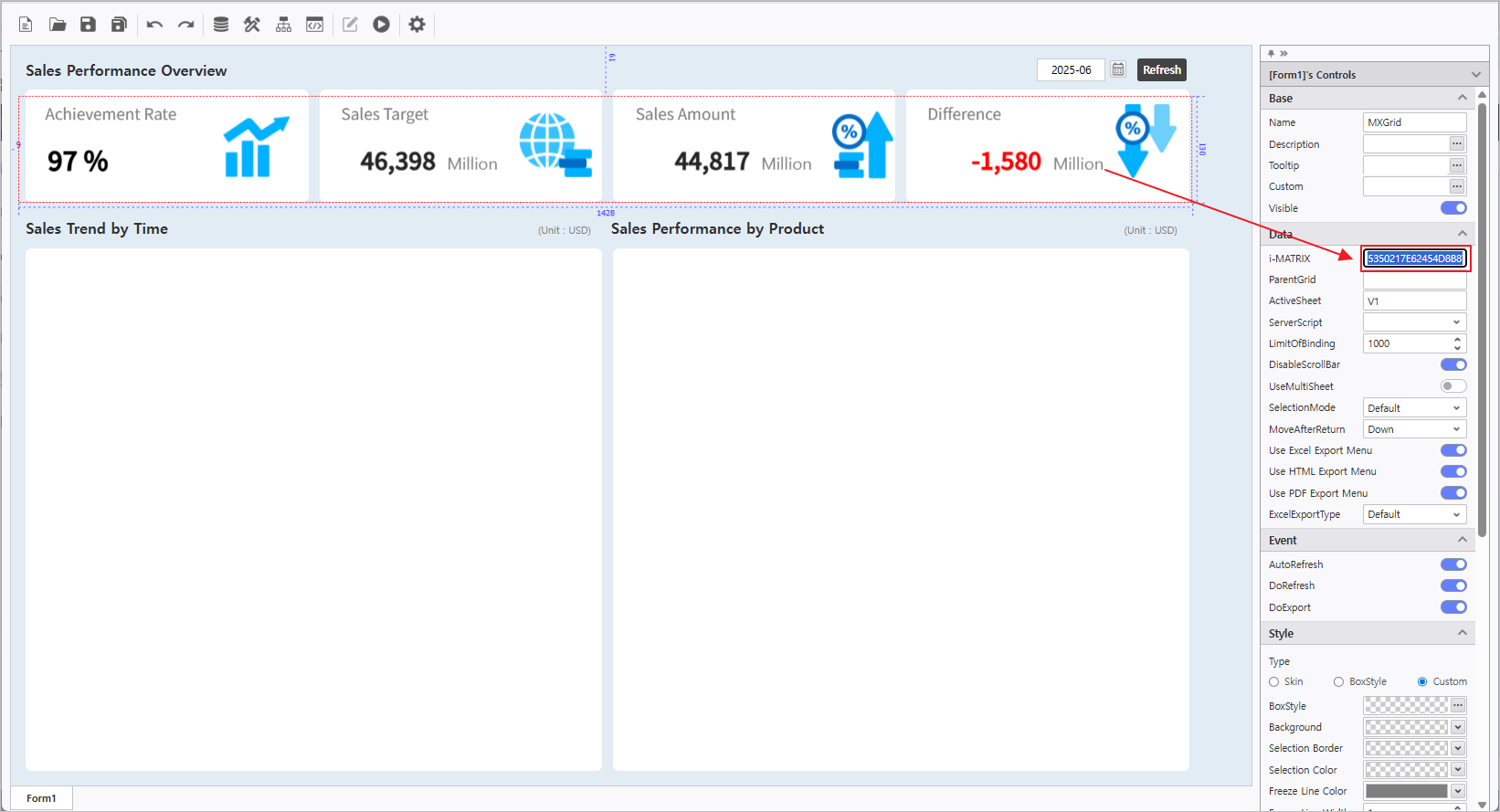
- Position the V1 sheet in the top sales summary section to display key metric ranges.
- Click MX-Grid control and copy the [i-MATRIX] address code to place the V2 and V3 sheets on the screen.
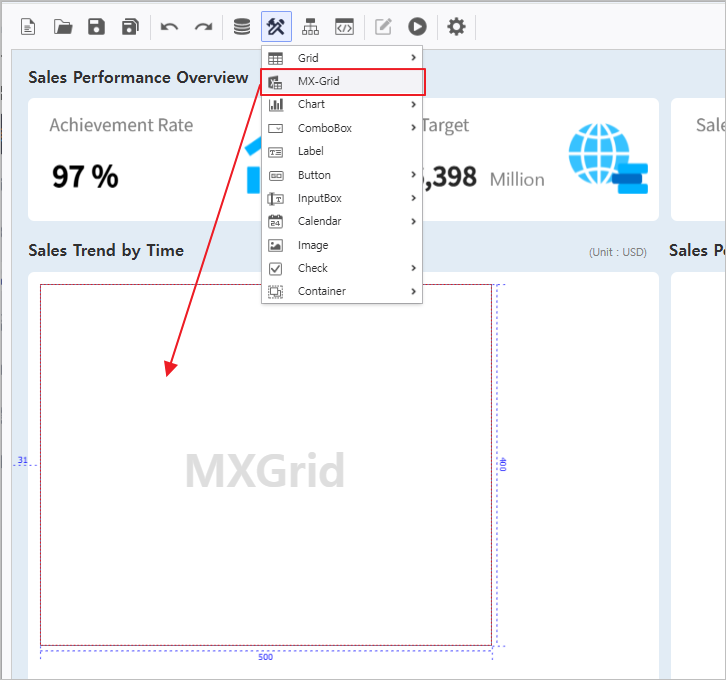
- Create a new MX-Grid component via UI Bot to arrange the V2 sheet.
- Paste the copied [i-Matrix] address into the property pane of the new MX-Grid and enter V2 in ActiveSheet and MXGrid in ParentGrid.
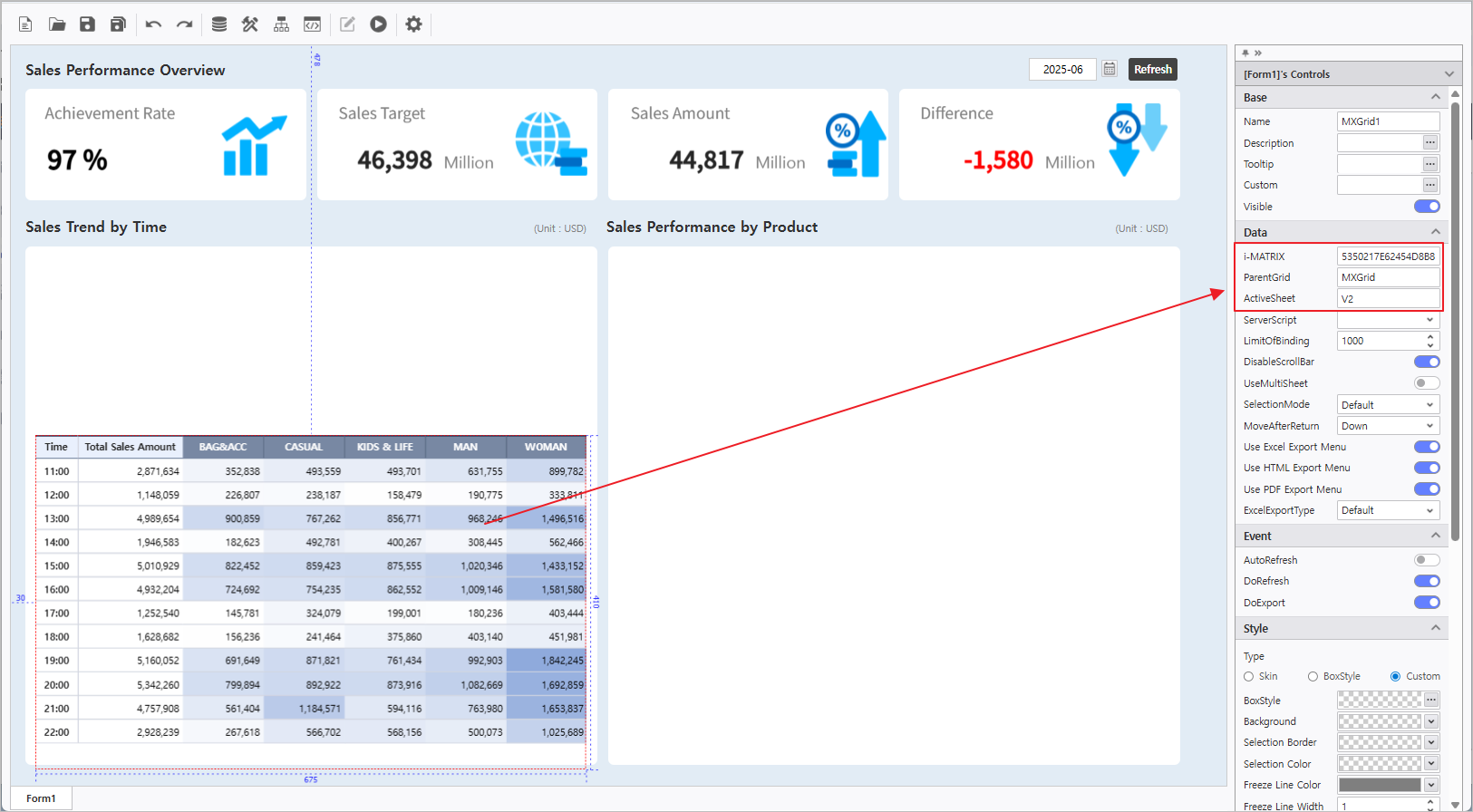
- Arrange V3 using a new MX-Grid in the same manner.
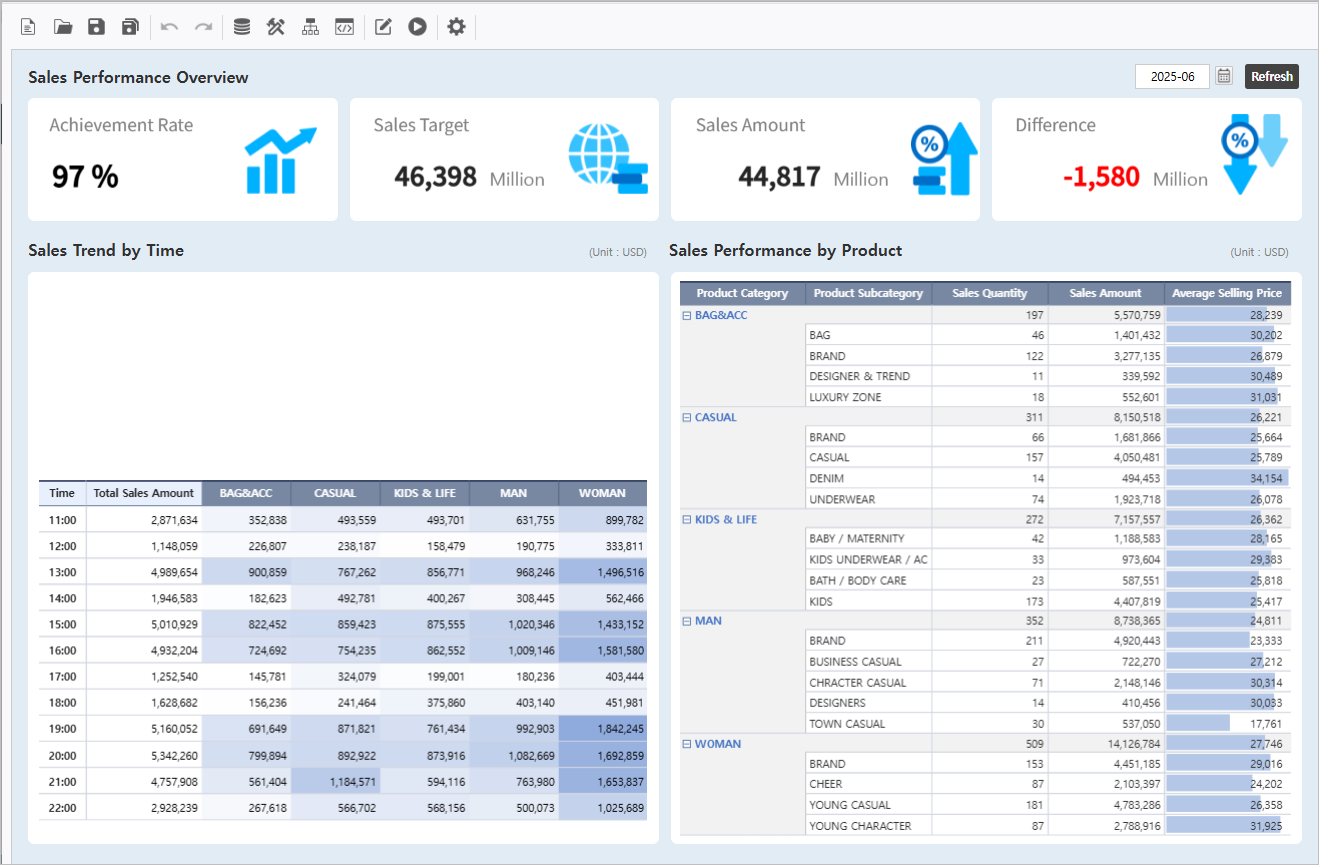
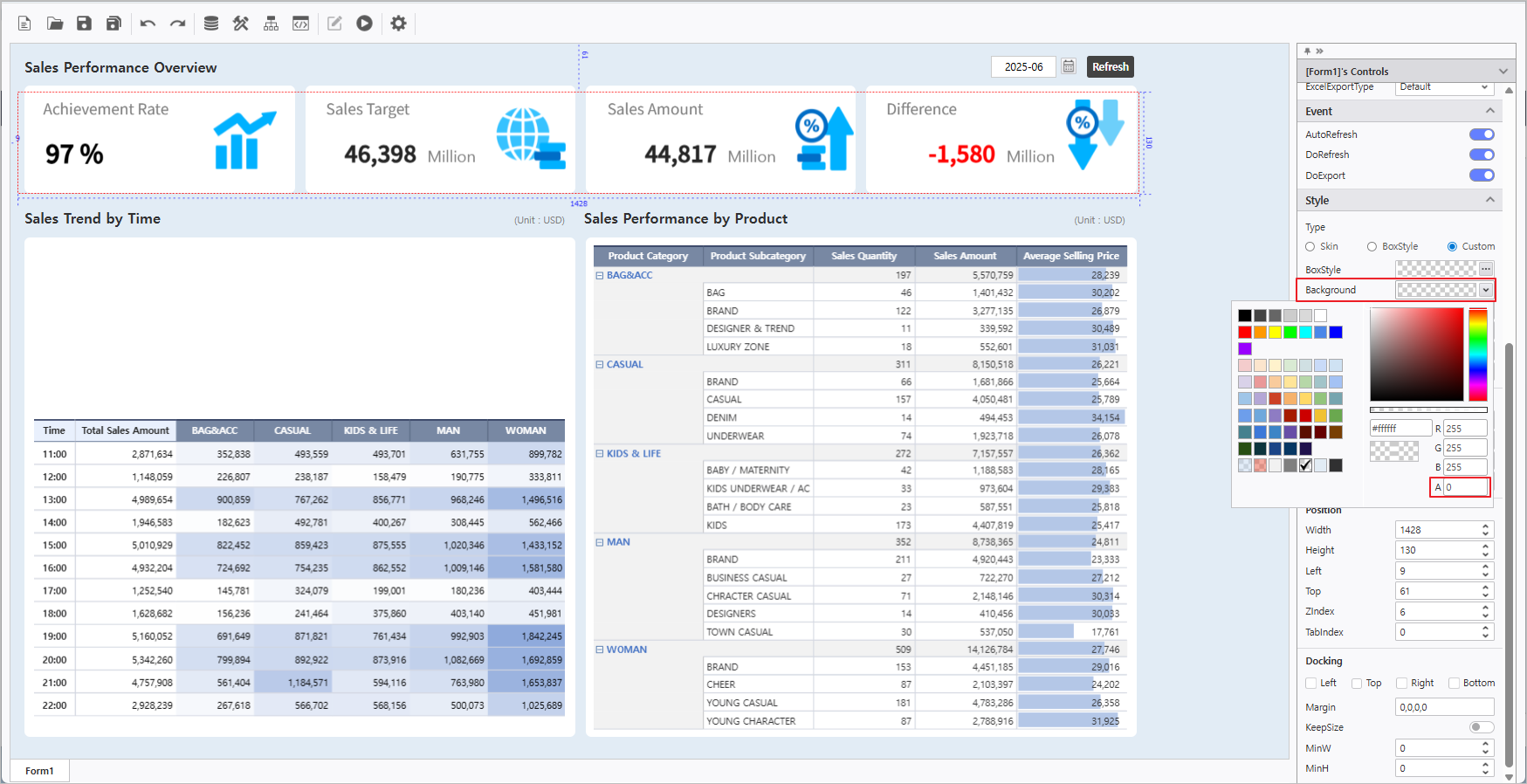
- Remove MX-Grid Background Color : Set the Background A(Alpha) value to 0 in the Style tab of the property pane.
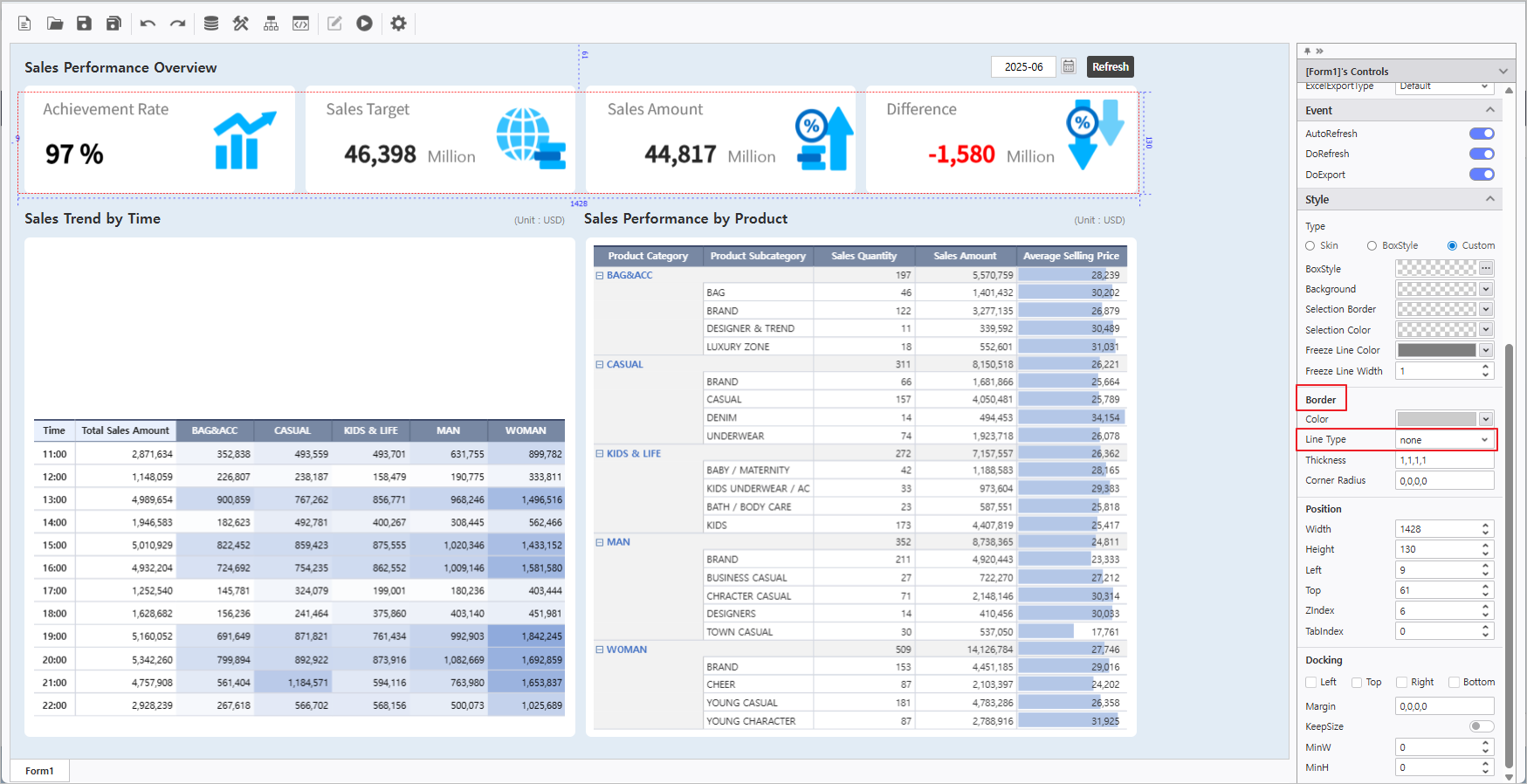
- Remove MX-Grid Blue Lines : Select Line Type: None in the Border area of the style tab.
...