...
Using Excel’s ‘Name Manager’ and the UI Bot, set up the report so that data can be entered directly on the web.
Right-click on the report area, then select Design.
참고사항 title Naming Rules for the Data Input Screen To configure the data input screen, you must follow these three rules:
Name the data entry area “data1”.
Set the cell format to ‘Number’ for numeric input and ‘Text’ for text input.Name the table area to be aggregated “table1”.
In the top-left corner of the area defined as table1, you must enter the table name.
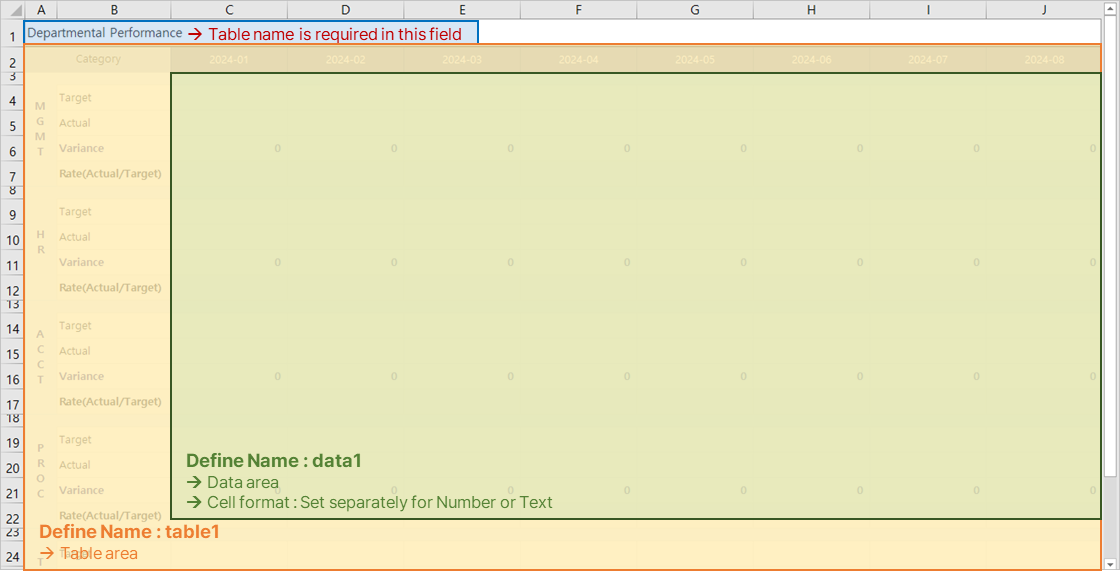
According to the rules, select the area on the sheet where data will be entered and name it “data1”.
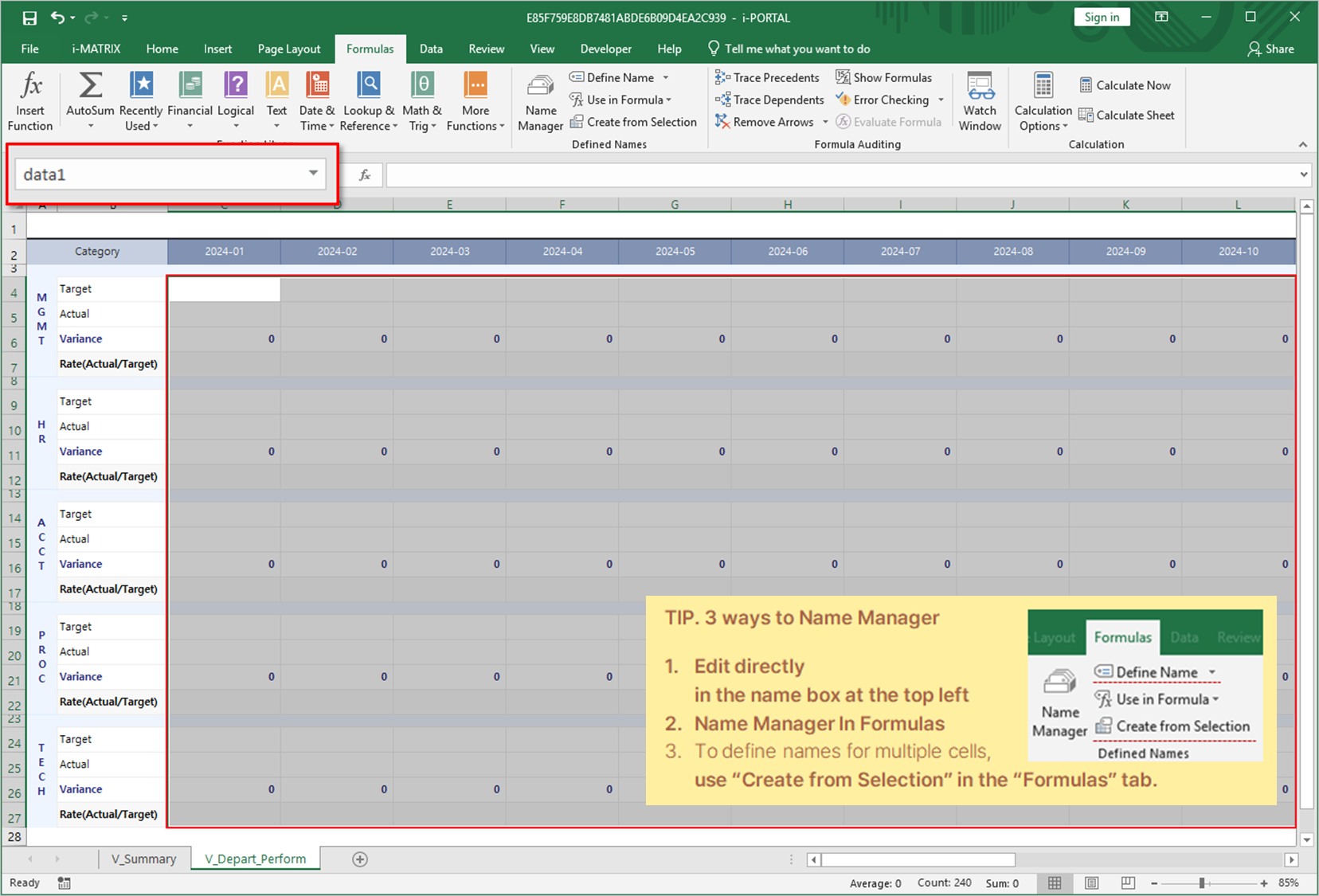
Select the entire table form to be aggregated and name it “table1”.
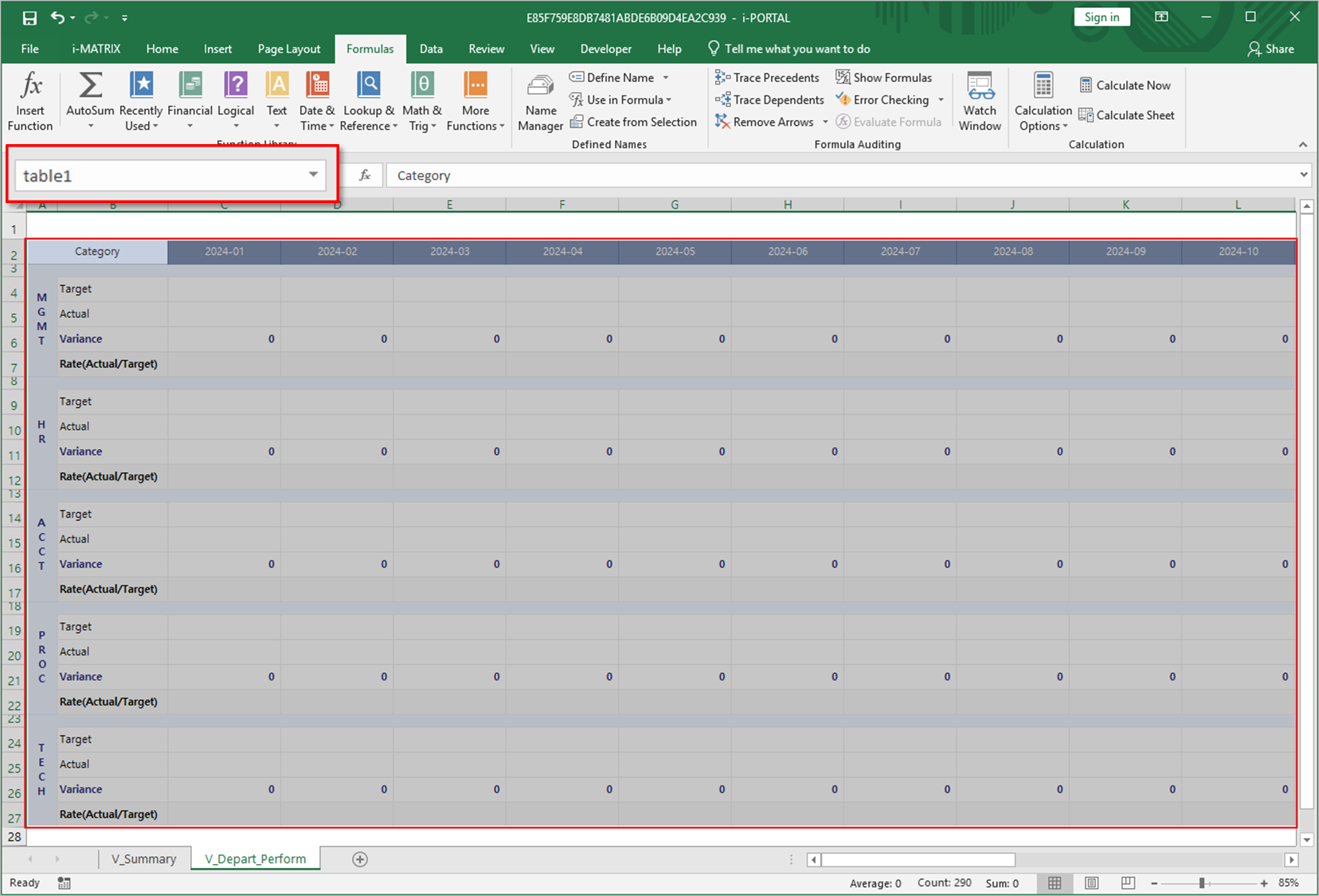
- In the top-left corner of the area defined as table1, enter the table name.
If you don’t want this to be visible on the web, you can hide the row in Excel.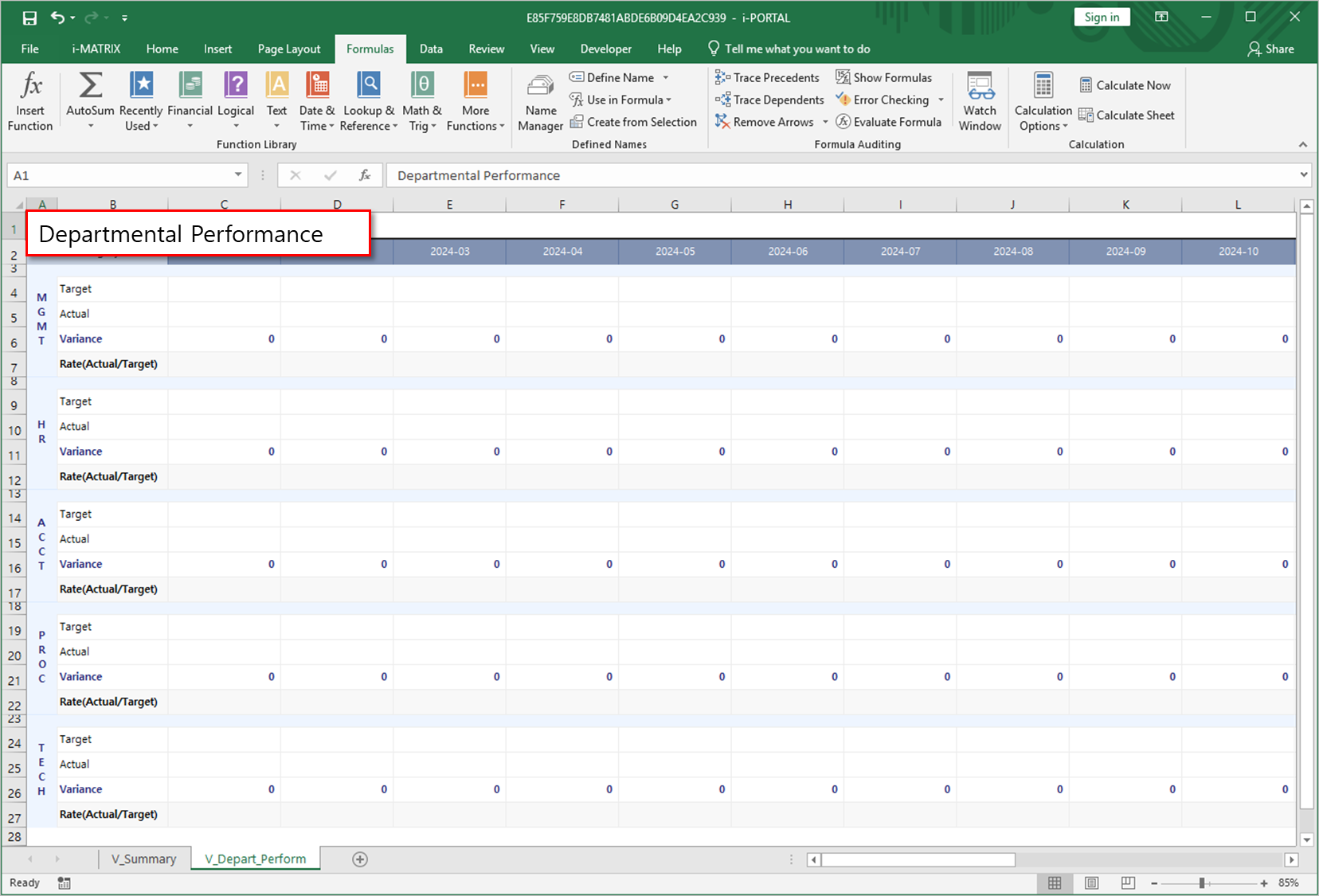
- The setup for web data entry is now complete.
Next, we will configure the report so that data can be entered and saved with a click, and the saved data can be retrieved. Go to the ‘i-MATRIX’ tab in the ribbon and click 'UI Bot’.
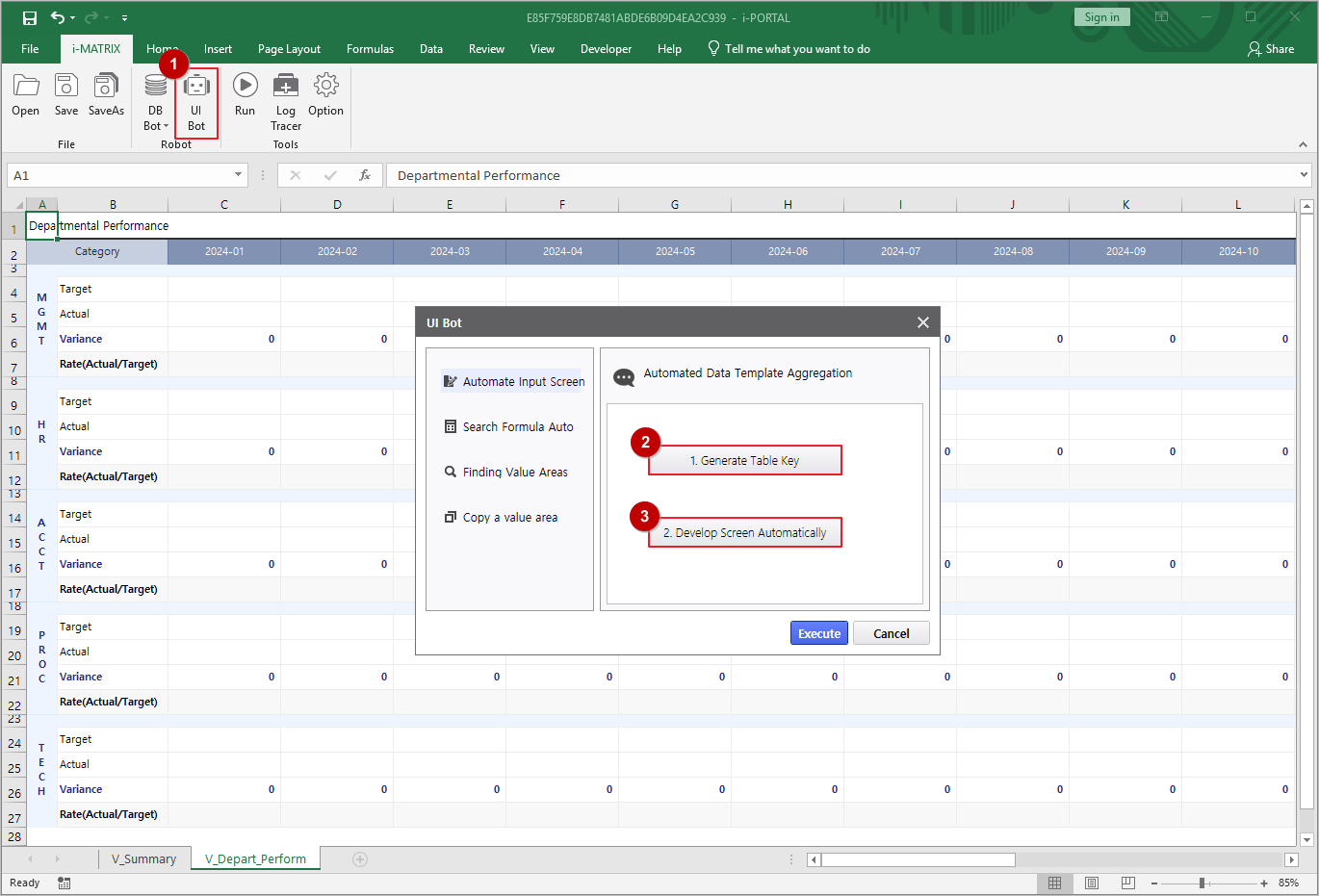
- Move to the P1 sheet. Use the VS_YM variable so that department performance can be displayed based on the date selected via the calendar.
- Define the VS_YM variable and enter the desired year and month.
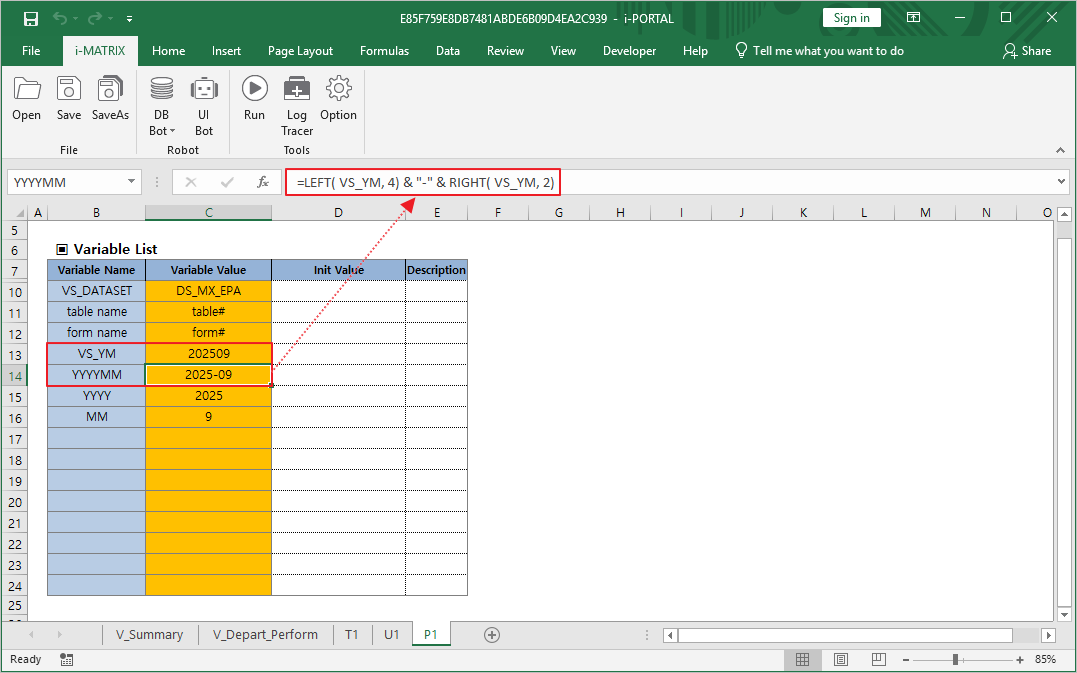
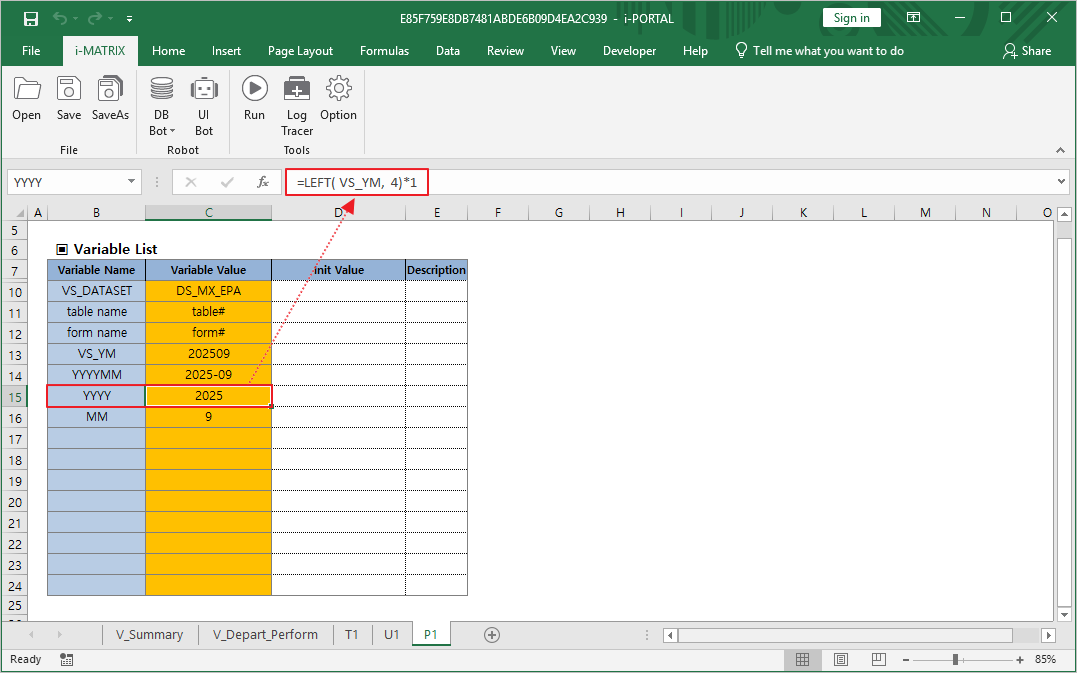
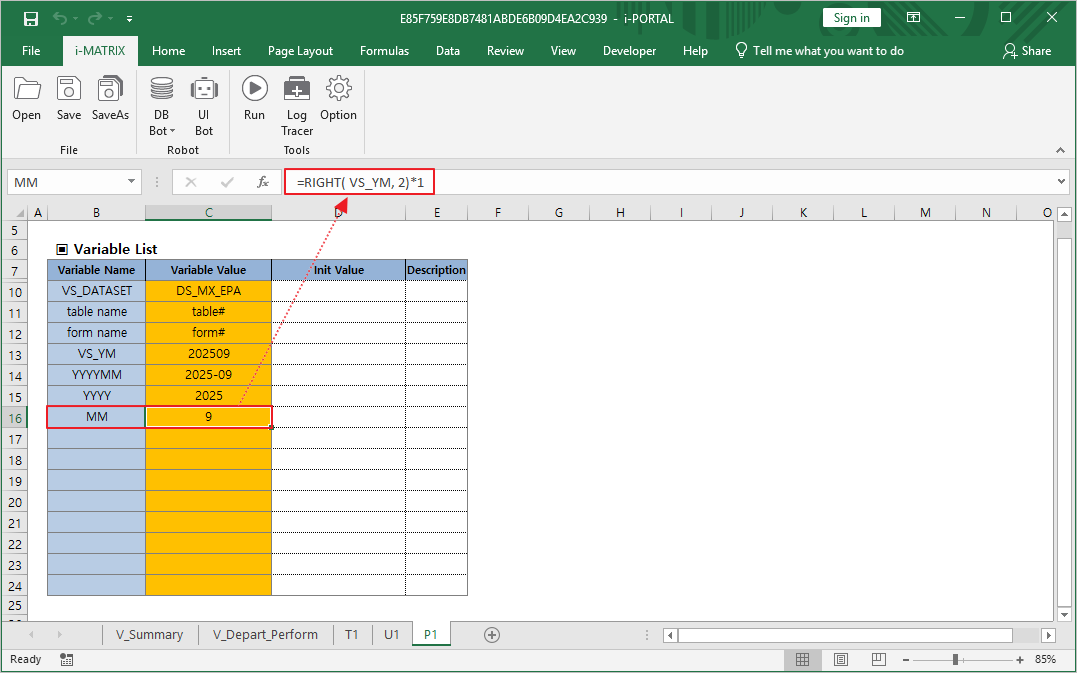
- Additionally, define YYYYMM, YYYY, and MM, and set the formulas as follows.
- YYYYMM formula : =LEFT( VS_YM, 4) & "-" & RIGHT( VS_YM, 2)
- YYYY formula : =LEFT( VS_YM, 4)*1
- MM formula : =RIGHT( VS_YM, 2)*1
- Now, let’s move to the ‘V_Depart_Perform’ sheet.
- Use AUD_HIDE_COLUMNS to hide columns in the web display that fall outside the selected year and month.
Formula : =AUD_HIDE_COLUMNS( OR( LEFT( E4, 4 )*1 <> YYYY, RIGHT( E4, 2 )*1 > MM ))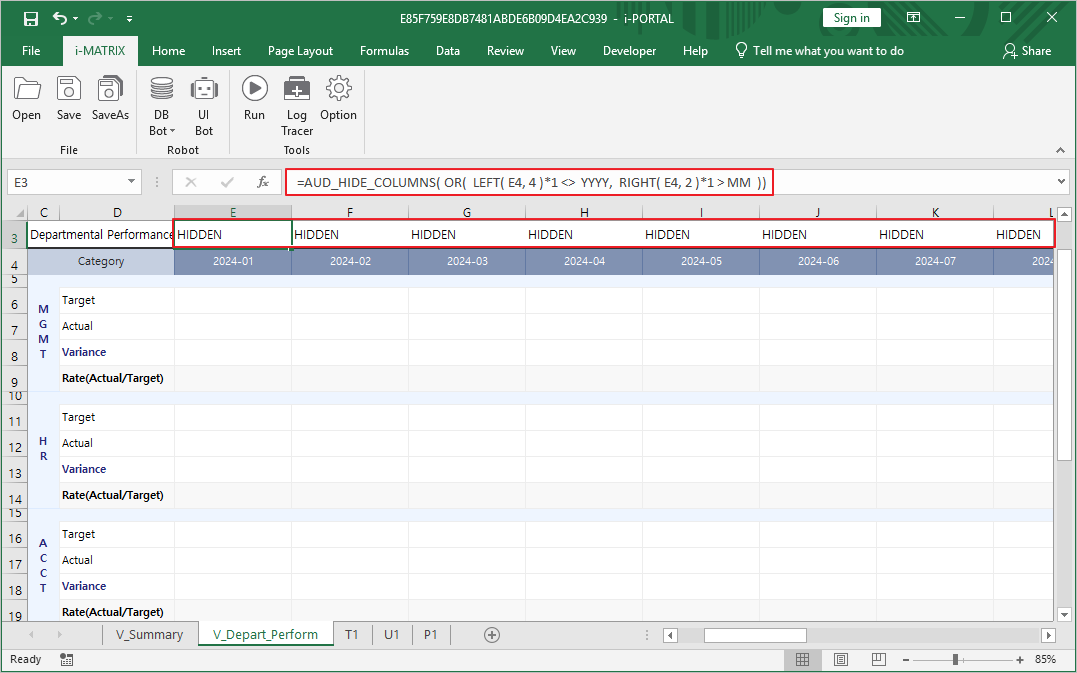
- On the ‘V_Summary’ sheet, display the data entry screen title in the top-left corner.
Formula : =YYYY &"년 "& MM &"월 실적 현황 보고서""Departmental Performance Report — " & TEXT(DATE(LEFT(VS_YM, 4), RIGHT(VS_YM, 2), 1), "mmmm") & ", " & YYYY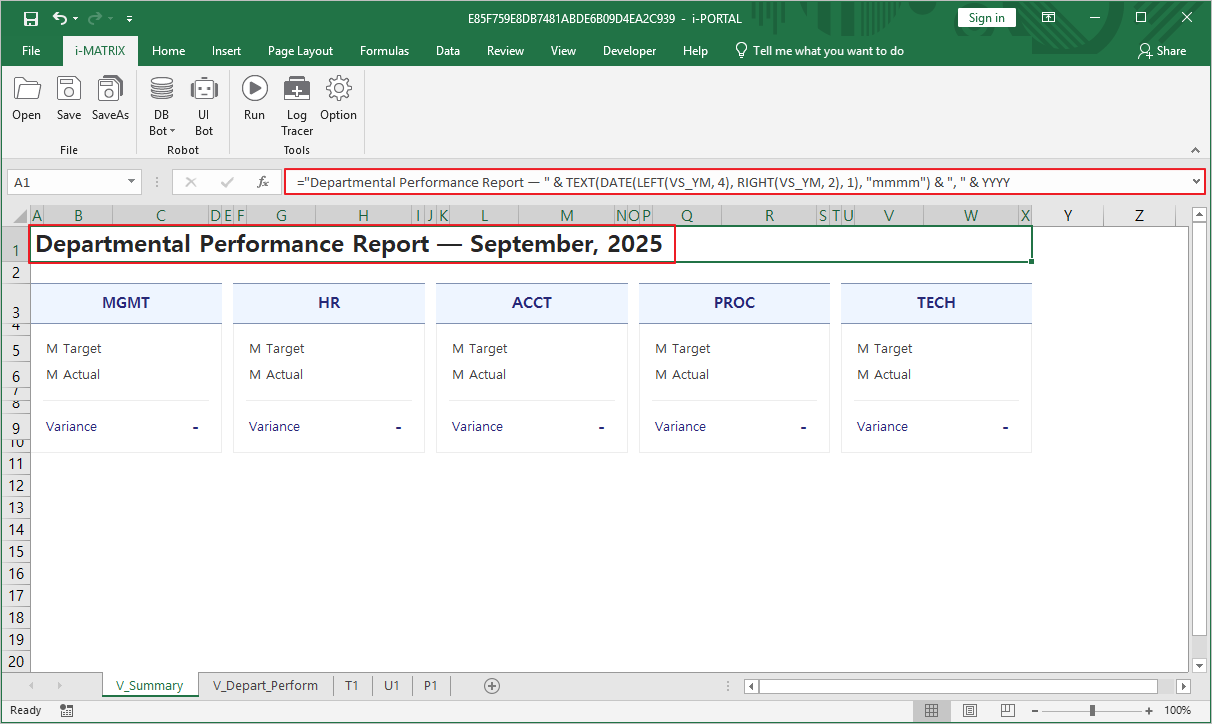
- The report setup and save are now complete. Return to the AUD Designer screen.
...